Read Tool
The ViDiELRead tool enables automatic recognition of text, including letters, numbers, and symbols, from images or live camera feeds. It offers two operational modes:
-
User-Trained: allows you to define specific text patterns by labeling examples and is ideal for achieving higher accuracy on user-specific characters or fonts.
-
Pre-Trained: uses built-in models for immediate deployment.
Additionally, the tool supports three fielding options to accurately detect and interpret text within different image contexts.
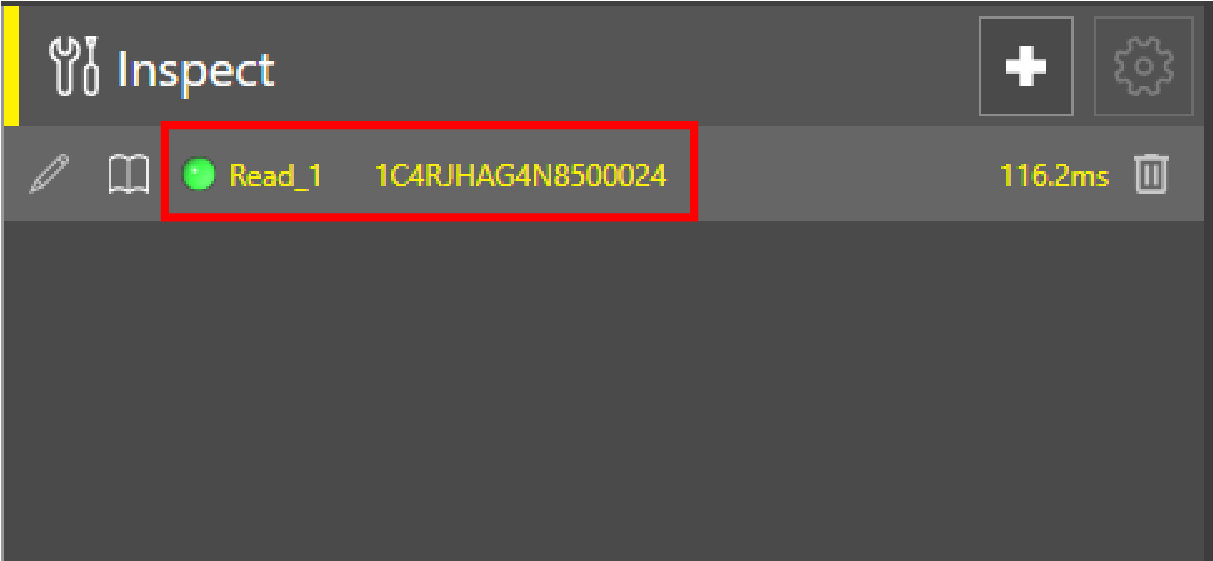
To add the Read tool:
-
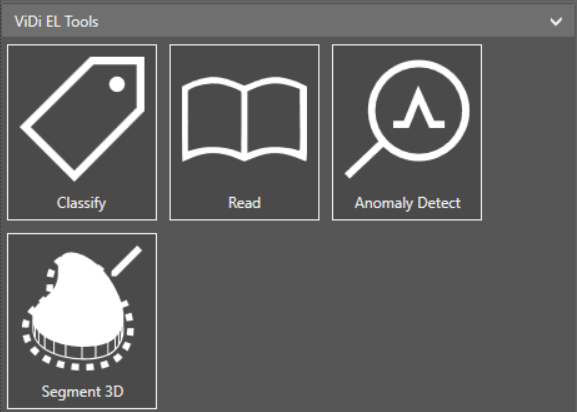
Select the Read tool under the ViDi EL Tools group in the Inspect application step.
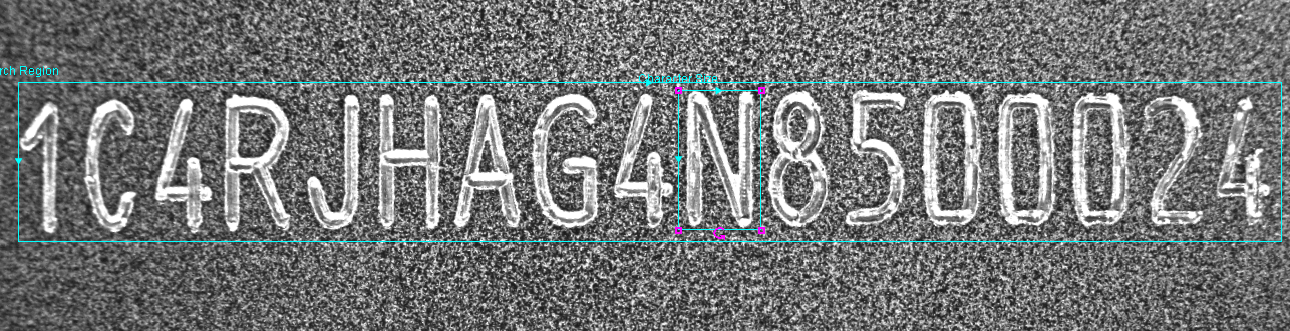
- Position the Search Region around the area to search. Position the Character Size region over the character you want to find. To resize the search boxes, click and drag the corners. To rotate the search boxes, click and drag the rotate button.
-
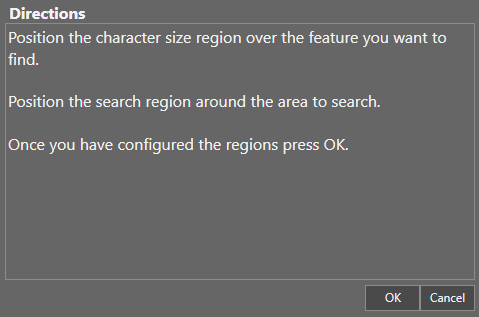
Click OK under the Directions box.
-
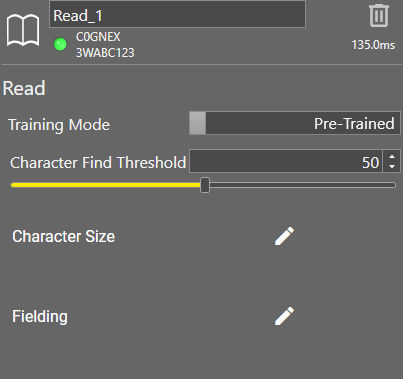
After you click OK, the Read tool appears in the list of configured tools, and the Read tool property edit panel opens up.
-
By default, the tool uses a pre-trained model to train the letters and numbers in the Search Region automatically. In the simplified settings, the tool uses the V2 Standard model in the Pre-Trained mode.
To access all available pre-trained models, click the Advanced Tool Settings button in the top right corner of the settings pane. If the Training toggle is set to Pre-Trained, the Pre-Trained Model dropdown becomes visible, and you can select which model the tool uses.
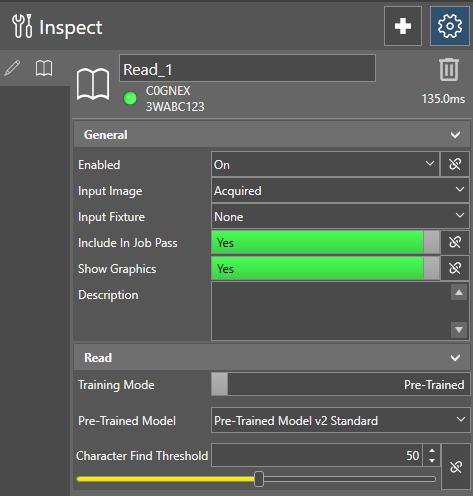
The following pre-trained models are available:
-
Pre-Trained v1 Standard: this model requires a tight bounding box for character size, and is best for monospace fonts. Supports uppercase characters, numerical digits, and the following special characters: ‘:’, ‘/’, ‘-‘, ‘+’, ‘&’
-
Pre-Trained v2 Standard: this model can recognize fonts with variable character size, and requires an input character size that fits the average character size. Supports uppercase characters, numerical digits, and the following special characters: ‘:’, ‘/’, ‘-‘, ‘+’, ‘&’
-
Pre-Trained v2 Complete: this model provides additional character support on top of the V2 Standard model. Supports uppercase and lowercase characters, numerical digits, all printable ASCII symbols and the € character.
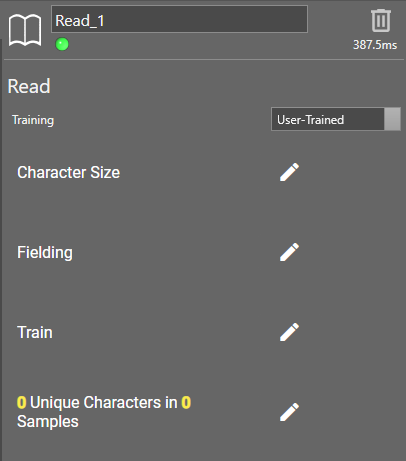
You can also train the tool manually. Click the Training toggle to switch from Pre-Trained to User-Trained mode. Two new fields appear: Train and Unique Characters in Samples.
-
 Character size
Adjust the Character Size search box. The search box cannot be rotated. Place the character size around a character.

- Cognex recommends that you leave a certain amount of margin with the search region around the characters to be read. A margin of half of the character width around the text can be enough.
- Pre-trained v1: -10% — +5%
- Pre-trained v2: -15% — +30%
The character size tolerance for the different pre-trained models are:
When using User Trained mode, or the Pre-Trained v1 Standard training mode, place the search box tightly around a character. This model works best with monospace fonts.
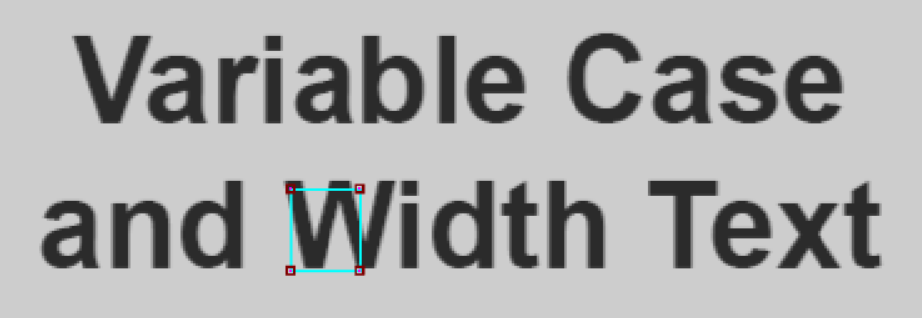
When using one of the Pre-Trained v2 training modes, place the search box loosely around an average-sized character. The V2 models can recognize variable width fonts. For example, if the text you want to process contains a W that is significantly wider than other characters, the search box can be smaller than the W, but needs to be bigger than a V.
If you are using the Pre-Trained v2 Complete model, which also supports lowercase characters, you can set the height of the character size box between the height of uppercase characters and the height of lowercase characters.
|
|
|
 Character Find Threshold
Defines the minimum confidence threshold for classifying a candidate as a character. The final scores combines the likelihood of being a character and matching a specific character class. As a result, low-scoring characters can still appear as possible characters.
You can set the threshold between 0 and 100, the default value is 50.
Use the slider, or type in a number to set the value.
Fielding
You can set the tool to accept only certain characters or patterns under Fielding. There are two main settings, Variable number of characters and Fixed number of characters.
-
Variable number of characters
The tool reads all the characters in the image.
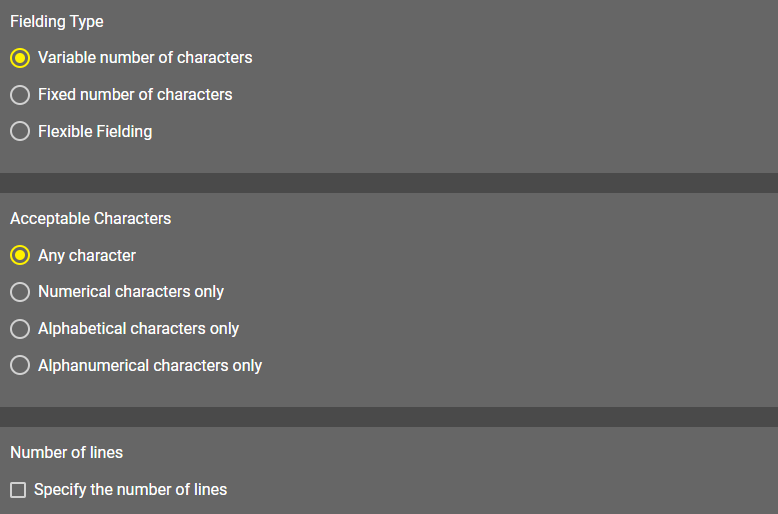
Acceptable Characters: Specify what type of characters the Read tool recognizes.
-
Any character: The tool searches for letters, numbers, and symbols (for example <, $, ?).
-
Numerical character only: The tool searches for numbers only.
-
Alphabetical characters only: The tool searches for letters only.
-
Alphanumerical characters only: The tool searches for numbers and letters.
Number of lines: Tick the box next to Specify number of lines if the characters in your image are arranged in multiple rows. Enter the number of rows in the Number of lines input field.
-
-
Fixed number of characters
The tool reads a character pattern or character patterns on the image. The tool recognizes characters that does not fit the provided pattern, but returns an error.
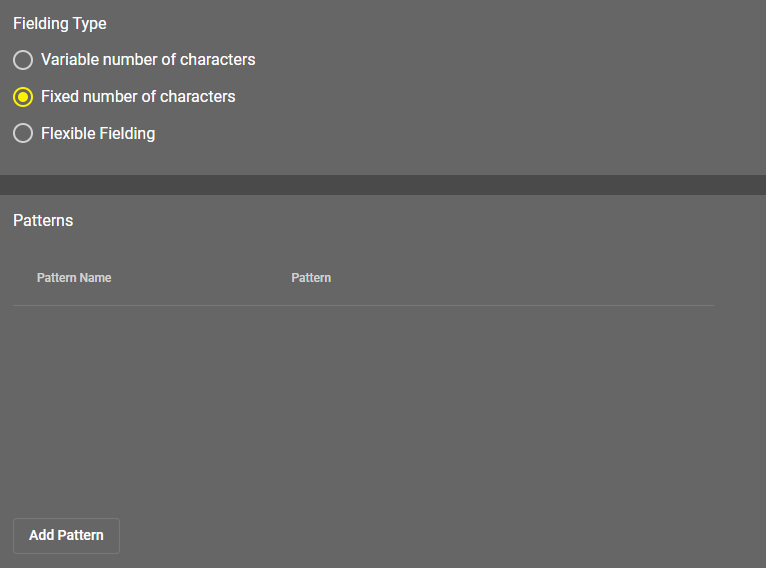
The pattern uses a simple regular expression style composed of constant characters (alphanumerical and special characters) and metacharacters.
You can use the following metacharacters:
-
"\d": matches any numerical character [0-9].
-
"\l": matches any alphabetical character [a-z, A-Z].
-
"\w": matches any alphanumerical character [a-z, A-Z, 0-9].
Examples of valid patterns:
-
"\d\d\d\d": matches a number composed of four digits.
-
"\l\l\l": matches a word composed of three letters.
-
"\d\d:\d\d:\d\d": matches a time in the HH:MM:SS format.
-
"N\d\d\d\l\l\l": can be used to read a serial number starting with 'N', followed by 3 digits and 3 letters.
You can apply multiple patterns for one Read tool configuration by clicking the Add Pattern button. If you provide multiple patterns the tool returns the name of the matching pattern during reading.
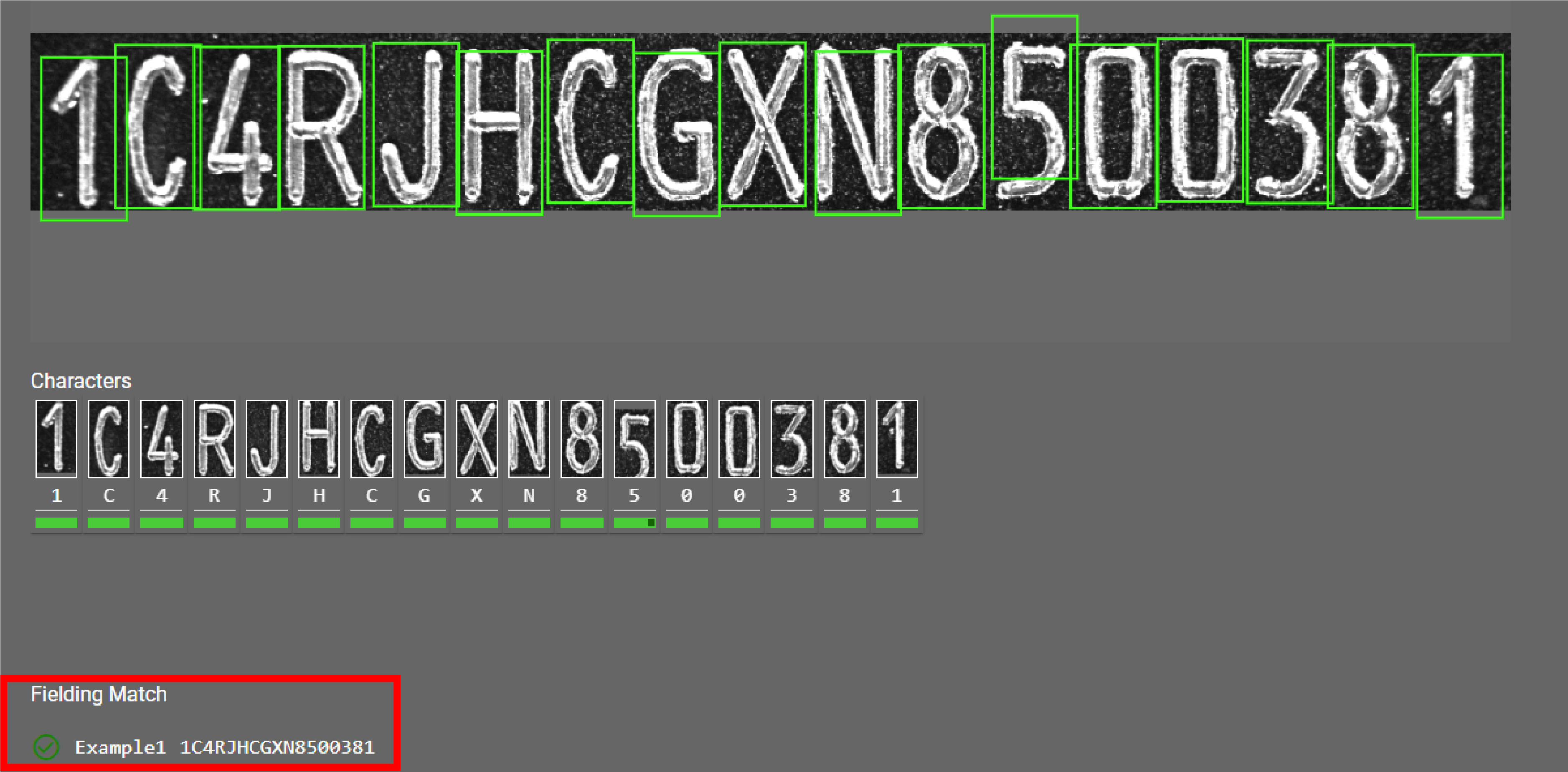
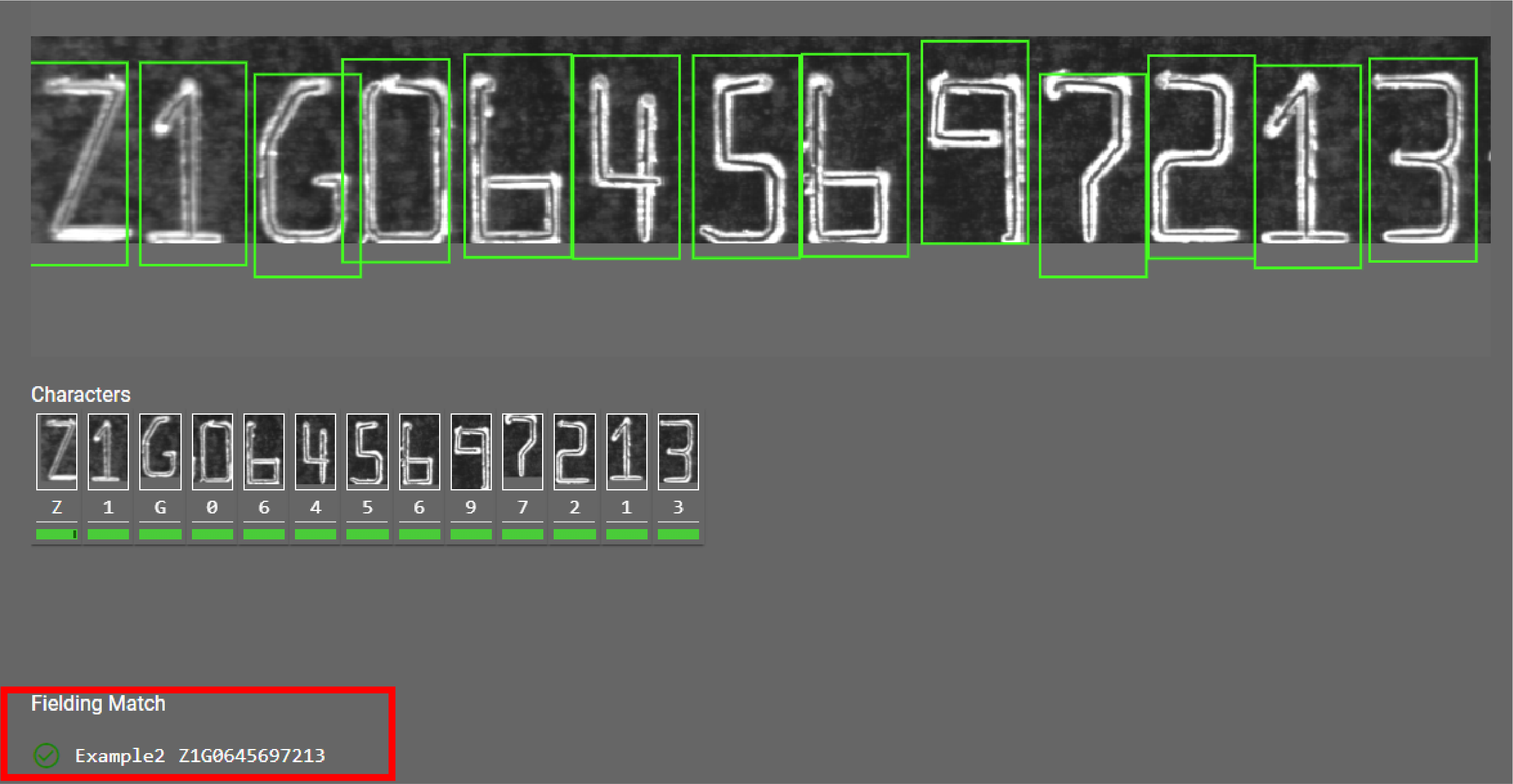
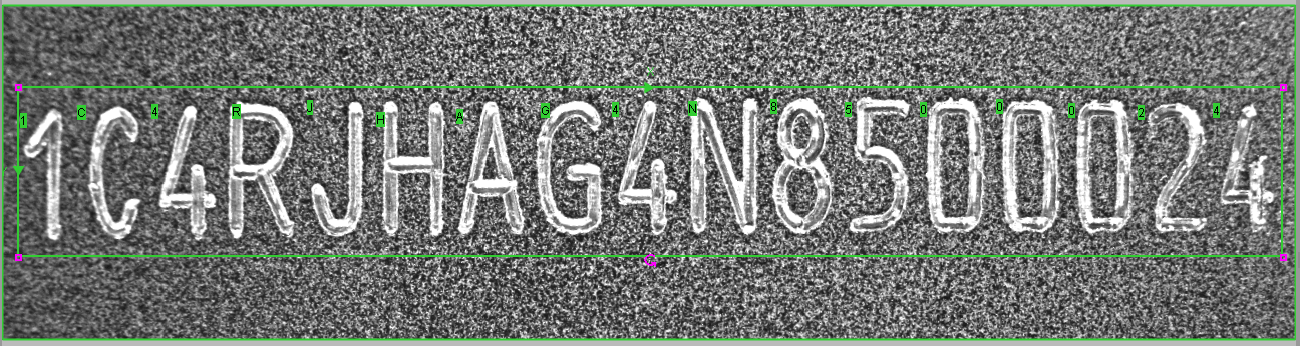
Formula used: 1C4RJH\w\w\w\w\d\d\d\d\d\d\d Formula used: Z1\w06456\d\d\d\d\d -
-
Flexible Fielding
Flexible fielding allows you to capture specific texts and filter out false detections. The flexible fielding is defined using a series of fixed anchoring patterns (for example, “BEST BY” or “SERIAL”) and flexible Regex A regular expression (shortened as regex or regexp), sometimes referred to as rational expression, is a sequence of characters that specifies a match pattern in text. patterns (for example, to match digits, upper case letters, a specific range of characters, and so on). The anchoring and Regex patterns determine the allowed character classes in the text. Flexible fielding filters out candidates for different characters based on these patterns, finding the combination that best matches the specified patterns, effectively “coercing” the classification. For example, if the user is only looking for digits at a certain position, this can turn a ‘I’ into a ‘1’.
Specific portions of the flexible fielding can be captured. The detected characters that match a capture group is reported in the string output. The other detected characters are not reported in the string output. The non-captured groups can be used to align the text or to filter out false, or flaky detections (for example, using wildcards).
Flexible fielding computes a fielding score from the individual scores of the fielded characters. Both capturing and non-capturing groups are used to compute the fielding score, except for non-capturing wildcards. The fielding score can be used as a metric to measure how well the fielded text matches the target fielding.
Make sure that all expected characters are read correctly before applying the flexible fielding expression. If needed, adjust the character size and/or the character find threshold.
Key Regex-like components:
-
".": Any single character including newlines
-
"\d": Digit [0-9]
-
"\l": Lowercase letter [a-z]
-
"\u": Uppercase letter [A-Z]
-
"\w": Alphanumeric [a-zA-Z0-9]
-
"[...]": Character set, for example [0-9A-F] matches digits or uppercase A-Z
-
"*, +, ?": Zero or more, one or more, zero or one of the preceding character
-
"{n}, {n,}, {n,m}": Exact, minimum, or range of repetitions
-
"()": Captures part of the matched pattern
Using capture groups: Always use parenthesis to capture specific parts of the result. The fielding succeeds if there are captures and/or mandatory characters. It only fails if there are only optional, non-captured characters, for example ".*".
Examples:
-
.*SERIAL(\d{5}): can be used to read a serial number starting with "SERIAL" followed by five digits, capturing the digits and ignoring preceding text.
-
.* (LOT[A-F]\d{3,4}): can be used to read a lot number starting with a letter between A and F, followed by 3 to 4 digits, capturing both the LOT prefix and the actual lot number, ignoring preceding text.
-
.*BEST.*BEFORE.*(\d{2}).*(\u{3}).*(\d{4}): can be used to read an expiry date such as BEST BY 12 JAN 2025, capturing only the date and ignoring false detections in-between these character groups using wildcards.
-
.*USEBY:?(\d{8}): can be used to read an expiry date such as USE BY 12 01 2025, capturing only the date, ignoring preceding text as well as any flaky detection of the colon (":") character in-between BY and the date.
-
LOT(.*)BATCH: can be used to read a string starting with LOT, capturing any text between the words LOT and BATCH, and ignoring both LOT and BATCH.
Sample Image Expected Read String Flexible Fielding Expression ViDiELRead Result 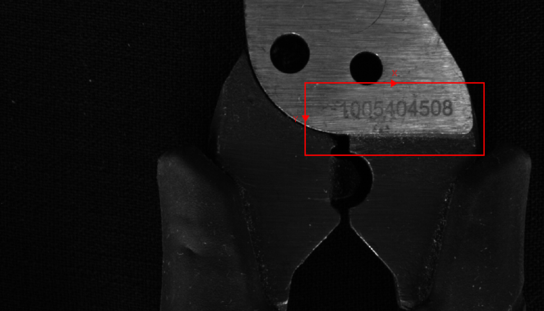
The identifier can contain any digits and can vary in length. (\d+) 1005404508 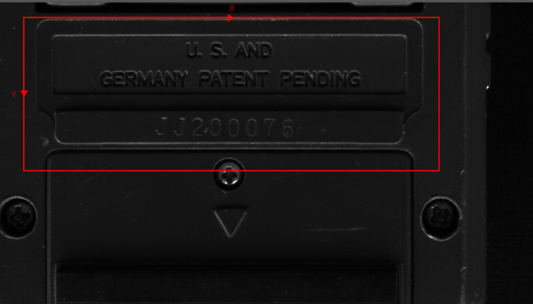
The identifier starts with JJ, followed by exactly six digits. .*(JJ\d{6}) JJ200076 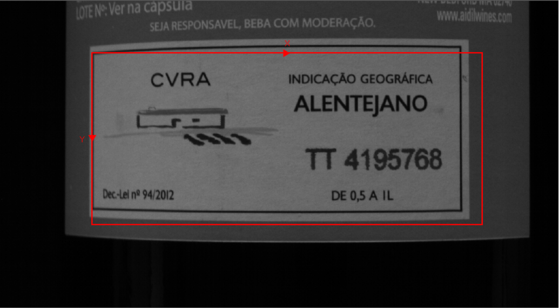
The identifier starts with TT, followed by exactly seven digits. .*(TT\d{7}) TT4195768 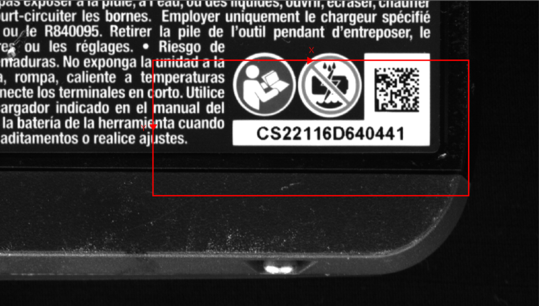
The identifier begins with the fixed prefix CS, after that there are exactly five numeric digits. After the digits, there is the fixed letter D. Finally, the text ends with exactly six numeric digits. .*(CS\d{5}D\d{6}) CS22116D640441 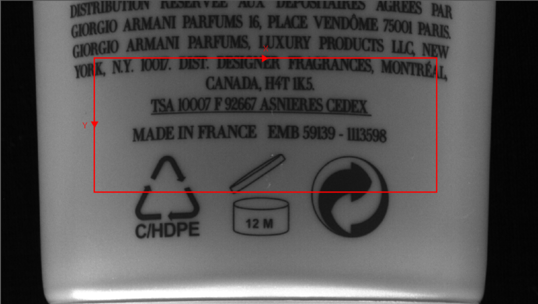
The identifier starts with EMB, followed by exactly five digits, a hyphen, and then exactly seven digits .*(EMB\d{5}-\d{7}) EMB59139-1113598 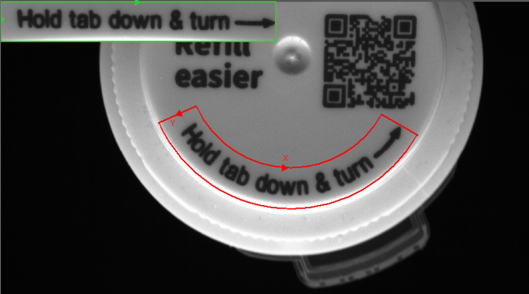
The text contains any lower and upper case characters.
([a-zA-Z&]+) Holdtabdown&turn 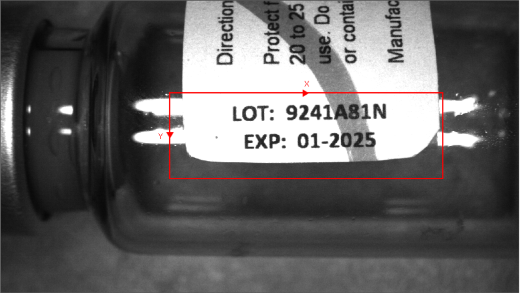
The lot number consists of alphanumeric characters (letters and digits) following the LOT: label. The expiration date is in the format MM-YYYY, following the EXP: label, with the month and year separated by a hyphen. .*LOT:(\w+).*EXP:(\d{2}-\d{4}) 9241A81N
01-2025
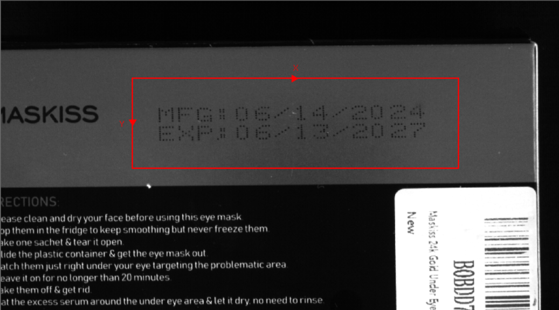
The manufacturing date follows the MFG: label and is in the format MM/DD/YYYY. The expiration date follows the EXP: label and is also in the format MM/DD/YYYY. .*MFG:(\d{2}/\d{2}/\d{4}).*EXP:(\d{2}/\d{2}/\d{4}) 6/14/2024
6/13/2027
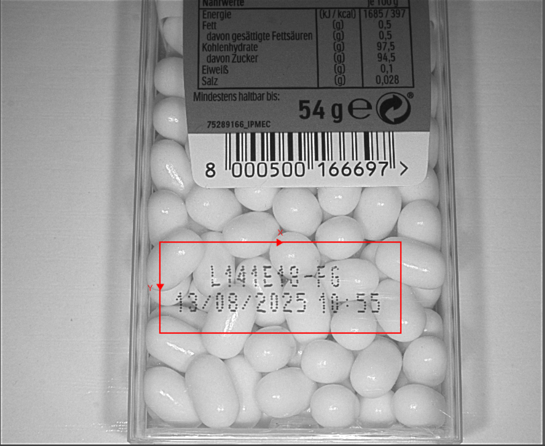
The first part is an alphanumeric identifier (letters, numbers, and hyphens) that can vary in length. In the second line, there is a timestamp in the format DD/MM/YYYY HH:MM, where the date is separated by slashes and the time by a colon. ([A-Z0-9-]+)\n(\d{2}/\d{2}/\d{4})(\d{2}:\d{2}) L141E18-FG
13/08/202510:55
-
Train
Train letters, numbers, and symbols to the tool.
-
Load your images by selecting the folder icon in the bottom-left corner. You cannot open individual pictures, only folders, so it is recommended to put all your images under one directory.
-
Type in the corresponding characters for the selected letters and numbers. Label and train all expected characters (A-Z, 0-9) for your application before deploying the tool. To use the Read tool you need to train at least 3 images. The more images and characters you train the higher the quality of your output will be. Also, fixturing with the pattern tool often leads to improved speed and tool performance.
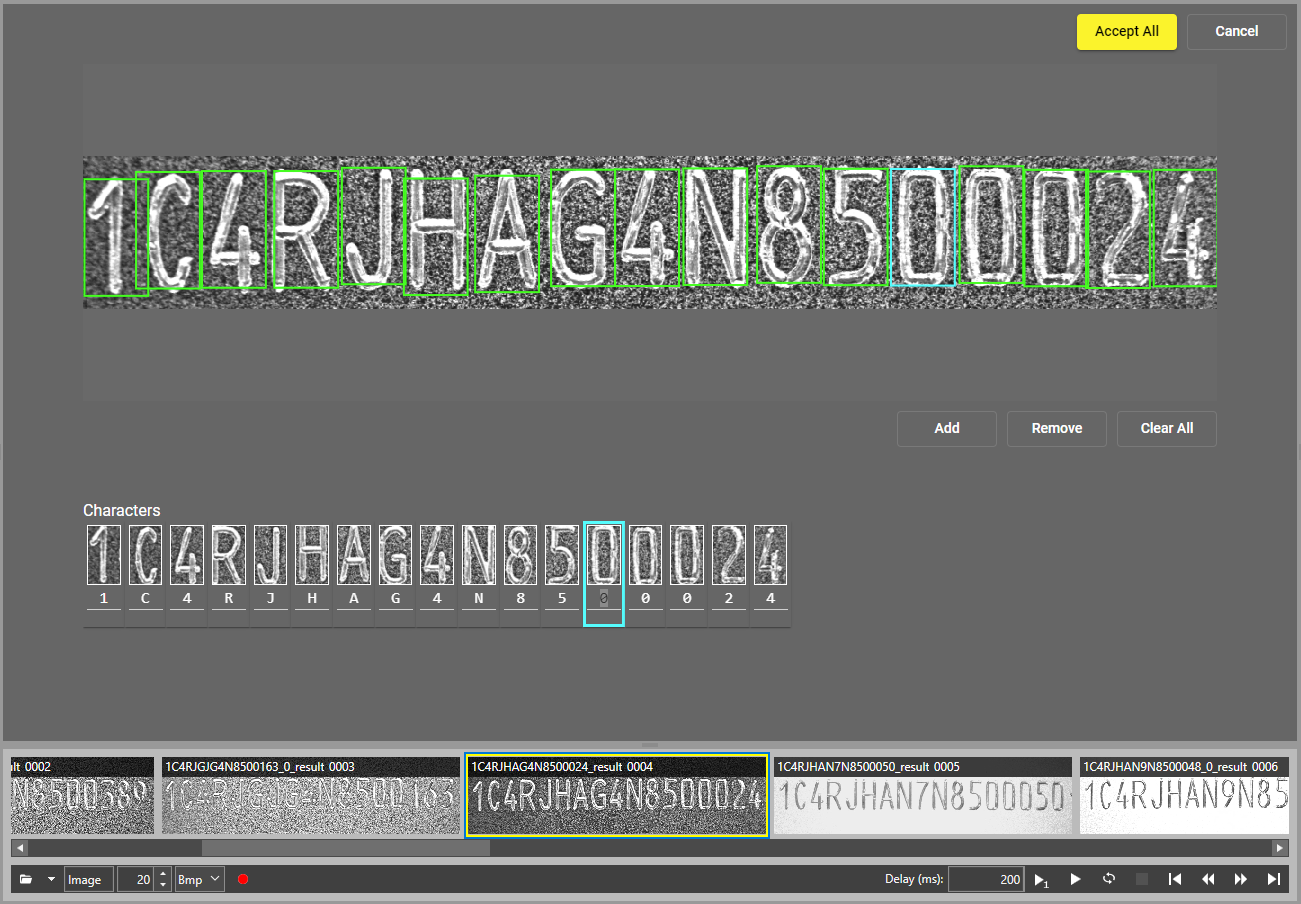
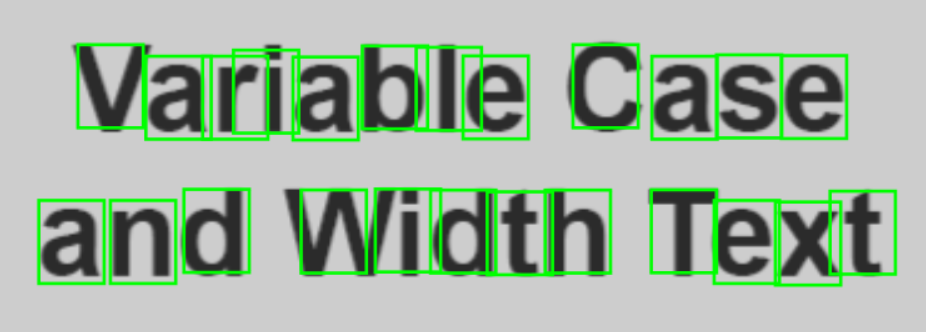
By default, the tool identifies possible characters in the image by placing a green bounding box around them. You can move the bounding boxes freely, but the size can only be modified under the Character Size setting. To add more bounding boxes, click one of the boxes and select the Add button. To remove a box, select it and click Remove. To remove all your boxes, select the Clear All option. To accept your settings, click Accept All.
Note: Every character needs to be labeled in the search region. Removing labels from valid characters trains the tool to ignore them.
Unique Characters in Samples
Shows the number of trained characters and source images, and the confidence level of the tool in a given character. The lower the percentage is, the less likely that a result is correct.
You can see the percentage by hovering over the colored line under the character. The color also shows the confidence level:
-
Green: high certainty.
-
Yellow: medium certainty.
-
Red: low certainty.
You can sort the trained data either by character or image:
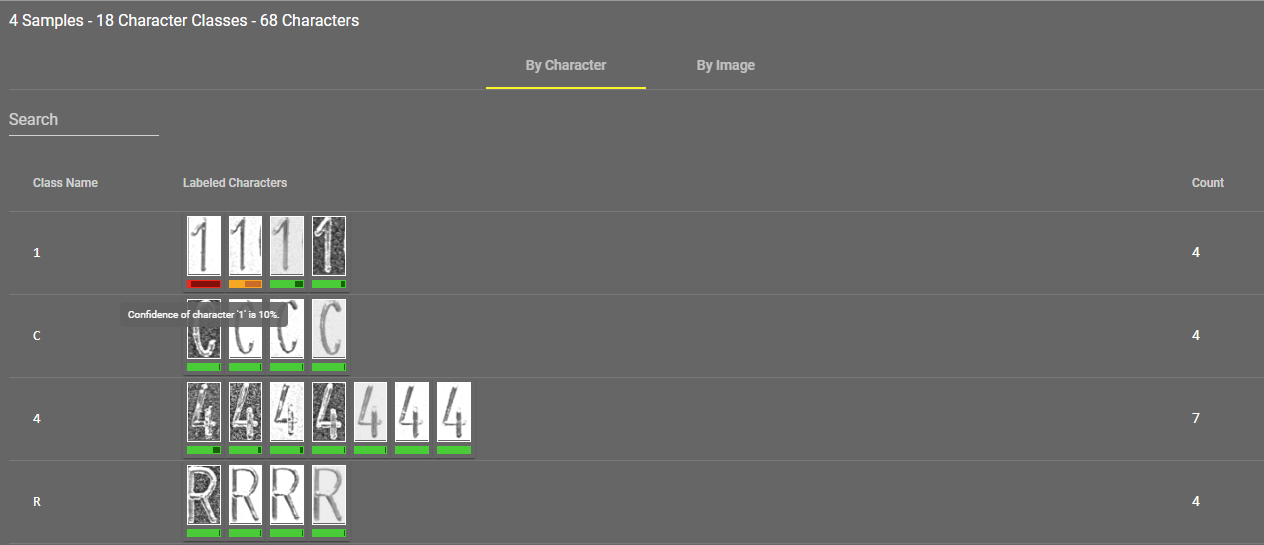
You can jump to retraining a certain character by left-clicking its image under By Character view, or you can retrain all characters on one image by clicking the edit icon next to the appropriate row in By Image view.
You can also search for a specific character by typing it in the search bar under both views. The tool differentiates between upper-case and lower-case letters.
You can also delete samples by checking the box next to the appropriate row and clicking Delete Samples.