Find Edge
The Find Edge tool allows you to determine the presence or absence of a linear edge. The Find Edge tool is able to identify linear edges much quicker than a Find Pattern tool.
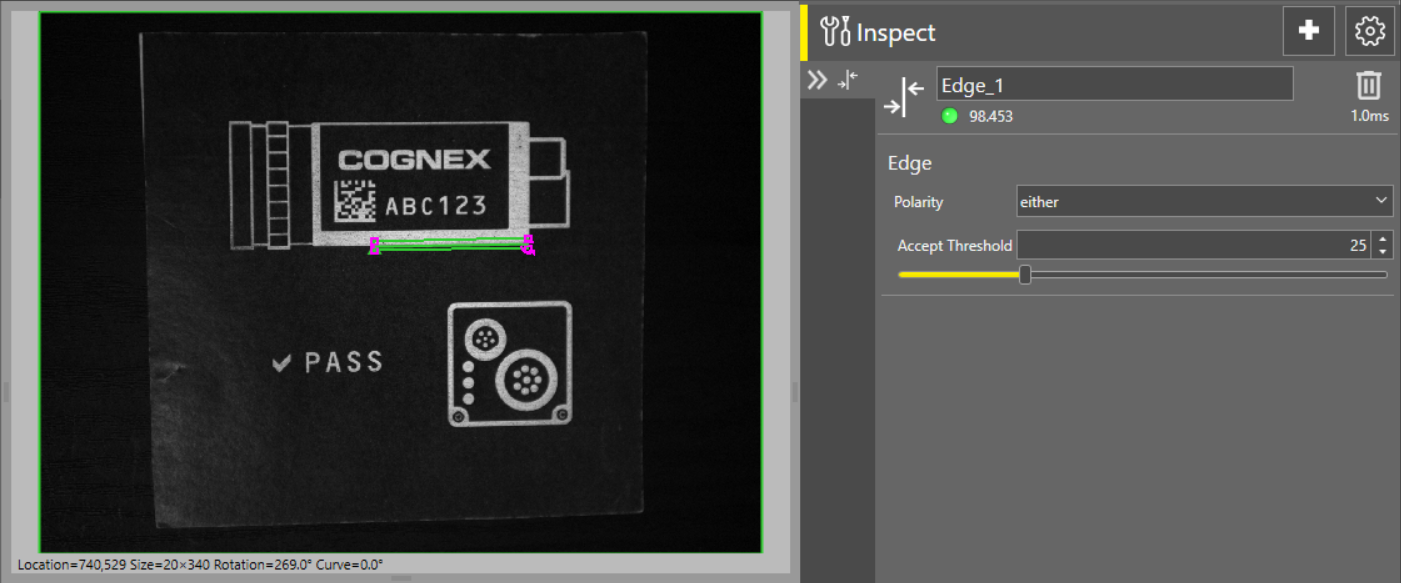
 To add the Find Edge tool to your job:
-
Open the Inspect tool palette, expand the Presence/Absence tool group, and select the Find Edge tool.
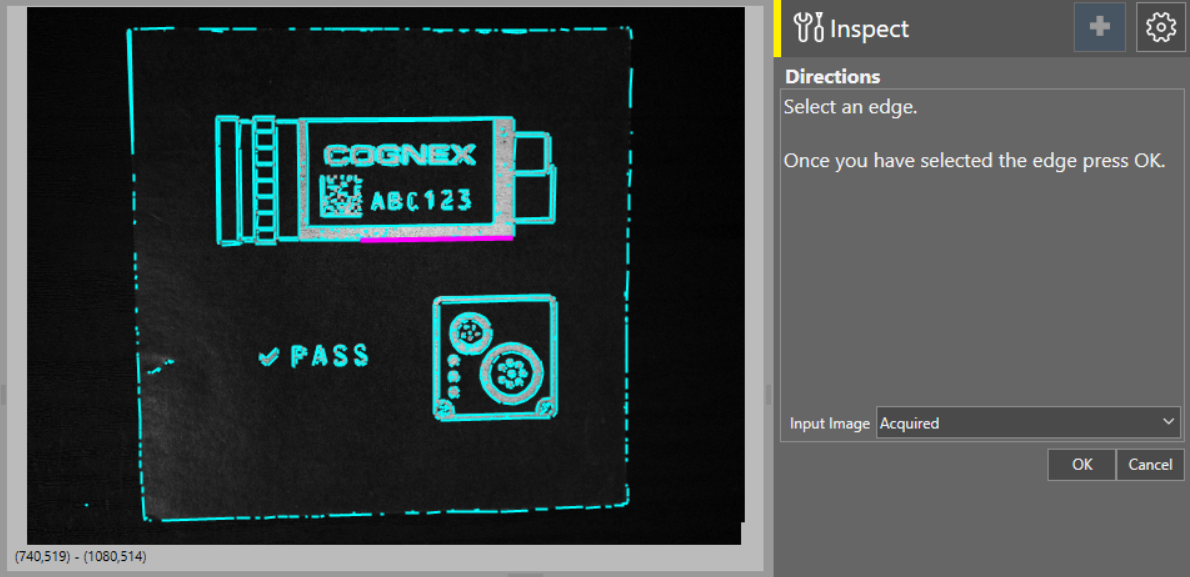
- The tool automatically finds edges on your image, and highlights them in cyan on the acquisition Acquisition is the process or result of the vision system acquiring a new image. display screen. Click on a highlight to select it as the edge you want the tool to find.
- Click OK.
To adjust the edge settings:
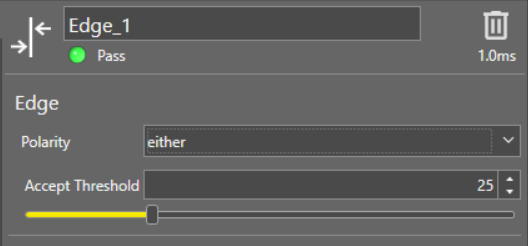
Use the Polarity setting to change the direction of edge finding between dark and light areas. The available options:
-
black-to-white
-
white-to-black
-
either (default)
Adjust the Accept Threshold to change the acceptance threshold for finding features in your images, such as patterns, circles, and edges.
-
Decrease the threshold to accept both strong matches and weaker matches.
-
Raise the threshold to only accept stronger matches and ignore weaker matches.
To adjust the Accept Threshold:
-
Use the slider.
-
Or enter a numerical value into the box.
You can also enable advanced tool settings if your job A job is a user-configured program in In-Sight EasyBuilder consisting of functions and designed for specific applications. You can create and edit jobs using the In-Sight EasyBuilder interface, and load them on a vision system for deployment in a live environment. requires more complex configuration. For more information on the advanced tool settings that are available, see Advanced Tool Settings.