Add, Modify, or Delete Local Users with the User Settings Utility
You can use the User Settings utility to add a new user, modify the selected user, or delete an existing one:
-
To add a new user, click the Add button, and then specify the User Name, Access Level, and optionally its Password, as shown below. You can also provide a description for the user in the Comment field.
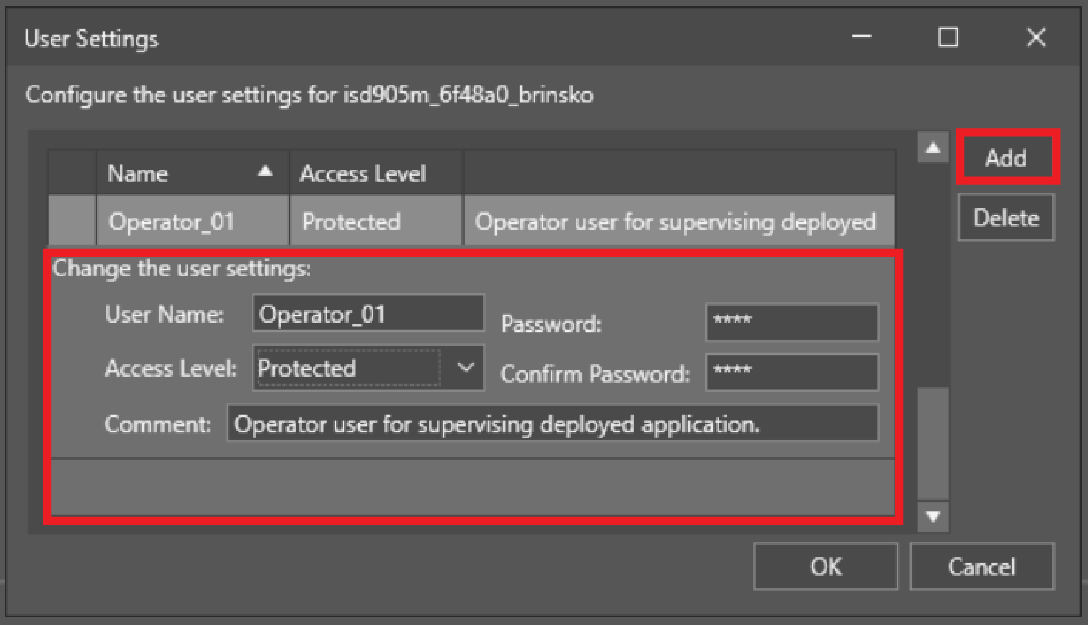
New users are automatically named Default, their Access Level is set to Full and have a blank/empty Password.
- To modify an existing user, simply left-click on the row of that user in the list. The Change user settings: section then automatically appears in the dialog, allowing you to modify the user's User Name, Access Level, Password, or Comment description.
-
To delete a user, click on the row of that user in the list, and then click the Delete button, as shown below.
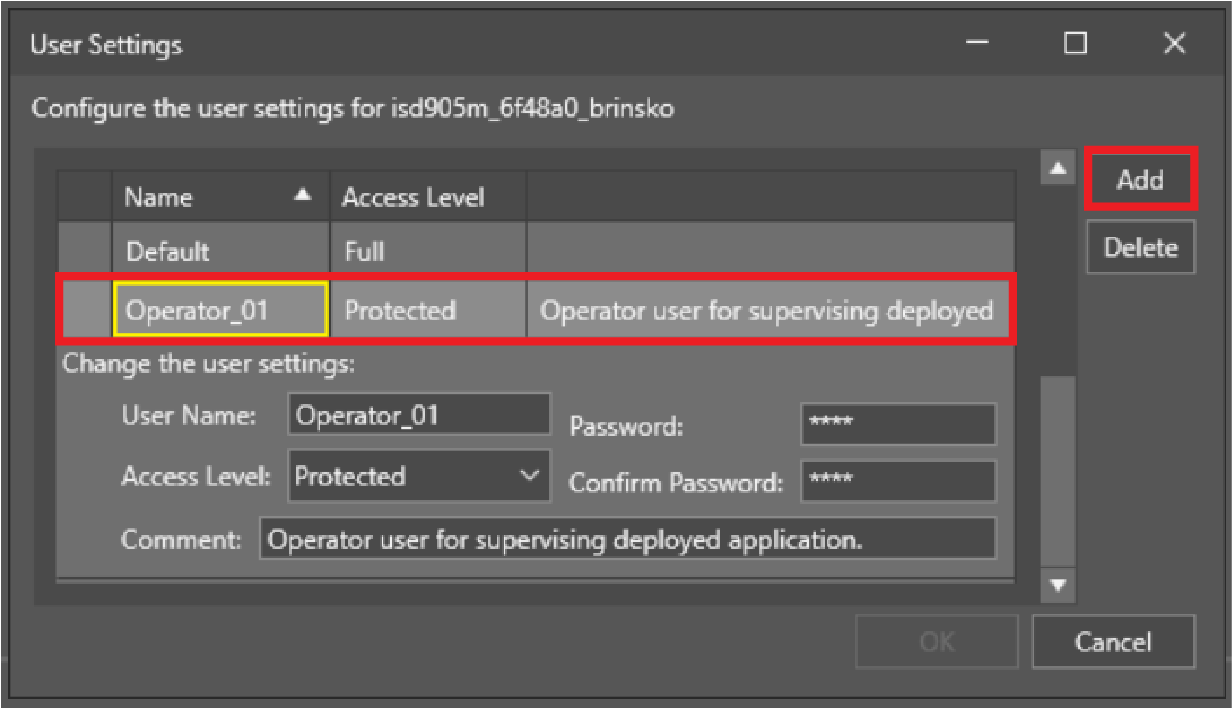 Note: The Delete option has no confirmation dialog, so make sure that you only delete unused users. Deleted users cannot be recovered later.