System Validation
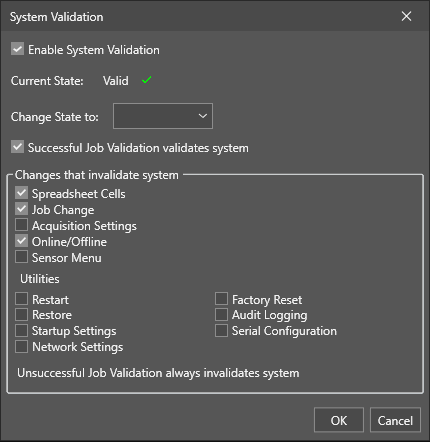
The System Validation utility allows you to verify the current state of the vision system and configure system changes that can invalidate it.
You can select changes to monitor that invalidate the vision system. If a change occurs in a monitored item, the vision system is set to an invalid state.
You can set the vision system to automatically set the System Validation state to Valid if Job Validation is successful.
|
|
|---|---|
| Element | Description |
| System Validation Enabled | Enables the validation process. |
| Current State | Shows the state of the vision system. Green checkmark means the vision system is valid, while a yellow triangle means the vision system is invalid. |
| State Change | Manually sets the System Validation State. The new state is applied after clicking OK to exit the dialog. Use this to set the System Validation State after inspecting the vision system to ensure it is currently in a valid state. |
| Successful Job Validation validates system | Enables the vision system to automatically restore into a valid state after a successful Job Validation process. |
| Changes that invalidate system |
Lists the system changes that invalidate the System Validation. You can choose from the following changes:
You can choose from the following utilities:
Note: Unsuccessful Job Validation always invalidates the vision system.
|
To configure system validation:
- Launch In-Sight Vision Suite if it is not already running.
-
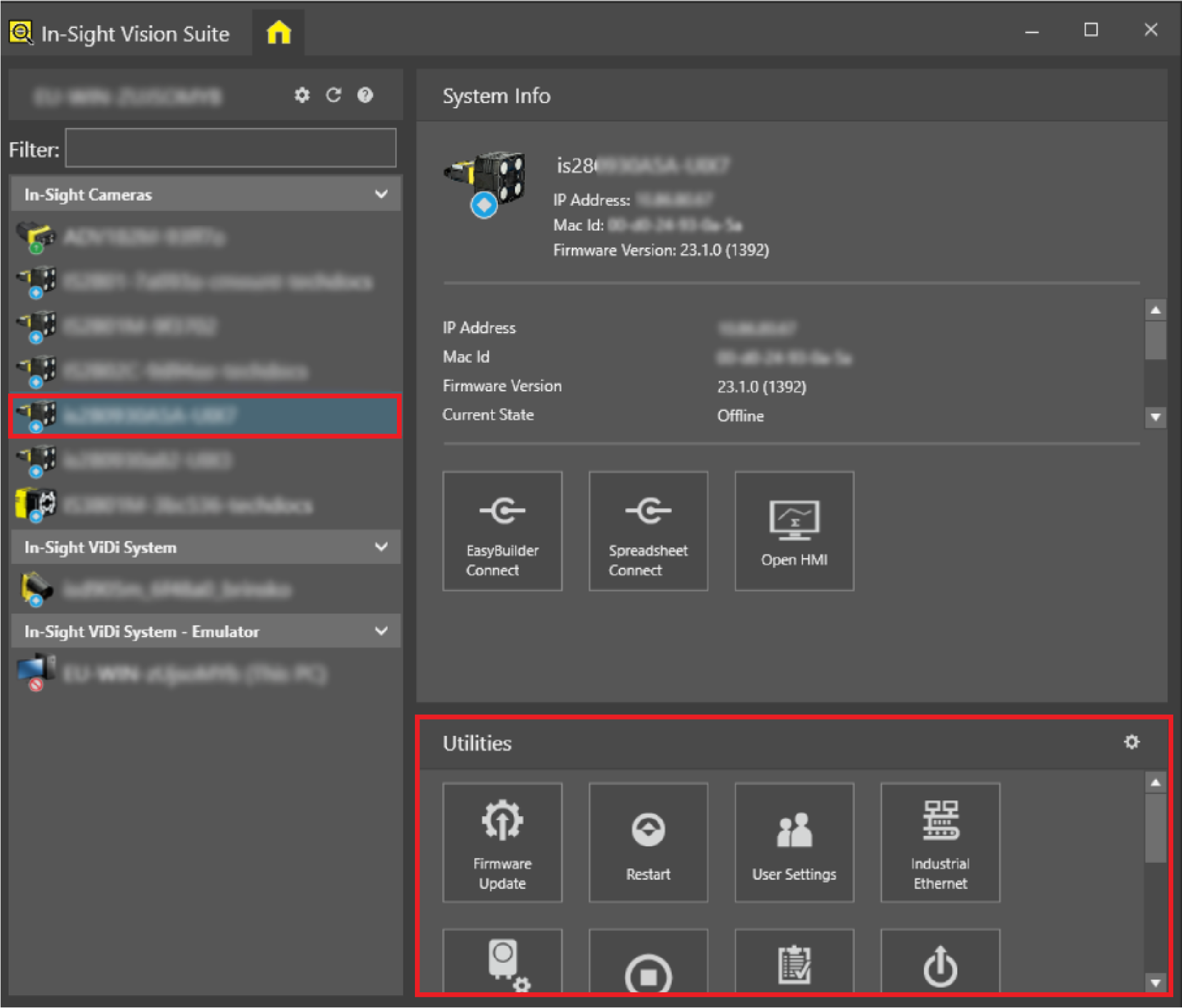
Left-click the device you want to configure on the In-Sight® Device Pane on the left. The list of Utilities applicable to the selected vision system then appears at the bottom of the window.
-
Click the System Validation button to open the configuration window.
-
Check the System Validation Enabled checkbox to enable system validation.
-
Optional: Check the Successful Job Validation validates system to enable the vision system to automatically restore into a valid state after a successful Job Validation process.
-
Check the checkbox for the changes you want to monitor in the Changes that invalidate system section of the utility dialog. If any changes happen to the monitored items, the vision system turns into an invalid state.
-
Click OK.