Configure SMB
The Configure SMB utility configures the Server Message Block (SMB) protocol settings of your In-Sight vision system.
In-Sight Vision Suite allows you to access files stored on the In-Sight vision system using the SMB protocol. The utility also supports Universal Naming Convention (UNC) paths.
To configure SMB file sharing:
- Launch In-Sight Vision Suite if it is not already running.
-
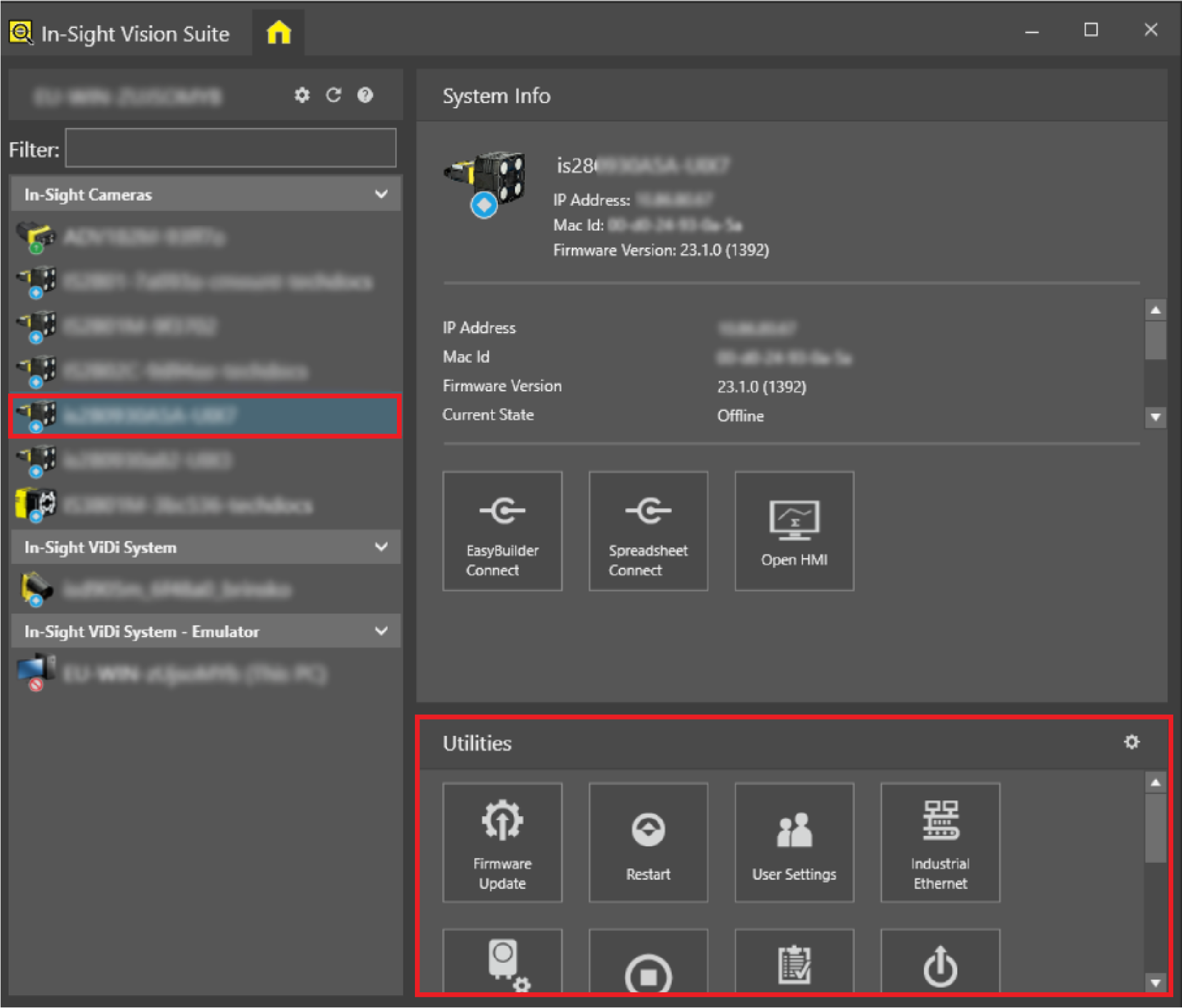
Left-click the device you want to configure on the In-Sight® Device Pane on the left. The list of Utilities applicable to the selected vision system then appears at the bottom of the window.
-
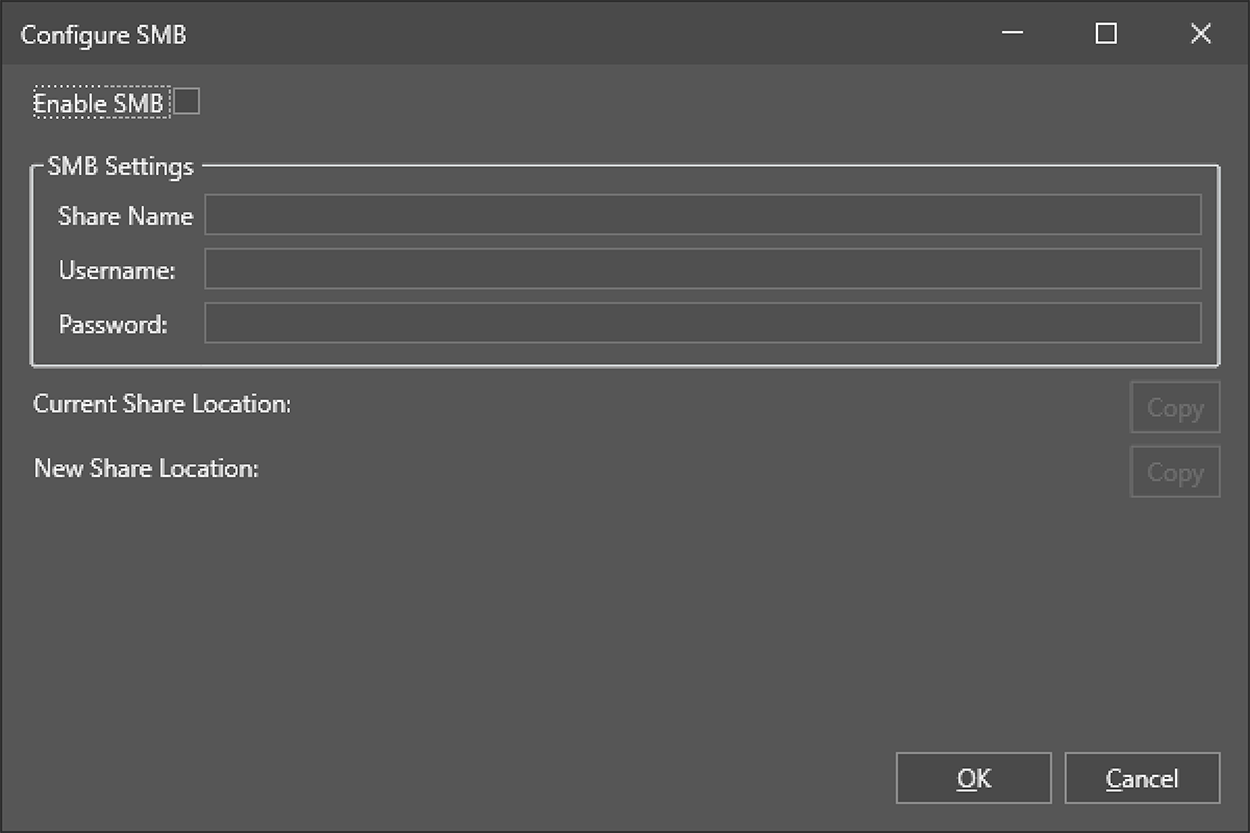
Press the Configure SMB button to launch the Configure SMB dialog.
-
Check the Enable SMB checkbox.
-
Configure SMB share settings:
-
Share Name: the name of the shared directory exposed to SMB clients.
-
Username: the username for logging into the SMB share service.
-
Password: the password for logging into the SMB share service.
-
-
Verify that the Proposed Share Location is correct.
A warning message appears if you use an invalid character in the share name:
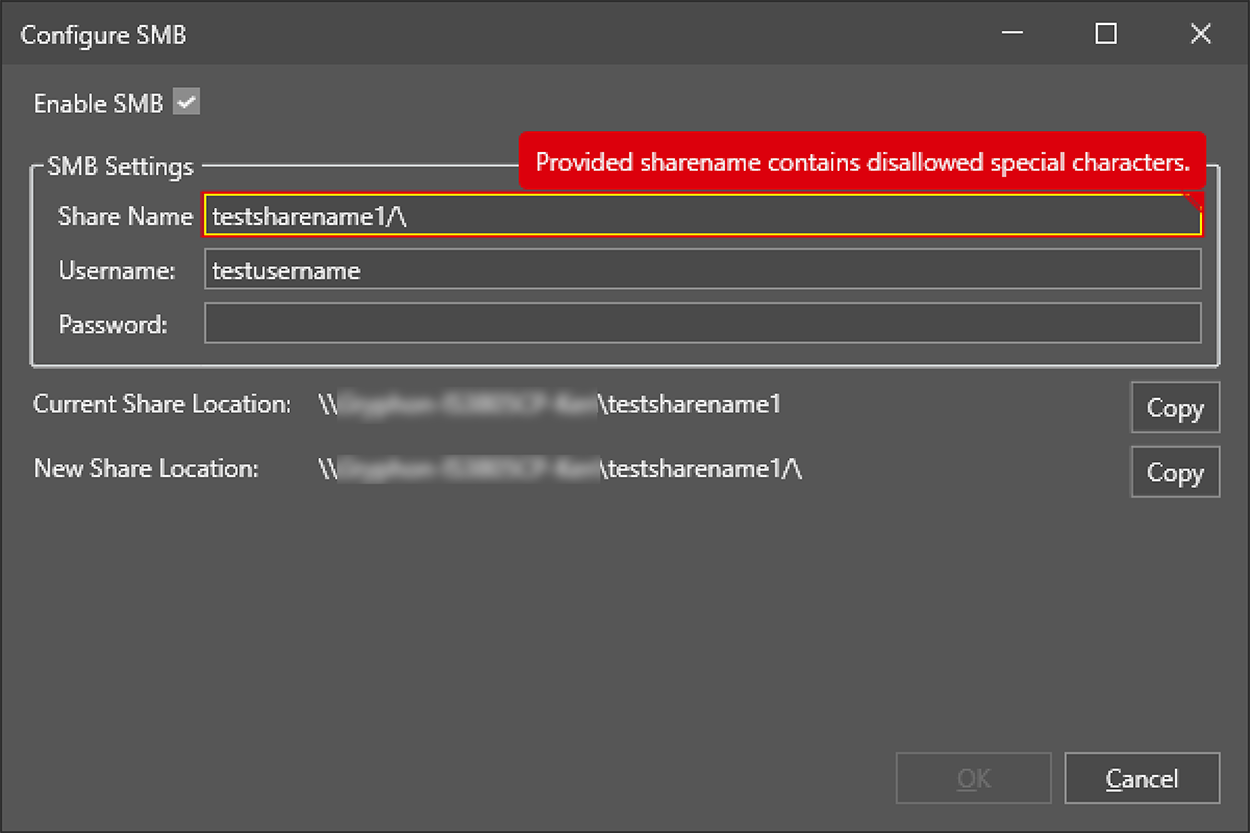 Tip: You can click the Copy button to copy the UNC path of the Current Share Location or the Proposed Share Location to the clipboard.
 -
Click OK to save the settings and apply the Proposed Share Location, or click Cancel to retain the Current Share Location.