HMI Settings
The HMI Settings utility allows you to configure the HMI window.
To configure the HMI window, do the following:
- Launch In-Sight Vision Suite if it is not already running.
-
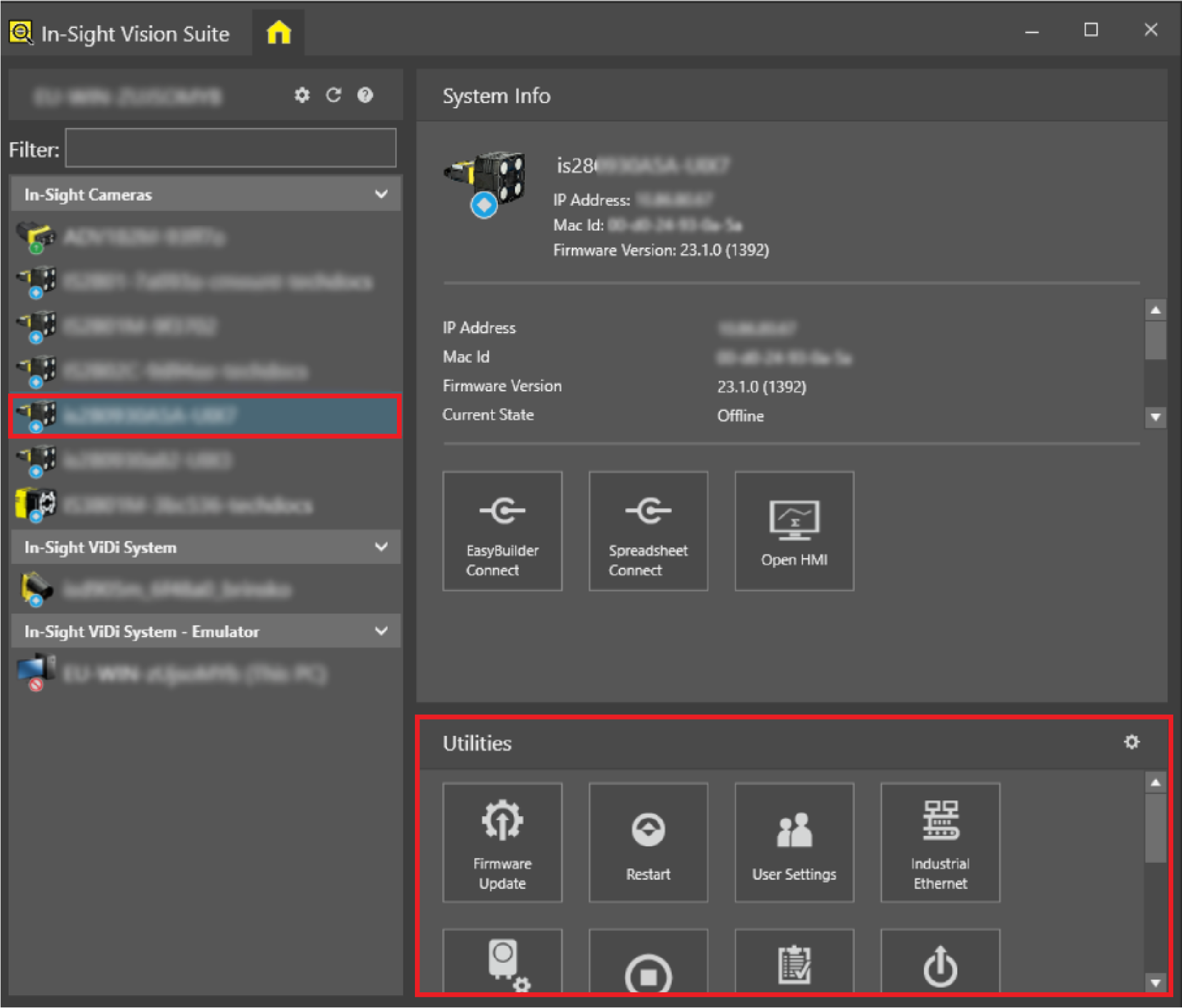
Left-click the device you want to configure on the In-Sight® Device Pane on the left. The list of Utilities applicable to the selected vision system then appears at the bottom of the window.
-
Click the HMI Settings button.
The HMI Settings window appears.
-
Configure your HMI window.
-
Click OK to save the changes.
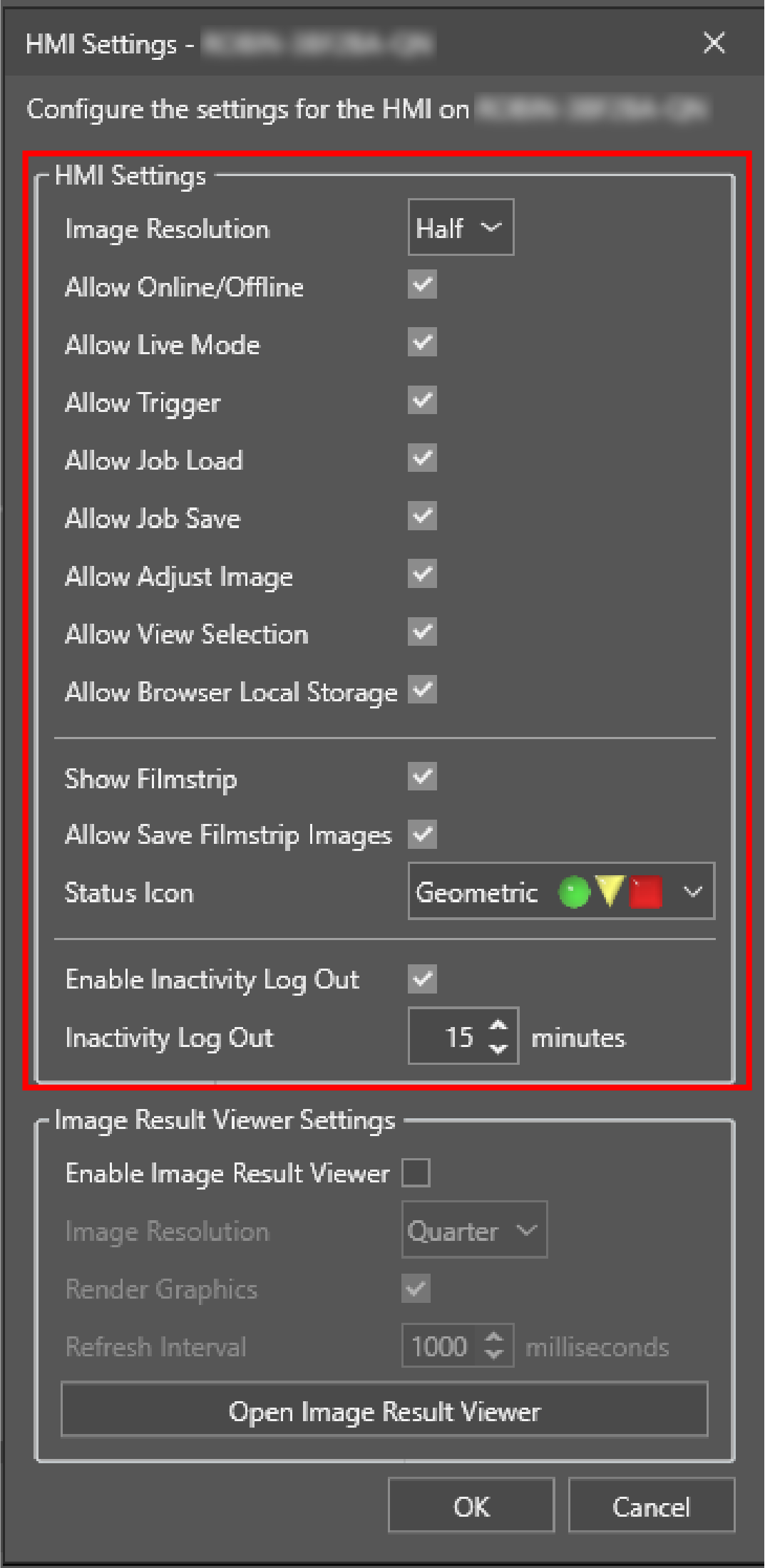
You can configure the following HMI settings:
|
|
|---|---|
| Item | Description |
| Image Resolution |
Determines the displayed image resolution in relation to the original image resolution. The default setting is half. You can choose from the following resolutions:
|
| Allow Online/Offline | Allows you to set the device Online/Offline through the HMI window. |
| Allow Live Mode | Allows you to enter Live Mode. |
| Allow Trigger | Allows you to trigger the device through the HMI window. |
| Allow Job Load | Allows you to load a job. |
| Allow Job Save | Allows you to save a job. |
| Allow Adjust Image | Allows you to adjust the image. |
| Allow View Selection | Allows you to display the Switch View button on the HMI window. If disabled, only the default view or the view you specified through a URL query argument appears. |
| Allow Browser Local Storage | Allows you to store the settings you made on the HMI window. For example, if you adjusted the zooming of the image, the HMI window stores this setting, and the next time you open the HMI window, the same scaling applies. |
| Show Filmstrip | Enables the appearance of the filmstrip. |
| Allow Save Filmstrip Images | Allows you to save the filmstrip images. |
| Status Icon |
Specifies a status icon. You can choose from the following icons:
|
| Enable Inactivity Log Out | Enables to log out after a certain time of device inactivity. |
| Inactivity Log Out | Determines the time of inactivity after the device logs out. The default is 15 minutes. |
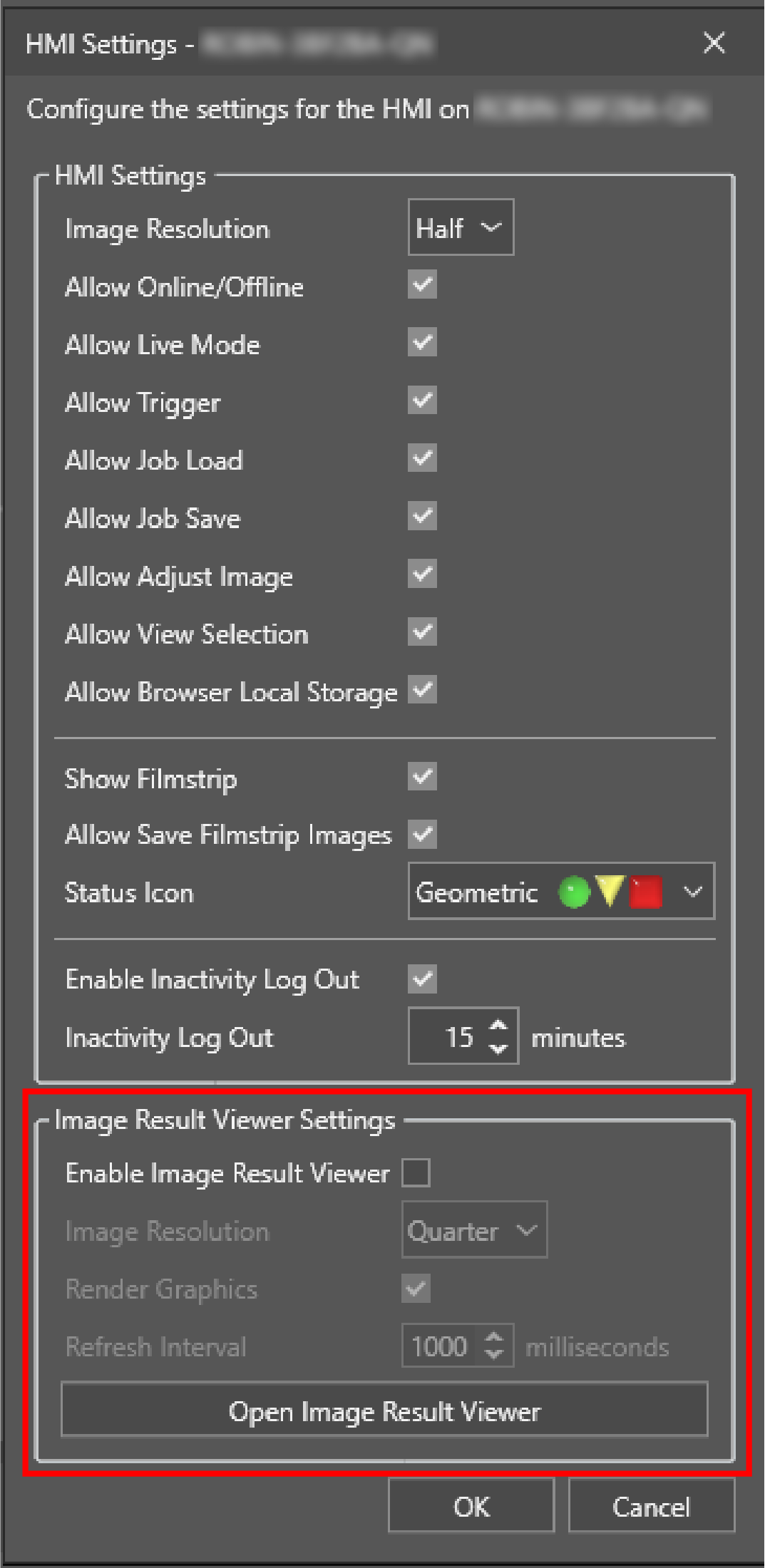
The HMI Settings utility also allows you to configure the Image Result Viewer. For more information, see the Image Result Viewer section in one of the following documents: In-Sight EasyBuilder Help, In-Sight Spreadsheet Help, In-Sight 3D EasyBuilder Help, or In-Sight 3D Spreadsheet Help, which can be found on the Cognex Support Site.
You can configure the Image Result Viewer with the following settings:
|
|
|
|---|---|
| Item | Description |
| Enable Image Result Viewer |
Enables the Image Result Viewer. |
| Image Resolution |
Determines the displayed image resolution in relation to the original image resolution. The default setting is Quarter. You can choose from the following resolutions:
|
| Render Graphics | Enables overlay graphics in the Image Result Viewer. |
| Refresh Interval |
Specifies the interval for displaying new images. The default is 1000 milliseconds. Cognex recommends setting the Refresh Interval lower than the trigger rate to avoid missing result images. |
| Open Image Result Viewer |
Opens the Image Result Viewer in a browser. Note: The browser cannot load the page until you save the settings. Click OK and refresh the browser to load the Image Result Viewer.
|