Verify Cognex Security Dongle Licenses Using Code Meter Control Center
The Code Meter Control Center, which is installed by default during the installation of In-Sight Vision Suite and associated adapters, is used to verify the licenses present on the Cognex Security Dongle.
Before beginning, ensure that the Cognex Security Dongle is attached via USB to the PC.
- Launch the Code Meter Control Center.
-
Select the desired Cognex Security Dongle (if there is more than one dongle attached to the PC; otherwise the single dongle is automatically selected by default) and press the Web Admin button.
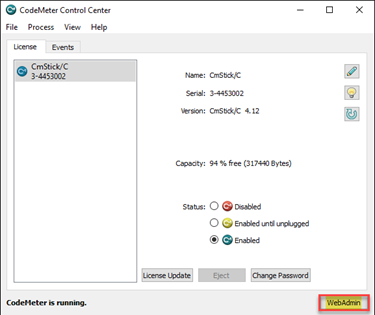 Note: If the dongle is not present, ensure that the proper power settings are configured. Refer to the Configuring Power Settings for the Cognex Security Service topics for more information.
 -
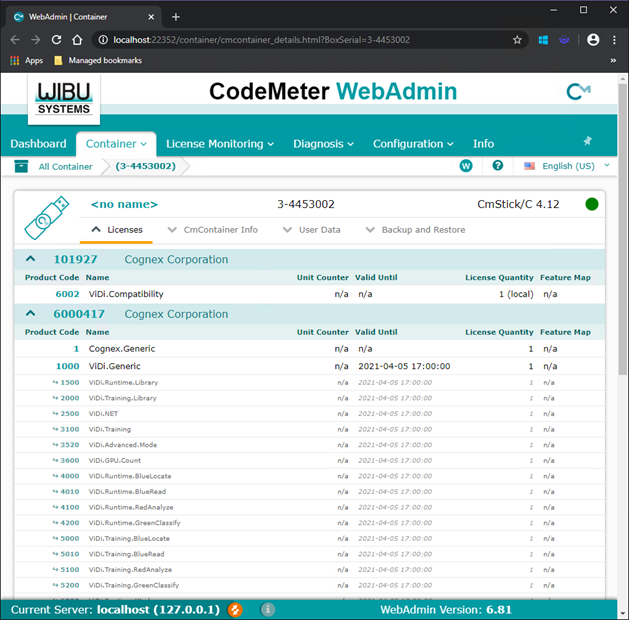
This launches the Code Meter WebAdmin in your default web browser.
-
First, ensure that the InSight.Generic license is valid and has not expired.
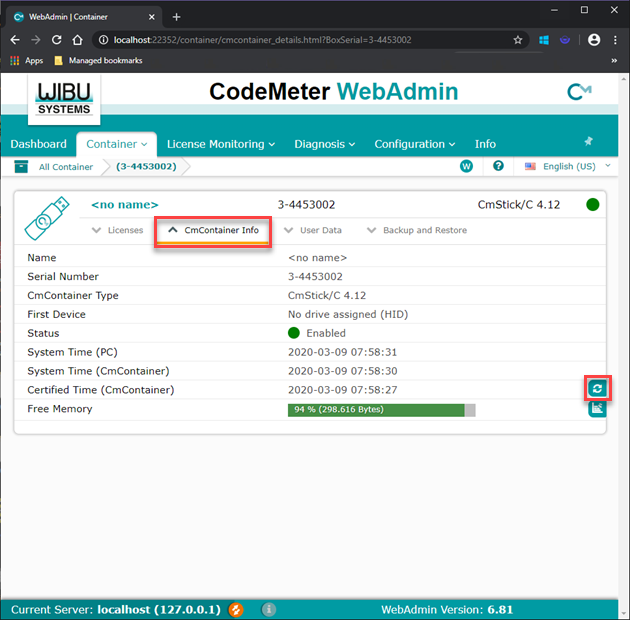
Click on CmContainer Info, and then press the Update icon.
-
Scroll down the page to the InSight.Generic list of licenses and ensure that the following licenses are present:
Product Code Name License Quantity 65120
InSight.EmulatedAcquisition
1
65110
InSight.MaxCameraLimit
1 or greater
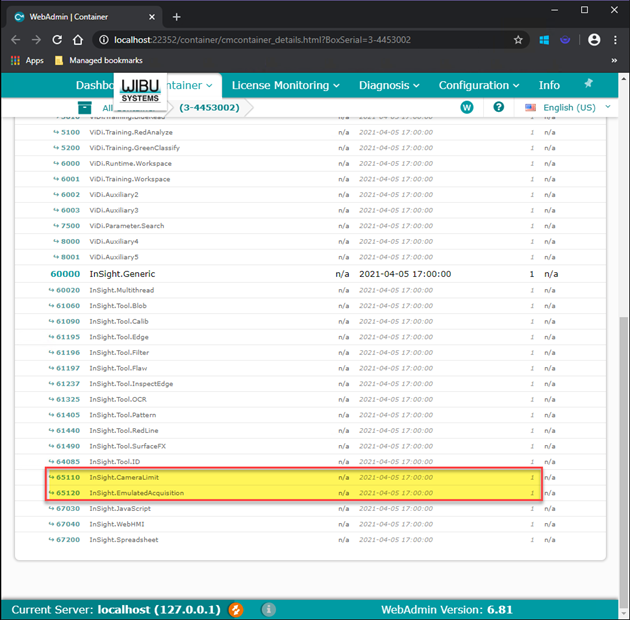
- In the event that the correct licenses are not present, contact Cognex Technical Support.