In-Sight ViDi Tools
The Cognex ViDi Tools are used to train and create the deep learning component of your application. Along with the Cognex ViDi Tools, there are ViDi Results Vision Data Access Functions that you can use to retrieve data and results from the ViDi tools, to be used in other parts of your application.
- ViDiCheck: The ViDiCheck function is used to create a deep learning-based presence/absence tool, that verifies the component layout of an object based on a trained model.
- ViDiDetect: The ViDiDetect function is used to create a deep learning-based defect detection tool, that verifies the presence of an anomaly based on differences between a trained model of a good part.
- ViDiRead: The ViDiRead function is used to create a deep learning-based Optical Character Recognition (OCR) tool, which reads difficult to decipher characters based on a trained model.
- ViDi: The ViDi function provides the entire suite of ViDi tools, Blue Locate, Blue Read, Red Analyze and Green Classify, which you can use to create a comprehensive deep learning-based application.
Once you have added a ViDi function (ViDiCheck, ViDiDetect, ViDiRead or ViDi), the property sheet of the function will automatically be launched. The property sheet allows you to configure the region of interest in which the tool will operate, a fixture to orient and translate the region of interest if the part being inspected will move during image capture, and options for the display of overlay graphics associated with the ViDi tools. Press the Open ViDi Editor button in the property sheet to launch the ViDi Editor, which will open in a separate tab.
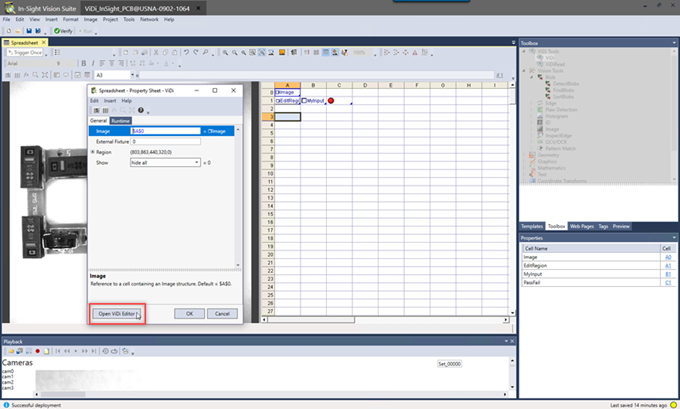
Press the Open ViDi Editor button to launch the ViDi Editor.
Within the ViDi Editor, the first step is to add images.
-
Press the Input icon (1), which will enable the Add Images button in the View Browser.
Note: Alternatively, you can select Add Images from the Image Database menu. - Navigate to the directory containing your training images.
-
Load the appropriate images.
Tip: After loading your images, utilize the Image Sample Sets functionality in the ViDi Editor to place your images in sets such as training and testing sets, which helps to visualize results. - With the images added, you are ready to begin using the ViDi tools.