How to View Files Stored on In-Sight Device
If you use the
Install FileZilla Client
- Go to the FileZilla website: filezilla-project.org.
-
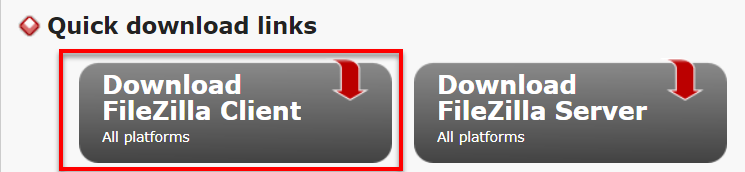
Download FileZilla Client. FileZilla Client allows you to transfer the files on the In-Sight device.
- Follow the wizard instructions to install FileZilla Client to the PC.
View Files Stored on In-Sight Device
- Open FileZilla Client.
-
Configure the following fields:
- Host: Enter the host name or IP address of the In-Sight device.
- Username: Enter the username of the In-Sight device.
- Password: Enter the password.

- Click Quickconnect.
-
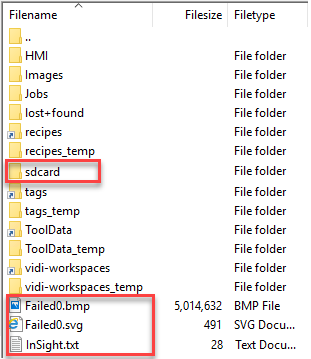
You can now view the stored files.
If you leave the File Path field blank, the files are saved to the root directory (Failed0.bmp, Failed0.svg and In-Sight.txt).
If you configure to write the files to the SD card installed to the In-Sight device, the files are saved to the sdcard directory.
Create a Subfolder Using FileZilla Client
You can create a folder structure on the In-Sight device using FileZilla Client. If you want to separate images from text files or separate images/text files into a job-related directory, this is useful.
If you want to send images to a subfolder Job1 under the Images directory on the In-Sight device, follow these steps:
-
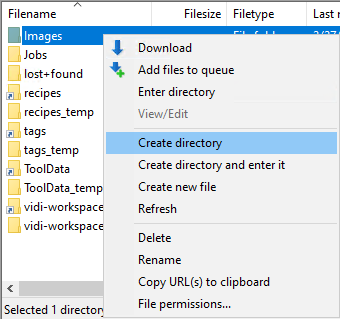
On FileZilla Client, right-click on the Images directory and select Create directory. The Create directory dialog appears.
-
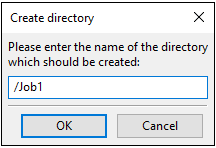
In the dialog, enter /Job1, then click OK to create the directory named Job1.
The Job1 subfolder is now available under the Images directory.

- On In-Sight ViDi Spreadsheet, connect to the In-Sight device.
-
Open the WriteImage property sheet and enter Images/Job1 to the File Path field.
Note: On the In-Sight device, the folder separator is the forward slash. - Click OK to close the property sheet.
Now the images are sent to the Job1 subfolder under the Images directory.