ReadIDMax
Use the ReadIDMax function to find and decode 1D and 2D symbols. The function supports a variety of symbologies and can handle a high degree of rotation and perspective distortion. Optionally, you can train different 1D and 2D symbologies and check quality metrics.
ReadIDMax returns an IDMax structure which can be referenced with IDMax Vision Data Access Functions.
1D/Stacked Symbologies
The ReadIDMax function supports decoding the following 1D
-
Code 128
-
Code 39
-
Interleaved 2 of 5
-
UPC/EAN
-
Code 93
-
Codabar
-
MSI
-
Code 25
-
PDF 417
-
DataBar
-
DataBar Limited
-
DataBar Expanded
-
EAN.UCC Composite
1D Finder Pattern Point
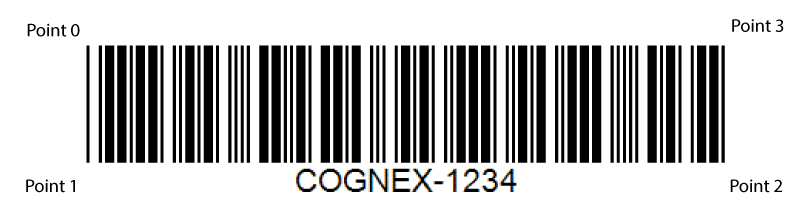
For barcodes, the finder pattern points are centered on each of the four corner cells of the symbol. Point 0 is the cell in the upper-left corner, Point 1 is the lower-left corner, Point 2 is the lower-right corner and Point 3 is the upper-right corner.
2D Symbologies
The ReadIDMax function can locate and decode 2D Data Matrix and QR Code symbols. The function can locate multiple 2D symbols, but unlike 1D symbols, all the symbols must be the same symbology type. For example, if the image contains a mixture of Data Matrix and QR Code symbols, and the Symbology Group parameter of the function is set to Data Matrix, the function ignores the QR Code symbols and only returns the Data Matrix symbols.
You can train the function to decode the same type of 2D symbol by establishing the size of the symbol grid size, the 2D symbology type, and the error checking and correction (ECC) method the symbol uses to verify the accuracy of the data it contains.
Training the ReadIDMax function can improve its performance, especially when all the symbols to be decoded share the same qualities, while not training the function allows it to decode a wider variety of symbols without needing to reconfigure it.
2D Finder Pattern Point:
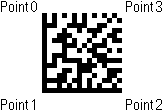
2D Data Matrix Symbols: For Data Matrix Symbols, the finder pattern points are centered on each of the four corner cells. Also called a module, a cell is a single square, which can be either black or white. For example, a 10 x 10 symbol is made up of 100 black and white cells. One cell is equal to one bit of data of the symbol. The intersection of the two solid lines form the 'L boundary.' During training, the corner of the L should be oriented in the lower-left corner. Point 0 is the cell in the upper-left corner of the symbol, Point 1 is the lower-left corner where the solid lines intersect, Point 2 is the lower-right corner, and Point 3 is the upper-right corner cell.
2D QR Symbols: For QR symbols, the finder pattern points are centered on each of the four corner cells of the symbol. The three position detection patterns on the symbol form an 'L' shape.
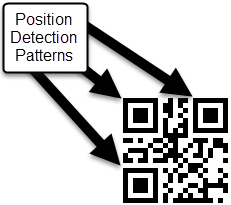
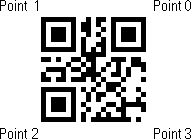
During training, the corner of the L must be oriented in the upper-left corner. Point 0 is the cell in the upper-right corner of the symbol, Point 1 is the upper-left corner where the middle position detection pattern forms the corner of the 'L', Point 2 is the lower-left corner, and Point 3 is the lower-right corner cell.
1D/ 2D Image Requirements
The ReadIDMax function requires minimal configuration before scanning 1D symbols, but make sure to follow the following guidelines for input images:
- All symbols must be greater than 50 pixels in length, while the maximum width of any module cannot exceed 10 pixels.
- For linear symbologies where modules have different widths, but uniform heights, a module must be at least 1.6 pixels in width and 50 pixels in height.
- A quiet zone, which is an area on either end of a symbol that contains no marks, must be present that is at least the minimum size specified in the print specification for the symbology type.
- The contrast between modules and the background must be at least 32 grey levels.
- The pixel aspect ratio can be no greater than 1.35 to 1.
2D symbols have fewer image requirements. In general, there must be a quiet zone or margin surrounding the symbol on all four sides that is equal to the width of one module inside the symbol itself.
IDMax and IDQuick
The ReadIDMax function offers two processing modes for the decoding algorithm:
- Choose IDQuick for high-speed decoding of symbols that are well formed and appear in high contrast.
- Choose IDMax for advanced image processing and image-analysis techniques for challenging images.
By default, the function uses the IDMax mode. However, you can experiment with IDQuick to determine how it affects the performance of the function in the application.
Results
Only symbols that are found and decoded generate results. For each symbol in an image, the ReadIDMax function generates the following results through Vision Data Access Functions:
- The decoded string.
- The angular orientation of the found symbol, in degrees.
- A location (X/Y) for the center of the symbol.
- The particular symbology of the symbol.
- Codes and modifiers from the ISO/IEC to uniquely identify the symbology according to industry standards.
ReadIDMax Inputs
| Parameter | Description | ||||||||||||||||||||||||||||||||||||||||||||||||||||||||||||||||||||||
|
Image |
This parameter must use Cell References in
a spreadsheet cell that contains an Image data structure. By
default, this parameter references A0, the cell containing the Image data structure returned by |
||||||||||||||||||||||||||||||||||||||||||||||||||||||||||||||||||||||
|
Fixture |
Defines the Region of Interest (ROI) relative to a Fixture input or the output of the image coordinate system for the Vision Tools function. Setting the ROI relative to a Fixture ensures that if the Fixture is rotated or translated, the ROI is rotated or translated in relation to the Fixture. The default setting is (0,0,0), the top leftmost corner of the image.
|
||||||||||||||||||||||||||||||||||||||||||||||||||||||||||||||||||||||
|
Region |
Also known as the Region of Interest (ROI), specifies the region of the image that undergoes analysis. Double-click on the Region parameter to create an Interactive Graphics Mode that you can transform and rotate. Select this parameter and press the Maximize Region button on the Job Edit toolbar of the property sheet to automatically stretch the region to cover the entire image.
|
||||||||||||||||||||||||||||||||||||||||||||||||||||||||||||||||||||||
| Advanced Decode Mode |
Specifies the setting to be used to decode Data Matrix or 1D/Stacked symbology groups.
|
||||||||||||||||||||||||||||||||||||||||||||||||||||||||||||||||||||||
| Enable Training |
When enabled, trains a model of the first symbol read. Training the function can improve performance, especially if all symbols to be decoded have similar characteristics. If you have multiple symbologies enabled, only the result at index 0 is trained (first result found). For example, if you enable Code 128, Code 39, and UPC/EAN, ReadIDMax trains only Code 128. The trained information is retained until you clear this check box. To train another symbol, uncheck the checkbox and enable it again. Adding other symbologies to the read does not affect the trained data. You can train both 1D and 2D codes. Tip: It is recommended to have only one symbol in the Region when training is enabled.
|
||||||||||||||||||||||||||||||||||||||||||||||||||||||||||||||||||||||
|
Maximum Results |
Specifies the maximum number of symbols to be located and decoded (1 to 128; default = 1). Note: If the specified value of this parameter exceeds the number of symbols in the ROI, the function still continues to search for the specified number of symbols. If the number of symbols in the ROI varies, you can reduce the execution time of the function by lowering the Timeout parameter.
|
||||||||||||||||||||||||||||||||||||||||||||||||||||||||||||||||||||||
|
1D Symbologies |
Specifies which 1D symbologies to read. You can select multiple symbologies.
|
||||||||||||||||||||||||||||||||||||||||||||||||||||||||||||||||||||||
|
Stacked Symbologies |
Specifies which Stacked Symbologies to read. You can select multiple symbologies. The below options are only available when the Symbology Group parameter is set to 1D/Stacked.
|
||||||||||||||||||||||||||||||||||||||||||||||||||||||||||||||||||||||
|
Decode Settings |
Settings that are not applicable to the symbology types you selected are greyed out.
|
||||||||||||||||||||||||||||||||||||||||||||||||||||||||||||||||||||||
|
Verify |
Specifies whether the print quality tests (also known as quality verification metrics) are performed.
Note:
|
||||||||||||||||||||||||||||||||||||||||||||||||||||||||||||||||||||||
|
Timeout |
Specifies the amount of time, in milliseconds (0 to 30000), that the function searches for a valid ID symbol before execution stalls and an #ERR is returned. Setting the value to 0 disables the setting and a timeout is not applied. Note: At times, the ReadIDMax function can exceed the specified Timeout parameter value by varying percentages. If this happens, decrease the Timeout parameter value to compensate for the overage.
|
||||||||||||||||||||||||||||||||||||||||||||||||||||||||||||||||||||||
|
Show |
Specifies the display mode for the ReadIDMax graphical overlay on the image. Note: The Show parameter is only implemented for Data Matrix and QR Code symbols.
|
ReadIDMax Outputs
|
Returns |
An IDMax data structure containing the decoded alphanumeric string, or #ERR if any of the input parameters are invalid. |
|
Results |
When the function is initially inserted into a cell, a result table is automatically inserted into the spreadsheet. The number of indexed strings returned in the result table is equal to the value entered in the Maximum Results parameter. If no symbol can be located and decoded, then #ERR is returned. Note: For Data Matrix symbols, the base 256 latch character (Decimal 231 Hex E7) causes encoded data to be processed as bytes, per the Data MatrixISO/IEC 16022 specification. Use the GetStringIDMax function to return the encoded data. For more information, see IDMax.
|
IDMax Vision Data Access Functions
If the Verify checkbox is disabled when the ReadIDMax function is initially created, then a single Vision Data Access function is automatically inserted into the spreadsheet:
| String | GetString(IDMax, [Index]) | Returns the alphanumeric string encoded in the indexed symbol. |
If the Verify checkbox is enabled and the function performs additional quality verification metrics when the ReadIDMax function is initially created, the additional Vision Data Access Functions that are automatically inserted into the Spreadsheet depend on the selected Symbology Group. You can access additional data elements using the ReadIDMax Vision Data Access Functions. For more information, see IDMax.
- If the Verify checkbox is enabled after the ReadIDMax function is initially created, the additional Vision Data Access Functions are not automatically inserted into the spreadsheet. Also, the Verify checkbox must be enabled before the additional Vision Data Access Functions executes in the spreadsheet.
-
If decoding Data Matrix symbols, use the GetStringIDMax function instead of GetString for more accurate and detailed information about the decoded symbol.