WriteImage
Use the WriteImage function to save the current image to a local device or an FTP/SFTP server. Optionally, you can create an SVG file, which includes the overlay graphics on top of the image.
- You can save the file to the selected Storage location while Online or Offline.
- If you configure the job to save a large number of image files, it is recommended that you select FTP Server or SFTP Server for the Storage setting. If you save a large number of image files on an In-Sight device (for example, if the Event parameter is set to
WriteImage Inputs
| Parameter | Description | ||||||||||||||
| Image | Specifies a reference to a cell containing an Image data structure. The default reference is to the Image data structure in cell A0. | ||||||||||||||
| Event |
Specifies the event that forces an update. This parameter needs to be a reference to any event with a timestamp, for example
Note: By default, the Event reference value is 0. If you don't change the default value, a button, labeled "Write," will be automatically created and referenced when WriteImage is initially inserted into the spreadsheet.
|
||||||||||||||
| Storage |
Specifies whether you want to save the image to a local device or an FTP/SFTP server. The save location depends on the connected device and the Storage setting of the function.
|
||||||||||||||
| Server |
Specifies the server name (or IP address) on the network where the image file will be written. An FTP server can be an In-Sight emulator or any other device recognized as an FTP server on the network. Note:
|
||||||||||||||
| User Name |
Specifies a valid user name for the FTP/SFTP server. When this field is left blank, "admin" is used. Note: This option is enabled only when you select FTP Server or SFTP Server as the Storage type.
|
||||||||||||||
| Password |
Specifies the password for the FTP/SFTP server. The password is case-sensitive. If the FTP/SFTP server does not have a password, you can leave this field blank. Note:
|
||||||||||||||
| File Path |
Specifies the location where you want to save the file.
If you leave this field blank, you send the file to one of the following default locations:
|
||||||||||||||
| File Name |
Specifies the name of the image file; also defines the name of the SVG file. Note:
|
||||||||||||||
| File Type |
Specifies the file format of the image.
|
||||||||||||||
| Max Append Value | The maximum number (0 to 9999999; default = 999) of unique image files that can be written using the specified File Name. A counter will increment itself as each image file is written, and be added to the end of the specified File Name if no format specifier is used; otherwise, the counter will be added at the location of the format specifier. The counter automatically resets itself when it equals the Max Append Value; existing image files on the target system will be overwritten by new files of the same name. If the value is set to -1 or an out of range value, then no counter will be appended to the File Name. | ||||||||||||||
| Reset |
Restarts the counter that is appended to the specified File Name to 0. After reset, the existing image files on the target location will be overwritten by new files with the same name.
Note: By default, the Reset checkbox is not selected. If you don't change the default setting, a button, labeled "Reset" will be automatically created and referenced when the WriteImage function is initially inserted into the spreadsheet.
|
||||||||||||||
| Overlay Graphics |
Specifies whether an SVG file with the overlay graphics is created. To view the SVG file and image file, open the SVG file with a Web browser that supports the SVG file type. The SVG file contains an internal link to the acquired image associated with it, and when the browser opens the SVG file, it follows the link to open and display the acquired image along with the overlay graphics.
Note:
|
WriteImage Outputs
| Returns |
Note: Any invalid FTP/SFTP server path or file name will not return an #ERR.
Tip:
If you hover over #ERR, the following error message will be displayed:
|
||||||
| Results |
When WriteImage is initially inserted into the spreadsheet, and if the Event and/or Reset parameters are in the default settings, the Write and/or Reset buttons will be automatically created and referenced in the spreadsheet.
|

Format the Value Parameter
You can format the value parameter so that the names are aligned, by using the '|' character. If a '|' is used, the value will either be zero or blank filled. If the character immediately following a '|' is 0, the format will be zero-filled; otherwise, it will be blank filled. The next character(s) will indicate how may 0 or ' ' to insert. If the filename contains multiple ‘|’ characters, the last one will be used as the format indicator. If the ‘|’ character is not followed by a digit, then the ‘|’ will be used as part of the name, following any operating system's restrictions.
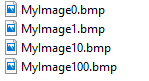
If File Name is set to MyImage, the saved file names will be:
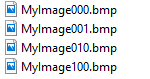
If File Name is set to MyImage|03, the saved file names will be:
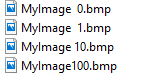
If File Name is set to MyImage|3, the saved file names will be:
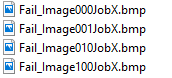
If the '|' is in the middle of the file name , the Append Value will be inserted inline. For example, if File Name is set to Fail_Image|03JobX, the saved file names will be: