Auto-Tune Dialog Tabs and Controls
The Auto-Tune dialog is composed of four different tabs: Auto-Tune, Settings, Records and Train Font. In addition to the tabs, the Auto-Tune dialog contains a toolbar with the following controls:
- Reset: Specifies that the Segmentation tab parameters will be reset to their default settings, clear font information and remove any Auto-Tune record (.rec) files associated with the function.
- Open: Launches the Open dialog, which is used to navigate to a previously saved Auto-Tune Model (as a .REC file). By default, the Auto-Tune dialog will automatically load the last saved Auto-Tune Model.
- Save As: Launches the Save As dialog, which is used to navigate to a directory in which to save and store an Auto-Tune Model (as an .oam file).
-
Edit Graphic: Launches Interactive Graphics Mode, where the ROI of the OCRMax function may be modified.
Note: If the referenced OCRMax function's region parameter in OCRMax General tab is defined by a Cell References or a formula, the Edit Region control will be disabled.
Auto-Tune
The Auto-Tune tab is used to enter the text string to be trained, activating automatic or manual character segmentation, and adding characters to the font database.
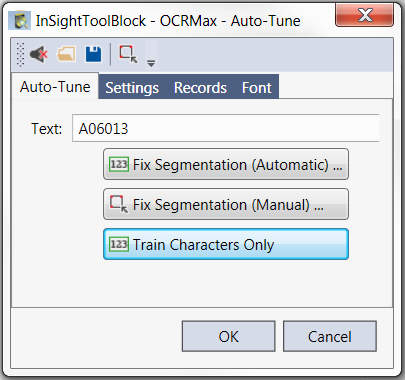
- Text field: Specifies the text string to be trained. If there are spaces in the string, enter them using the keyboard Space bar.
- Fix Segmentation (Automatic): Specifies that the OCRMax function will attempt to automatically segment the characters through the GetCharacterRegion function from OCRMax Vision Data Access Functions and using different combinations of Segmentation parameters, until the correct number of characters are found.
- Fix Segmentation (Manual): Specifies that the character region will be manually adjusted, while in Interactive Graphics Mode, by editing the size and position of the individual character regions. The OCRMax function will then calculate the optimal Segmentation parameters based on the shape and position of the character regions.
- Train Characters Only: Specifies that the text specified in the Text field will be trained and added to the font; no adjustments to the Segmentation parameters will be made.
Settings
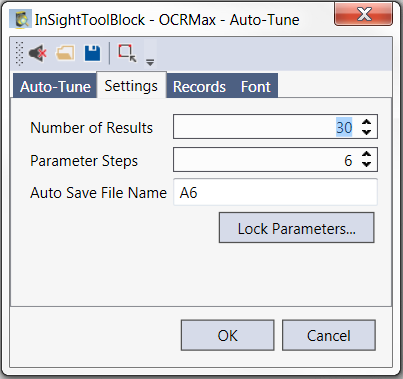
The Settings tab is used to configure the OCRMax function's auto-tuning algorithm.
-
Number of Results: Specifies the maximum number (1 to 999,999,999; default = 30) of candidate results to generate.
-
Parameter Steps: Specifies the maximum number of iterations (1 to 100; default = 6) to attempt for each Segmentation parameter.
Note: The higher the number of iterations, the longer the Auto-Tune process will take to complete. -
Auto Save File Name: Specifies the name of the file where the Auto-Tune data for the current cell is stored; the default name is the location of the current cell. The maximum length of the file name is 32 characters, and may only contain alpha-numeric characters and the underscore character. When closing the Auto-Tune dialog via the OK button, the Auto-Tune data file will automatically be saved to the spreadsheet. When the Auto-Tune dialog is re-opened, the Auto-Tune data will be automatically imported.
Note: To load and/or save a .oam file to a specific location, use the Open and Save As options in the Auto-Tune toolbar.
-
Lock Parameters: Launches the Lock Parameters dialog, which is used to specify which OCRMax parameters the Auto-Tune dialog should not modify when calculating the optimal Segmentation parameters (which are configured prior to launching the Auto-Tune process).
Note: A parameter will automatically be locked and disabled if that parameter has been created as a Cell References in the Spreadsheet.
Records
The Records tab displays a list of the Auto-Tune Records. An Auto-Tune Record consists of an image, the trained text string and the user-verified location of the characters in the image.
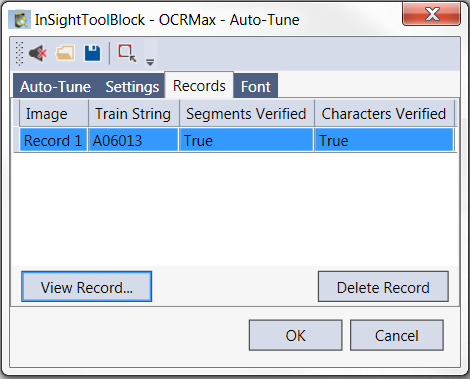
- Displayed in the main table is the name of the image used to train, the text string trained, and whether or not segments and characters were verified.
- View Record: Select a record to enable, and press to launch the Auto-Tune Record dialog, which displays the previously trained character regions above the current Auto-Tune results. If the current results segment the characters better than the trained results, press the Replace Record with Current Results button to overwrite the previously trained character regions with the current Auto-Tune results.
-
Delete Record: Select a record, and then press this button to remove the record from the list.
Note: Deleting a record may take a few moments to complete.
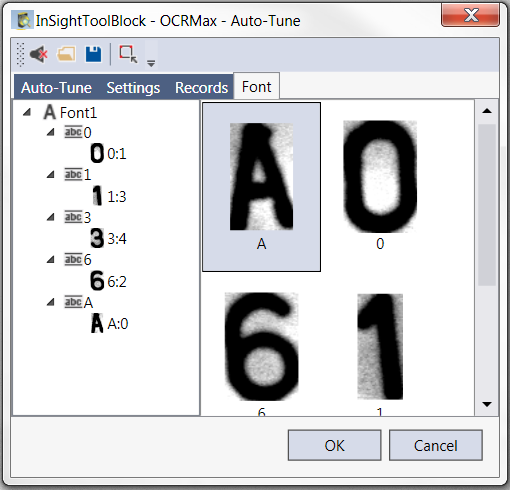
Font
The Font tab displays a read-only view of the trained characters and their instances.