How to Configure the WriteImage Function
The WriteImage function allows you to write the current image to a local device (In-Sight device or PC) or an FTP server on the network. This function is typically used to automatically save images of failed inspections during runtime.
The following describes how to configure the WriteImage function when connected to an In-Sight vision system.
- Connect to the In-Sight vision system.
-
Insert the WriteImage function into the spreadsheet, which opens the WriteImage property sheet. Configure the following parameters, using the default settings for the rest of the parameters.
- File Name: Enter a File Name for your image file.
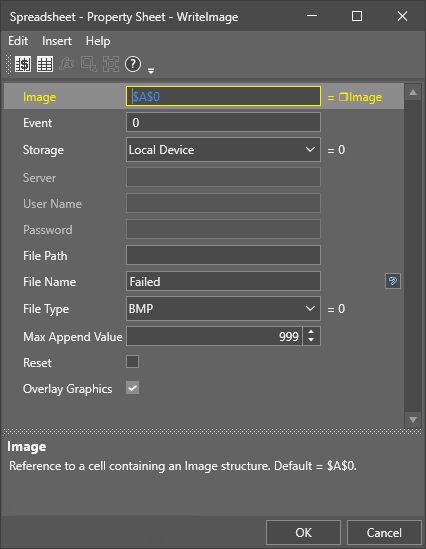
-
After configuring the parameters, click OK to close the property sheet. The WriteImage data structure and the Write and Reset buttons, which reference the Event and Reset parameters, are inserted to the spreadsheet.

- Place the In-Sight vision system Online.
-
Click the Write button.
- A bitmap file (Failed0.bmp) and an svg file (Failed0.svg) are stored on the In-Sight vision system.
- Use FTP software to view the files. For more information, see How to View Files Stored on In-Sight Device.
- For more information on each parameter setting, see WriteImage.
- If you would like to send the files to the SD card installed to the In-Sight device, enter sdcard in the File Path field.
- If you would like to send the files to an FTP server, set Storage to FTP Server and enter the server address (Server), User Name and Password in the corresponding field.
- If your job is configured to save a large number of image files, it is recommended that you select FTP Server for the Storage setting. If a large number of image files are saved on an In-Sight device (for example, if the Event parameter is set to
Storage Locations
Depending on the connected device and the function's Storage setting, the files are saved in different location.
| Storage Setting | Connected Device | Saved Location |
|---|---|---|
| Local Device | In-Sight Device |
Note:
You must use FTP software, such as FileZilla Client, to view files. For more information, see How to View Files Stored on In-Sight Device. If you are using SD card storage, make sure that your SD card is plugged in before you run the job. If you configure SD card storage, and the SD card is unplugged, the job saves the files to the /sdcard directory of the internal flash drive. |
|
Emulator In-Sight ViDi PC PC |
Note: Saving to a PC is only supported using an FTP server.
|
|
| FTP Server | Any device |
|