Configure PatMax RedLine Functions to Output a Fixture
- Add a TrainPatMaxRedLine function to the spreadsheet and open its property sheet.
-
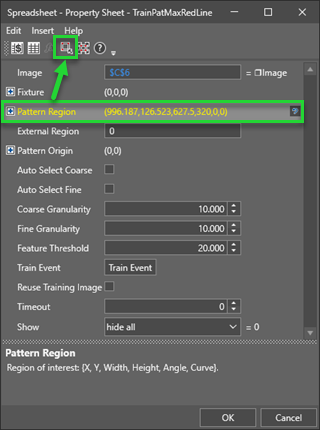
Select the Pattern Region parameter and then press the Edit Graphics button to enter interactive graphics mode so that you can configure the region.
-
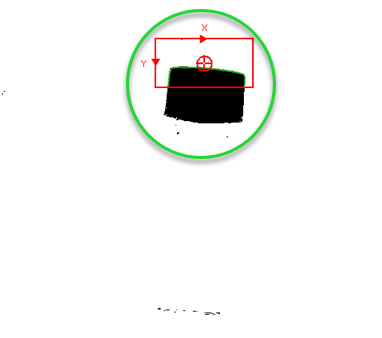
Configure the Pattern Region around the top of the binarized cap.
-
Add a FindPatMaxRedLine function to the spreadsheet and open its property sheet.
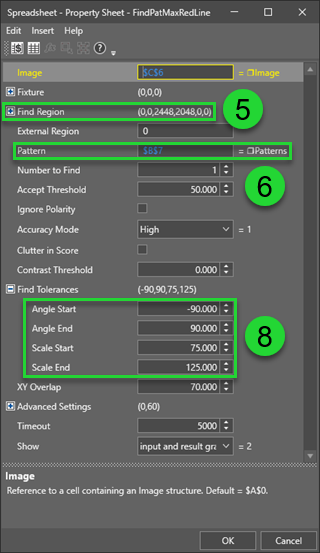
- Select the Find Region parameter and press the Maximize Region button so that the Find Region covers the entire image.
- Select the Pattern region and set it as an absolute reference to the Patterns data structured returned by the TrainPatMaxRedLine function.
-
Cycle through the images using the Filmstrip and ensure that the pattern is being accurately found in all of the images.
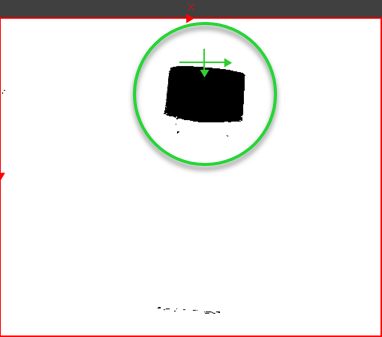
- In this example, the Find Tolerances parameters were adjusted to accommodate changes in angular orientation of the vials, as well as changes in scale.