In-Sight ViDi Job Architecture
The In-Sight ViDi job architecture is divided into the following two types of jobs:
-
The In-Sight ViDi Training Job
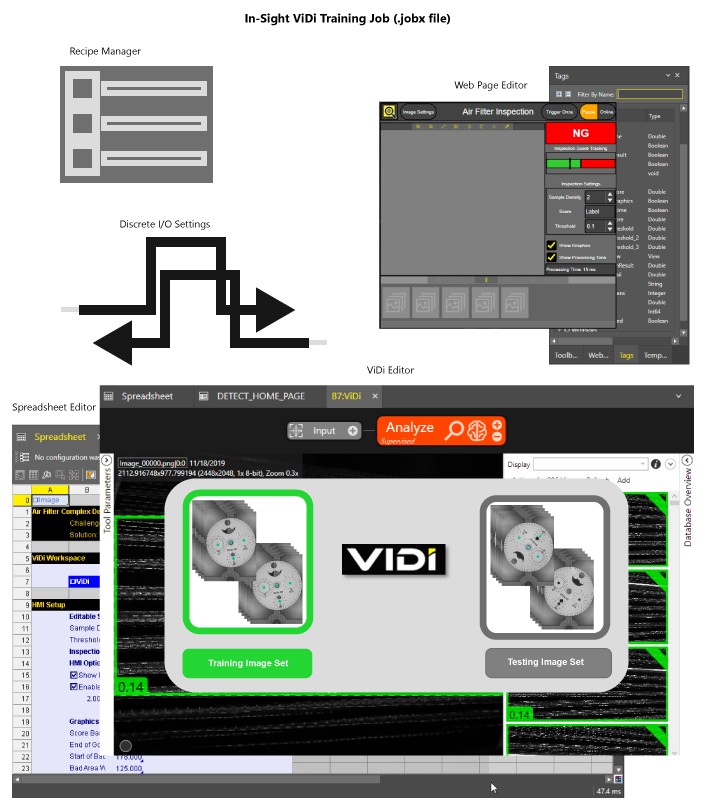
The In-Sight ViDi Training Job is comprised of all of the components that facilitate full job development. This is the job that is used to develop the entire application, and will generally be of a larger size, because it will also encompass all of the ViDi training data (workspace, training and testing images). In addition, this job file should be stored on a PC with a GPU, due to the ViDi training data and the need to train the tools.
-
The In-Sight ViDi Runtime Job
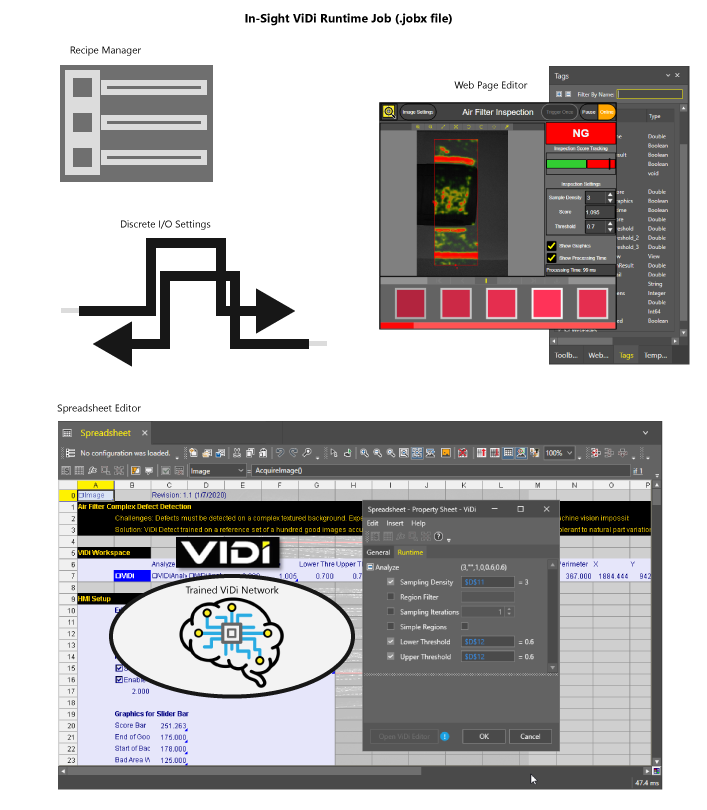
The In-Sight ViDi Runtime Job is comprised of similar components, but it lacks access to the ViDi Editor (the cells containing any ViDi function do not have the ability to launch the ViDi Editor). Instead, the In-Sight ViDi Runtime Job contains the ViDi functions as runtime-only cells, which have a trained ViDi neural network, and do not have access to the ViDi Editor and cannot be retrained. This is a more "lightweight" version of the job, and is typically stored on the In-Sight D900 series vision system.
|
|
|
|
|
|
|
|
|
|
|
|

- For the training phase of job development, Cognex recommends creating a new job, and developing and storing your job file on the PC. The PC should have a GPU to train the Cognex ViDi tools. In addition, there should be enough storage (preferably on an Solid State Drive), as the training workspace for the ViDi tool or tools can be several GBs of data, depending on the tool and number of training images.
-
When you perform the training of your ViDi tools within your ViDi functions, only perform the training while connected to one device (either an emulator or an In-Sight D900 series vision system) at a time. You may encounter errors with your training if you are connected to more than one device while training.
After training has completed, disconnect from the device, which will deallocate the GPU and allow it to be used on the next device. Once the disconnection is complete, you can then open another, new connection to an emulator or vision system and begin training on that device.
For example, if you had connected to an emulator from In-Sight Vision Suite, and then connected to a vision system, so that you had two tabs open, one for the emulator and one for the vision system, with ViDi functions in both jobs, and you attempted to train ViDi tools in one of the open tabs, you will encounter an error and be unable to train the ViDi tools. Instead, you should connect to the emulator, train the ViDi tools, then close the emulator tab before connecting to the vision system and training the ViDi tools in that job.
- If you disconnect from a device (emulator, In-Sight D900 series vision system or In-Sight ViDi PC) with an unsaved job that contains ViDi cells (they can be in either a trained or untrained state), on reconnecting to the device the same job will be loaded, but all the ViDi cells will turn into runtime-only cells (which means the cells no longer have access to the ViDi Editor). Since the job was not saved, all the training data associated with the ViDi cells will have been lost, because the cells were converted into runtime only cells. Always ensure that you save your job file prior to disconnecting from a device.