Get Data from an In-Sight Vision System
To get data from an In-Sight vision system to a ControlLogix PLC, the data must be pushed into the EtherNet/IP stack by using the WriteResultsBuffer function.
This function takes a buffer of data created by the FormatOutputBuffer function and writes it to the data area in the In-Sight vision system's EtherNet/IP Input Assembly when the event configured in the WriteResultsBuffer executes. This data is then transferred to the PLC during the next RPI cycle after the execution of the spreadsheet completes.
The EtherNet/IP buffer writes to this data area are queued when Buffer Results Enable is set, otherwise new results can overwrite the previous results.
- Open the AcquireImage cell (A0) and set the Trigger parameter to Continuous.
-
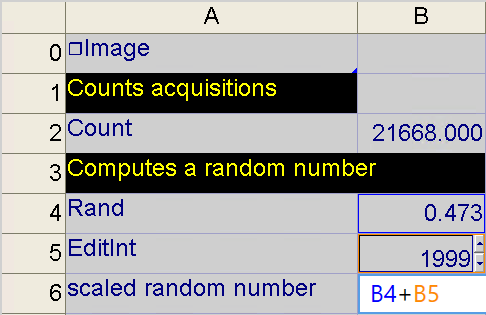
Insert these functions into the spreadsheet: Count, Rand, EditInt, and Sum. Set the Sum function's parameters as a cell reference to the sum of the value returned by Rand and EditInt functions.
- Right-click an empty cell and insert the FormatOutputBuffer function into the spreadsheet.
- From the FormatOutputBuffer dialog, click the Add button. This will initiate the cell selection mode; select the cell with the Sum function.
- From the FormatOutputBuffer dialog, use the Data Type pull-down menu to change the Data Type to 32 bit floating point.
-
From the FormatOutputBuffer dialog, click on the Add button again. This will initiate cell selection mode; select the cell with the Count function.
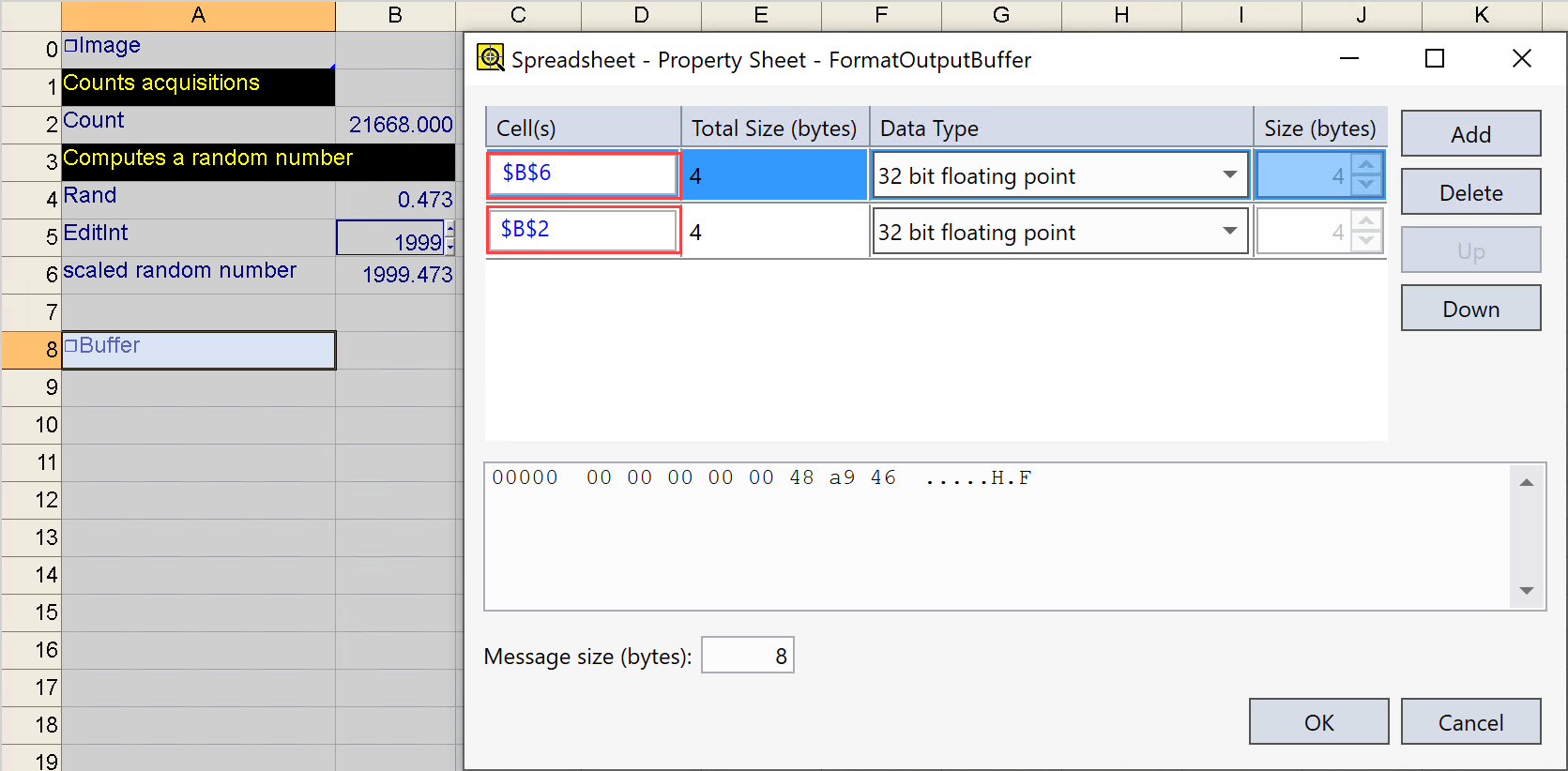
- Close the FormatOutputBuffer property sheet by clicking the OK button.
-
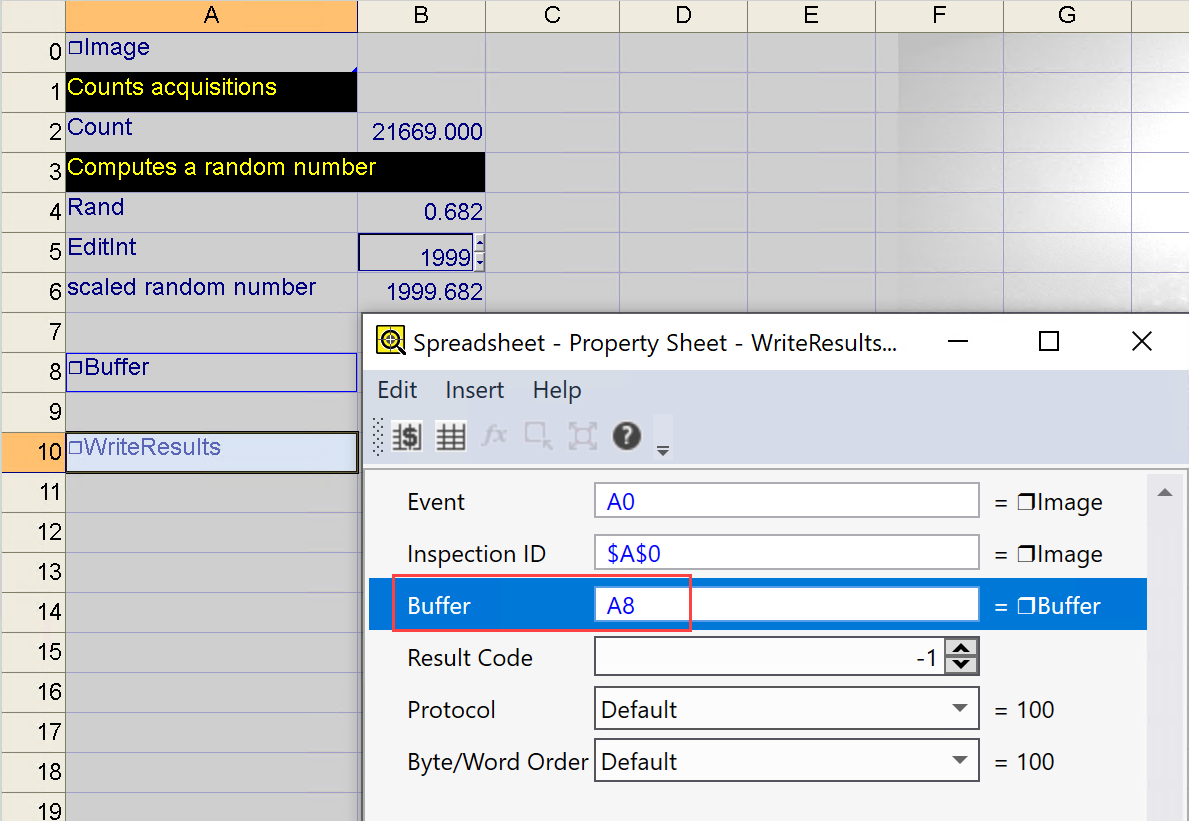
Right-click an empty cell and insert the WriteResultsBuffer function into the spreadsheet. Set the WriteResultsBuffer function's Buffer parameter as a cell reference to the recently created FormatOutputBuffer function.
- In RSLogix, go to Offline mode.
-
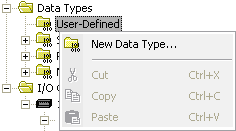
Within RSLogix, right-click on the Data Types > User-Defined folder and select New Data Type from the menu.
-
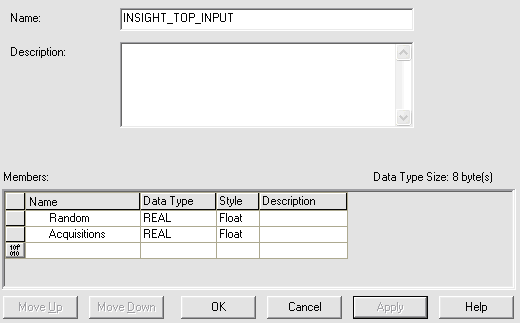
Give the new data type a descriptive name and add two floating point values to the Members: list.
-
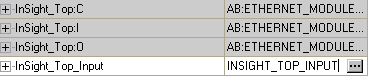
Next, add a new tag to the project's Controller Tags, using the user-defined data type.
-
Add a COP instruction to the MainRoutine ladder logic program.
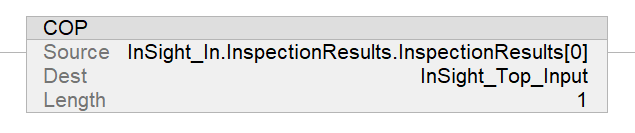 Note: The Length field is the number of the input structures that will be copied to the Dest field in the COP.
 - Place the In-Sight vision system Online.
-
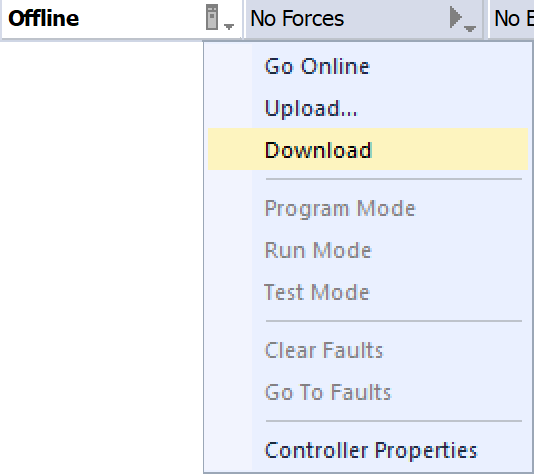
In RSLogix, click the drop-down arrow on the Offline button, and select Download.
-
After this program has been downloaded to the ControlLogix PLC, the data from the Random and Acquisition Counter spreadsheet cells will now appear in the InSight_Top_Input tag in the floating point format.
