Creating Monitoring Variables
Once PROFINET communication has been set up properly, create the monitoring variables. To prepare for the procedure, first open the
Perform the following steps to create the monitoring variables:
-
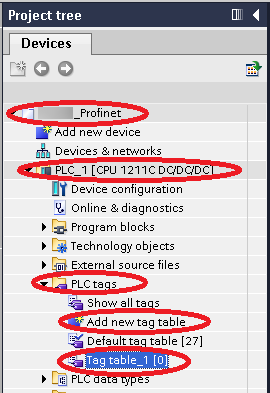
On the Project tree pane, go to the following location:
Vision System => PLC_1 [CPU 1211C DC/DC/DC] => PLC tags
-
Double-click on Add new tag table. This adds Tag table_1: double-click on that to open it.
-
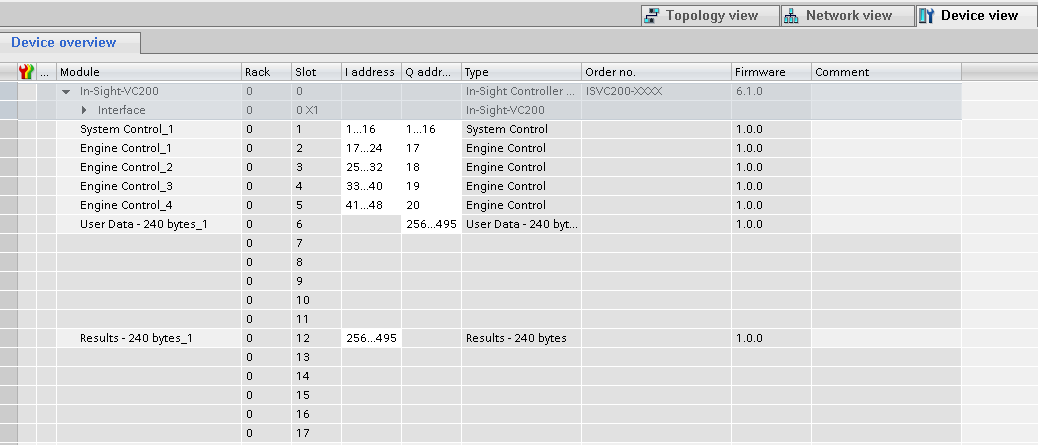
Open the Device view tab on the top of the screen to check the Q and I addresses to use for each module.
-
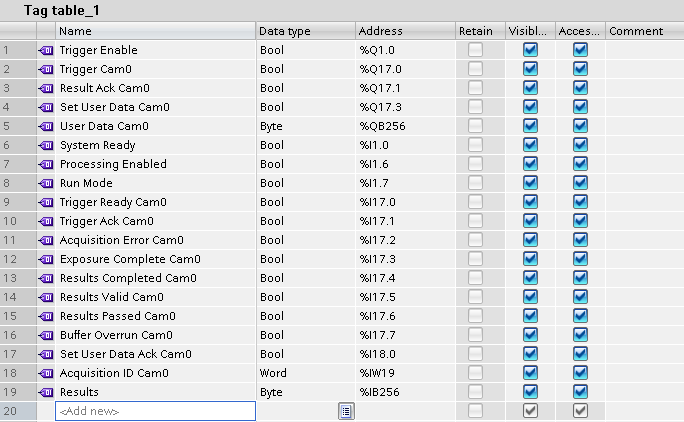
Open Tag table_1, and fill it according to the contents of the Device view tab , then save the project. This is necessary to see the names of the variables when they are monitored.
-
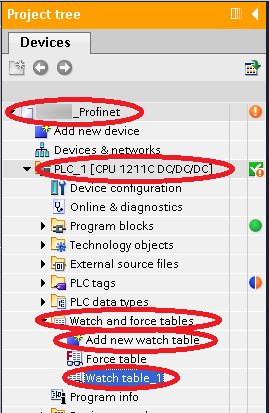
On the Project tree pane, go to the following location:
Vision System => PLC_1 [CPU 1211C DC/DC/DC] => Watch and force tables
-
Double-click on Add new watch table. This adds Watch table_1: double-click on that to open it.
-
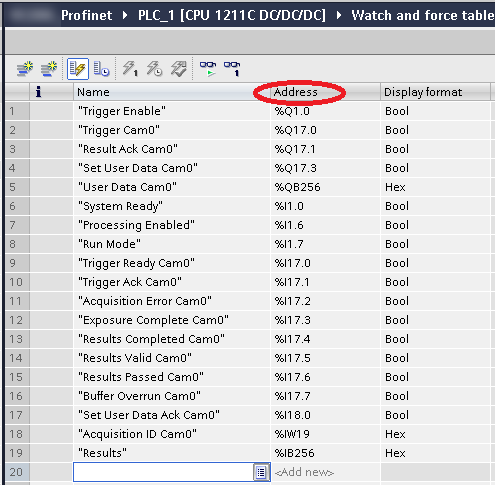
Fill the Address column as seen in the table below. Cognex recommends filling the Name column first, as the Address and Display format columns should be filled automatically when selected, according to the values configured in Step 4. Save these values for future use.
-
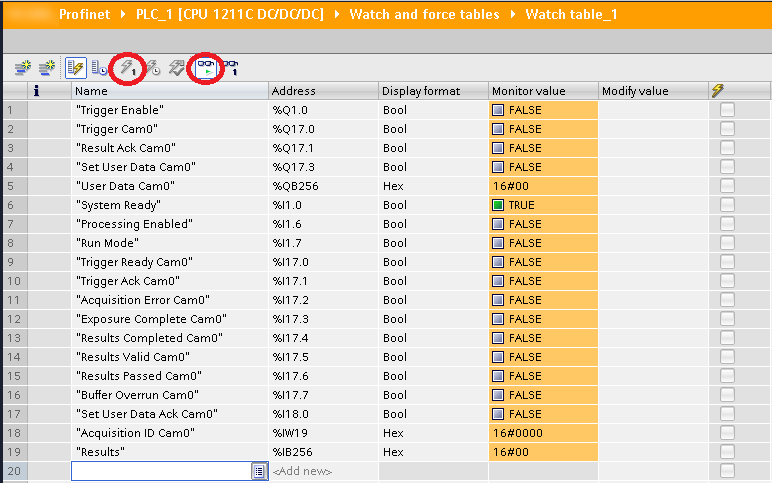
Click the Monitor all icon, so that the Monitor value column is updated cyclically, and the changes coming from the vision system can be monitored. To modify a variable in this case, type the new value in the Modify value column, and then click the Modify all selected values once and now icon.
 Note:
Note:- Analog values are indicated in hexadecimal format by default.
- The System Ready bit should show TRUE if everything has been set up correctly.