Optimize FindPatMaxPatterns
The first few parameters will be skipped since they are similar to most other vision tools. Beginning with the Pattern parameter, the following group of parameters will be discussed:
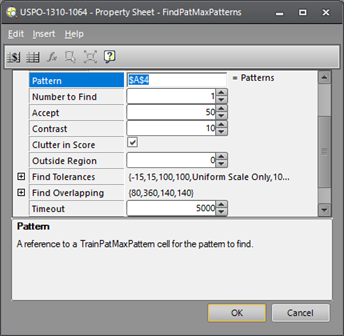
The Pattern parameter contains the cell address of the TrainPatMaxPattern function containing the model to be found. It is also possible to train multiple models and use logic expressions to choose which model should be used at any given time. For example, if models of five different coins have been trained, and the goal is to find only the dimes in any image of coins. The logic lookup function Choose() can be used to select the cell containing the Dime model, and then the cell address of the Choose() function is inserted into the Pattern parameter field. For more information about Choose(), see the Help file in In-Sight Explorer.
The Number to Find parameter specifies the maximum number of matching candidates the function returns. If there are more candidates found than the set value, the highest scoring candidates are returned in the results.
The Accept parameter specifies the minimum score that must be achieved by any candidate to be returned as a found result. This parameter applies to both the initial coarse search of the image, and the final fine score.
The Contrast parameter defines the minimum contrast a feature must have relative to its background to be considered a match. The default value of 10 rarely needs to be changed. However, if the desired features of the model have very good contrast of 50, while background clutter such as surface texture has low contrast of 20, then set the Contrast parameter to 40. This allows the desired features to be found while ignoring the lower contrast clutter.
The Clutter in Score checkbox defines whether clutter in the image should lower the final score. Clutter is defined as anything not trained in the pattern model, even if it is a valid feature of the part. Consider the trained model in the left image. In the right image the pins are not outlined in green because they are not part of the model, so they would be considered as clutter.
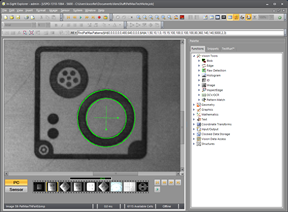
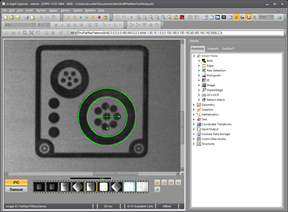
The question in this case is, do we care about the clutter? If we do not care whether the pins are there or not, and we only care about finding the circle, then we do not want the presence or absence of the pins to affect the final score. On the other hand, if we do not want the clutter features to be present, then we do want the score to be affected (i.e., lower) when they are present.
Since the model was trained without the pins present, when Clutter in Score is disabled, we get a score of 99.997 because all elements of the circle were found and we do not care about the pins, as shown in the left image. In the right image, Clutter in Score has been enabled, so the score drops to 76.852. By setting the Accept threshold to 80, we can ensure that only patterns without pins will be found.
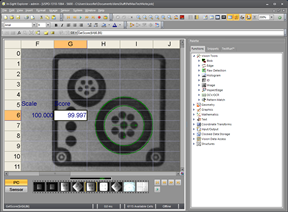
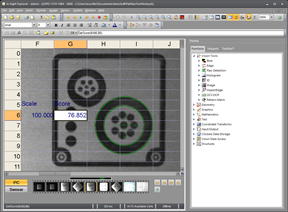
The alternative is to set the Accept parameter value lower and let the pinned patterns be found, but then use an external logic test such as InRange() to reject any result below 80.
The next parameter in the list is the Outside Region percentage. This is rarely used and generally should not be used. However, it is included for those rare cases when the location of the pattern in the Field of View is highly unpredictable and may sometimes fall outside the defined search region. This parameter allows the user to define what percentage of the pattern can be outside the region without affecting the score. In other words, if the Outside Region limit is set to 10% and only 9% of the pattern falls outside, the pattern can still get a near-perfect score.
The Find Tolerances are very important and should always be adjusted. The default settings are rarely correct for any given application.
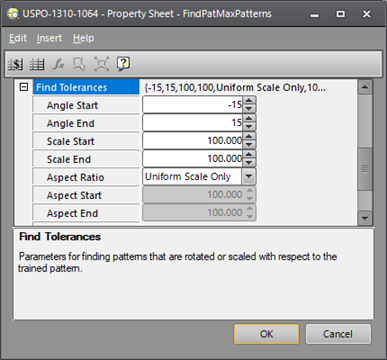
These settings are not hard limits. The FindPatMaxPatterns function can find results outside the ranges set for Angle and Scale. The purpose of these settings is to define the limits of what is considered a "perfect" match. In other words, if the Angle Start and Angle End are set to +/-15 degrees, then any candidate within that range can achieve a perfect score. However, candidates outside that range are still found, but with their score reduced. The further out of range, the lower the score is. A candidate will be rejected only if the score drops below the Accept parameter. The same principle applies to the Scale and Aspect Ratio (if enabled). If a hard limit is desired for any of these parameters, use an external logic test such as InRange() to reject any results that fall out of the desired limits.
Note that these parameters have an effect on speed as well. The larger the ranges, the slower the function runs. This is because the function must search the entire specified range to ensure it has found the best candidate. If the actual parts are hard-fixtured for example, and will never experience any angular variation, it makes no sense to force the tool to search in a +/-15 degree range. In this case, set the Angle Start and Angle End both to 0. Similarly, if the parts are always the same size, it makes no sense to allow any Scale range, so leave both Scale Start and Scale End set to 100. On the other hand, if the parts are legitimately expected to vary in size by an expected tolerance of 2%, then set the Scale Start to 98 and Scale End to 102, but no more than that. Parts outside that range will still be found, but with lower scores.
These parameters affect speed as well as score, sometimes very significantly. For maximum efficiency and accuracy, set the ranges to the minimum practical values that permit the pattern to be found and scored well.
The final set of parameters are about overlap. These include XY Overlap, Angle Overlap, and if enabled, Scale Overlap, and Aspect Overlap. These parameters control the ability of the FindPatMaxPatterns function to find candidates that overlap each other. Consider a bag of coins dumped randomly into a tray. Since many of the coins likely fall on top of other coins, these parameters can be used to allow the function to locate partially occluded patterns (coins). These parameters are rarely modified from the defaults, but can be if needed.
Summary of FindPatMaxPatterns Optimizations
- Pattern: Reference a single TrainPatMaxPattern cell or a logic cell that returns one of several choices.
- Number to Find: Set the maximum number of candidates to be found.
- Accept: Set the minimum score that produces an acceptable match, for both the coarse and fine searches.
- Contrast: Set the minimum contrast for features of interest. Lower contrast clutter will be ignored.
- Clutter in Score: Use to lower the score when unwanted details are found within or around the pattern.
- Outside Region: Use to specify whether a portion of the pattern can fall outside the search region.
- Find Tolerances: Set the minimum ranges needed to find the correct patterns.
- Find Overlapping: Set the maximum amount of overlap or occlusion of one pattern with another.