Configure the Vision System for Calibration
In this procedure, you will:
- Train the pattern of the robot TCP so that it can be located by the vision system.
- Add a Robot Tool.
- Enter a name for the .CXD calibration file. This file will be populated with calibration information by the Cognex In-Sight 2D Robot Guidance plugin after it completes the calibration.
- In EasyBuilder, connect to the vision system, then create a new job.
- Select Set Up Image. Ensure that the tool center point is within the field of view of the vision system.
-
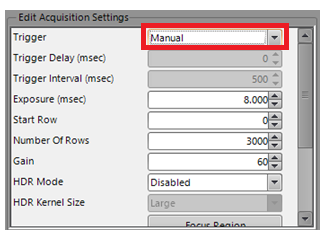
Under Edit Acquisition Settings, set the Trigger to Manual.
- Adjust the image settings to get an image that is well focused and evenly illuminated.
- Select Locate Part and add any preferred tools for locating the TCP on the robot gripper.
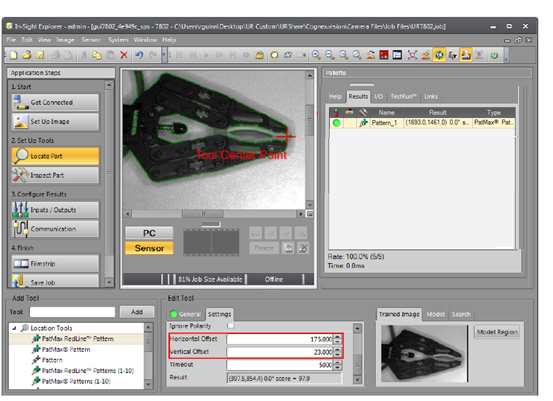
- Highlight the PatMax Pattern Tool and select Settings.
-
Use Horizontal Offset and Vertical Offset settings to adjust the crosshair on your tool so that it is centered on the TCP.
-
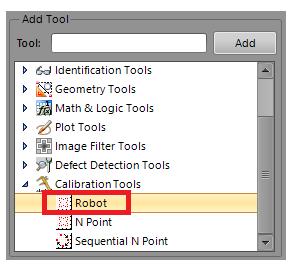
Next, to add the Robot Calibration Tool, select Inspect Part > Calibration Tools > Robot.
-
Select Add.
Note: This tool also uses Smart Features, so you can use other features (such as circles) to link to the Robot Calibration Tool. -
On the image, click on the crosshair associated with the tool that is used to define the TCP, then click OK. The Robot Tool displays in the Results tab of the Palette and is connected to the Pattern tool.
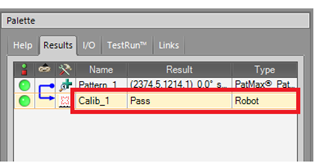
- Select the Robot Calibration Tool in the Tool Palette (named Calib_1 by default).
-
Under Edit Tool, select the Settings tab.
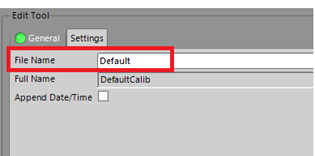
- Enter a File Name of the .CXD calibration file. To optionally include the current date and time in the file name, mark the Append Date/Time check box. The Full Name field displays the complete file name.
- Set the vision system to Online. This is required for the vision system to communicate with the robot.
- Save the job with a name that indicates that this is a calibration job. If you need to re-run the calibration in the Cognex In-Sight 2D Robot Guidance plugin, you can reuse this job.