In-Sight Audit Message Server Demo
The In-Sight Audit Message Server Demo demonstrates how audit messages can be received from one or more vision systems on the network. Audit messages are time stamped data records (XML format) that contain changes to system parameters, user log on and other system events.
- The In-Sight Audit Message Server Demo application is for demonstration and test purposes and not intended for deployment.
- A Visual Studio 2008 project containing sample code for an audit message
server is installed in the following directory:
- Windows 7/Windows 10: C:\Users\Public\Documents\Cognex\In-Sight\In-Sight Sample Projects x.x.x\C# v2008\Audit Message Server
This sample logs audit messages to a file, but you can modify it as needed to collect audit messages and convert the XML data for your compliance database or audit trail logging system.
How To Use the In-Sight Audit Message Server Demo
-
Launch the In-Sight Audit Message Server Demo from the Windows Start menu (the default location is C:\Program Files\Cognex\In-Sight\In-Sight Audit Message Server Demo x.x.x).
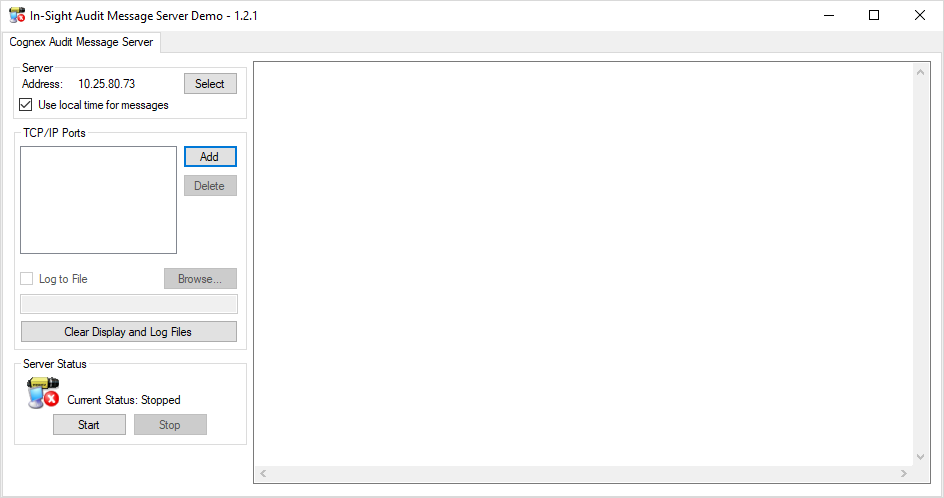
- The Server Address is the IP address of the PC. If more than one network IP address is available on the PC, you can select a different IP address for the Audit Message Server. Click the Select button to see the IP addresses that are available on the PC, and select the IP address for the Audit Message Server from the list.
- Check the Use local time for message box to time stamp audit messages with the date and time of the PC. This ensures that all audit messages received from In-Sight vision systems on the network will have a correct time stamp even if those vision systems are not configured to use an SNTP server, or the SNTP server becomes unavailable.
-
Click the Add button to open the Add Audit Message Port dialog. Enter an unused TCP/IP port between 1024 and 65535 (the default is 5753). This is the port at which your database or audit trail logging software will connect in order to collect audit messages from In-Sight vision systems. Multiple vision systems can send messages to the same Audit Message Port, or multiple Audit Message Ports can be added, one for each vision system that has been configured for audit messaging.
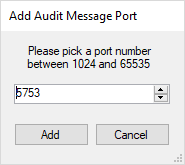 Note: The following TCP/IP ports are within the allowed range, but they are reserved by In-Sight and can not be entered: 1069 (In-Sight Protocol), 1070 (Machine Status data), 1212 (Upgrade port), 2222 and 44818 (EtherNet/IP), and 50000 (DataChannel).
 - Check the Log to File box. At the prompt, enter a filename for the log file (with .txt or .log file extension). If you added multiple TCP/IP ports in the previous step, create a log file for each port.
- Configure the In-Sight Audit Message Settings dialog. For more information, see Audit Message Settings Dialog.
- Click the Start button. If you have correctly configured the Audit Message Server and the vision system’s Audit Message Settings, the first audit message will be displayed in the Audit Message Demo application.
Schema for Audit Messages
