Set Region: Spreadsheet View
Sets an edit region control contained in a cell; the edit region control must be an EditRegion function.
Set Region Inputs
Syntax: SR[Column][Row][Row][Space][Col][Space][High][Space][Wide][Space][Angle][Space][Curve]
| Parameter | Description |
|---|---|
| Column | The column letter of the cell value to set (A to Z). |
| Row | The row number of the cell value to set. The row number must consist of three digits (000 to 399). |
| Row | The x-offset of the origin, in image coordinates. |
| Space | A blank space to separate the value from the next value. |
| Col | The y-offset of the origin, in image coordinates. |
| Space | A blank space to separate the value from the next value. |
| High | The dimension along the region's x-axis. |
| Space | A blank space to separate the value from the next value. |
| Wide | The dimension along the region's y-axis. |
| Space | A blank space to separate the value from the next value. |
| Angle | The orientation, in image coordinates. |
| Space | A blank space to separate the value from the next value. |
|
Curve |
The angle of orientation, in the image coordinate system. |
Set Region Outputs
Returns a status code. The status codes are:
| Status Codes | Description |
|---|---|
| 1 |
The command was executed successfully. |
| 0 |
Unrecognized command. |
| -1 |
The cell ID is invalid. |
| -2 |
The command could not be executed because the specified cell does not contain an edit region control, or the edit region control was not created by the EditRegion function. |
| -6 |
User does not have Full Access to execute the command. For more information, see User Access Settings Dialog. |
Set Region Example
The command to set an edit region contained in cell A2 to a new location and dimensions.
-
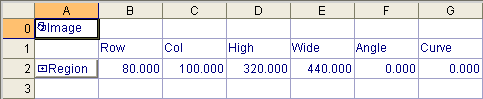
Assume cell A2 is populated as follows: A2 = EditRegion($A$0,0,0,0,1,1,1,1,"Region",0)
The spreadsheet looks like this:
-
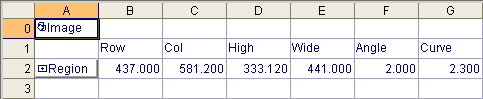
To change the region's location and dimensions using the Set Region Native Mode command; issue the command SRA002437.0 581.2 333.12 441 2 2.3as shown in the following telnet client window:
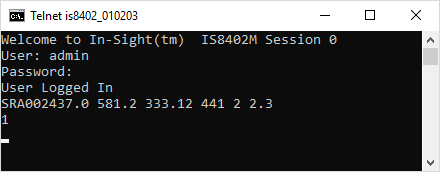
The In-Sight sensor responds with 1,indicating that the command was successfully executed: