SetEditRegion
Configures settings for a cell that contains an EditRegion function. The Cell must already contain an EditRegion function; SetEditRegion does not create one. For more information, see EditRegion.
SetEditRegion Inputs
Syntax: EV SetEditRegion(Cell,Row,Column,High,Wide,Angle,Curve)
| Parameter | Description |
|---|---|
|
Cell
|
|
|
Row |
The Row offset of the origin in fixture coordinates. |
|
Column |
The Column offset of the origin in fixture coordinates. |
|
High |
The dimension along the region's x-axis. Note: This value cannot be a negative number.
|
|
Wide |
The dimension along the region's y-axis. Note: This value cannot be a negative number.
|
|
Angle |
The orientation, in fixture coordinates. |
|
Curve |
The angular deviation between the region's X-axis and the opposing boundary line. |
SetEditRegion Outputs
Returns a status code, followed by the number of characters (in bytes) for the results, then the results in XML format. The status codes are:
| Status Codes | Description |
|---|---|
| 1 |
The command was executed successfully. |
| 0 |
Unrecognized command. |
| -2 |
The command could not be executed. |
| -6 |
User does not have Full Access to execute the command. For more information, see User Access Settings Dialog. |
SetEditRegion Example
-
Insert an EditRegion function in cell A3 with the default settings. Assume cell A3 is populated as follows:
A3 = EditRegion($A$0,0,0,0,1,1,1,1,"",0)
An EditRegion
 control, along
with a corresponding results table is created in the adjacent cells to
the right.
control, along
with a corresponding results table is created in the adjacent cells to
the right.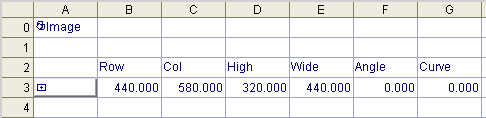
-
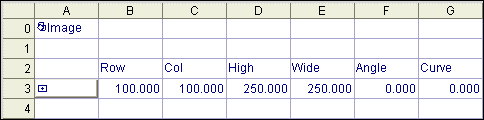
Using the telnet client, issue the following command: EV SetEditRegion(A3,100,100,250,250,0,0)
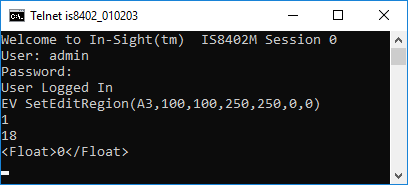
The EditRegion results table is updated to reflect the SetEditRegion input values.