SetCellName
Sets the symbolic tag name of a specified cell, and optionally enables the symbolic tag to be transmitted over the OPC channel to the In-Sight OPC Server or to generate audit messages to an audit message server. Symbolic tag names can only be applied to cells that have content.
SetCellName Inputs
Syntax: EV SetCellName(Cell,"Name",[Mode])
| Parameter | Description |
|---|---|
| Cell | The cell reference (A4 for example). |
| "Name" | The text string that you want to use as a symbolic tag name. The name must be enclosed in quotation marks. |
| Mode |
Mode is an optional input.
Note: To generate audit messages, the Enable Audit Messages checkbox must be checked.
|
SetCellName Outputs
Returns a status code. The status codes are:
| Status Codes | Description |
|---|---|
| 1 |
The command was executed successfully. |
| 0 |
Unrecognized command. |
| -1 |
The cell ID is invalid. |
| -2 |
The command could not be executed. |
| -6 |
User does not have Full Access to execute the command. For more information, see User Access Settings Dialog. |
SetCellName Example
To assign the symbolic tag name "Width" to the cell in B60, issue the following command: EV SetCellName(B60,"Width")
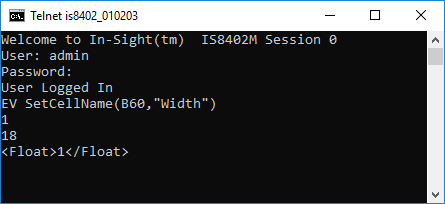
The In-Sight sensor returns 1 to indicate that the command was executed successfully and the number of characters in bytes (18). Finally, the results are returned in XML format.