Unable to Communicate with the In-Sight Vision System
 Connect your Computer to the In-Sight Vision System as a Client
The TCPDevice function acts as a server if you do not specify a Host Name. Make sure that your computer connects to In-Sight vision system as a client.
If you specify the Host Name in the TCPDevice function, the vision system acts as a client. Connect to the server when you bring the In-Sight vision system online. At that time, check whether your computer is in a standby state as a server.
Check that the In-Sight Vision System is Online
The TCPDevice function only communicates when online. Make sure to bring the In-Sight vision system online before sending a VGR command.
Ping the In-Sight Vision System
Open the command prompt, and type ping <IP address of the In-Sight vision system>.
If you get the correct response, the IP address and subnet mask of the vision system are set correctly. If the ping response times out, there is a high possibility that the IP address or subnet mask of the vision system is not set correctly.
Find the IP Address of Your In-Sight Vision System
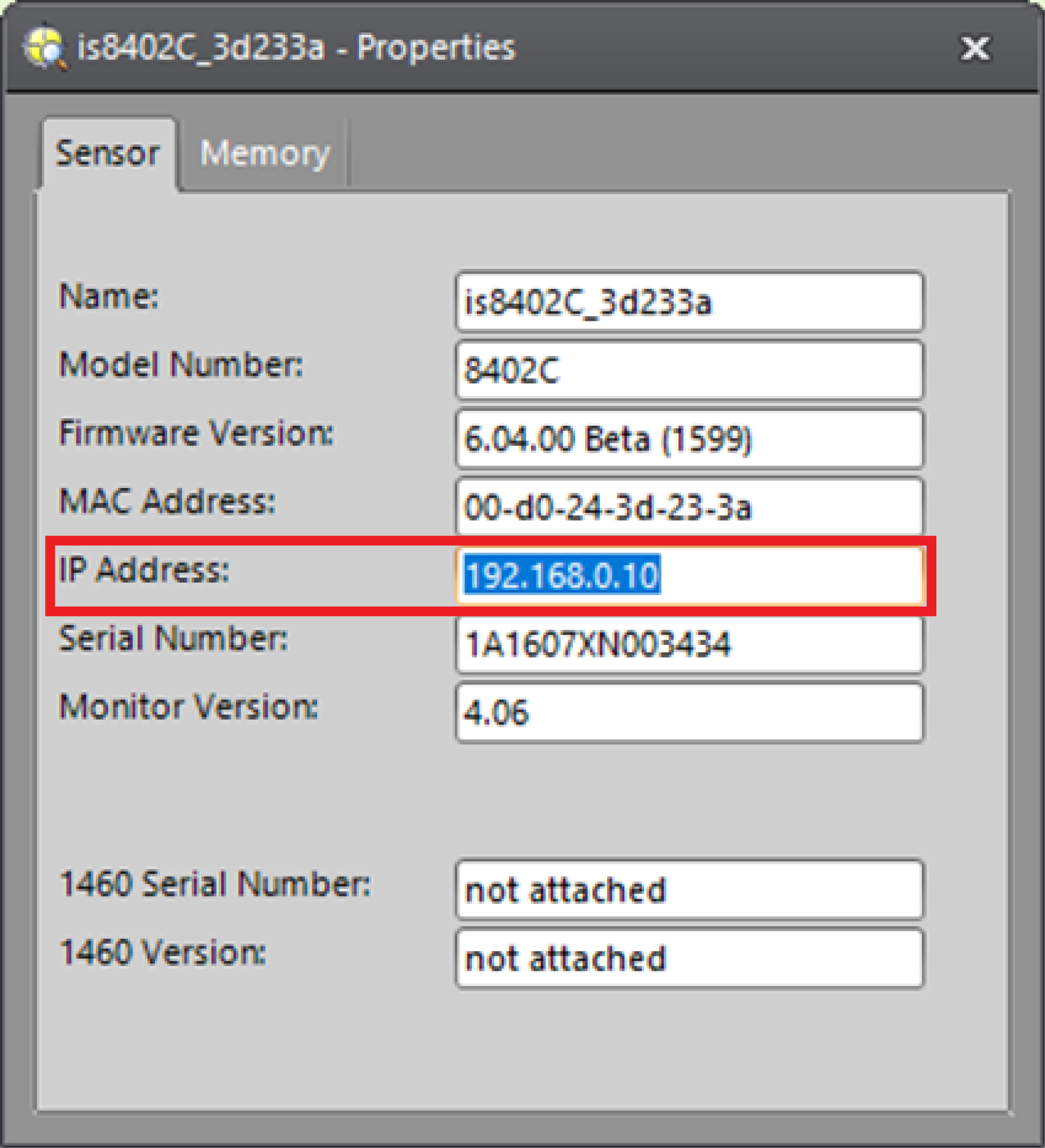
Make sure you specify the correct IP address for the In-Sight vision system.
You can check the IP address by viewing the Properties of the vision system.
Match the Subnet Mask Settings with Your In-Sight Vision System
If the vision system and your computer belong to the same network segment, the subnet masks must match.
If the vision system and your computer belong to different network segments, you need to set the appropriate subnet mask and default gateway.
Check the Port Number
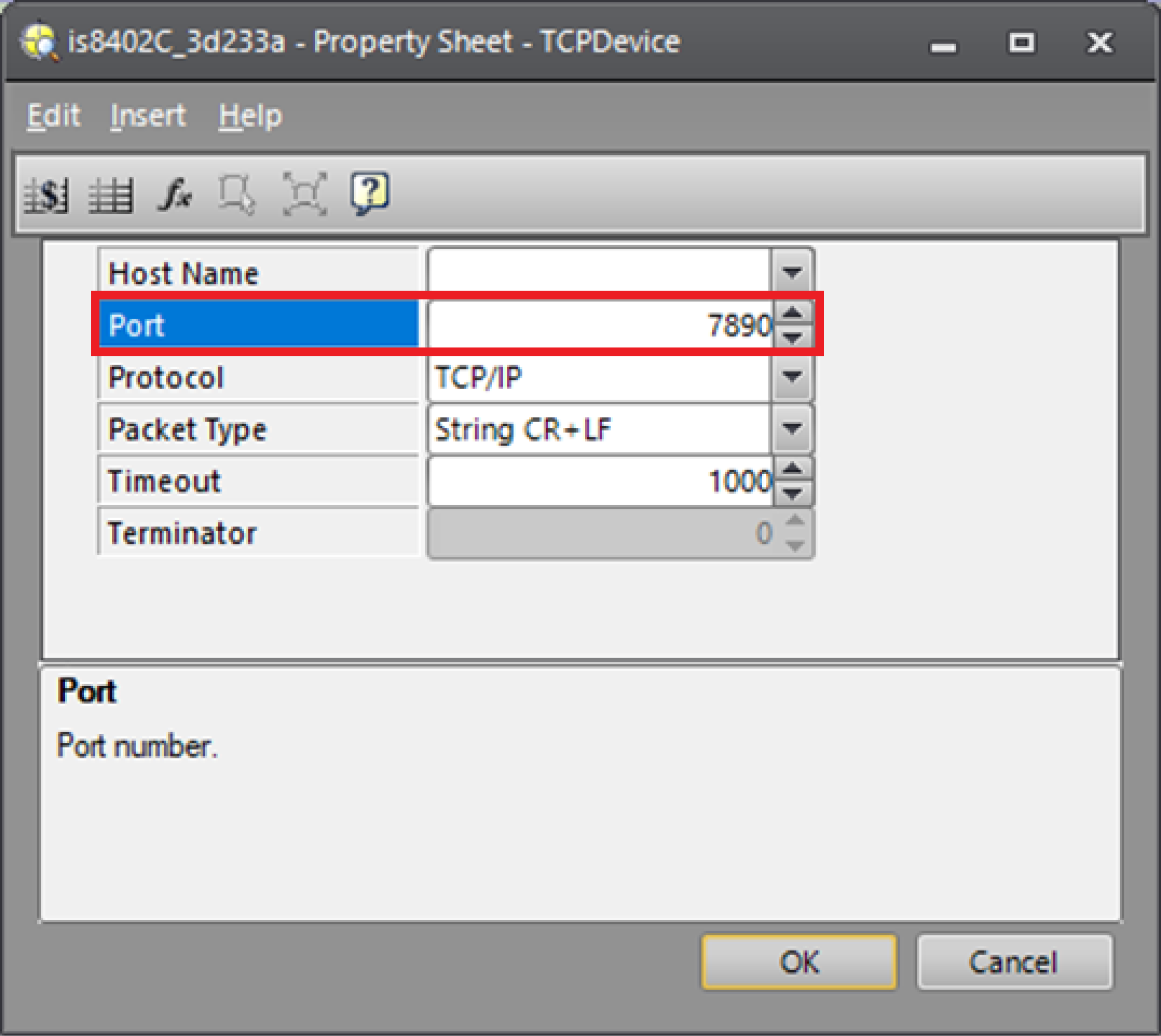
Ensure that the port number defined in the TCPDevice function matches the port number set on your computer.
In the figure below, 7890 is set as the port number.