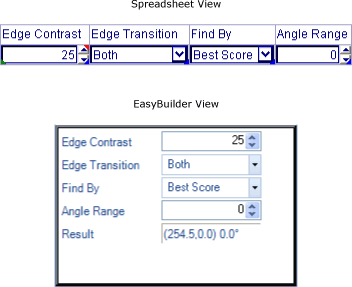
EasyBuilder Jobs and the Spreadsheet
Round Trip application development is the process of creating a machine vision application in both the EasyBuilder and Spreadsheet development environments of In-Sight Explorer. A job started in the EasyBuilder can be edited in the Spreadsheet, allowing for customization of exposed parameters in the EasyBuilder interface. For example, the parameters for Location and Inspection Tools may be added, removed or renamed, and additional logic and functionality that is only available in the Spreadsheet environment may be added to enhance EasyBuilder jobs, as well. For more information, see Add, Remove and Rename EasyBuilder Tool Parameters.
When a job is created and developed in EasyBuilder, an EasyBuilder-specific Spreadsheet is created and programmed with EasyBuilder snippets, which are groups of pre-configured, spatially defined and logically integrated In-Sight functions and EasyBuilder Tags and Labels that perform specific tasks, saved as a Cell Data (.CXD) files. For more information, see EasyBuilder Tags and Tag Labels.
The EasyBuilder snippets correspond to the functionality in the EasyBuilder application steps. The EasyBuilder-compatible Spreadsheet conforms to a specific format, consisting of three vertical sections of EasyBuilder Snippets:
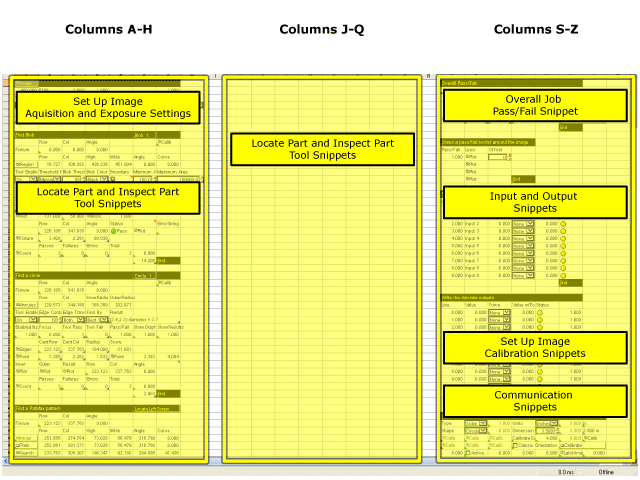
- Cell columns A-H contain the EasyBuilder snippets for the acquisition settings in the Set Up Image step, and the EasyBuilder snippets for Location and Inspection Tools added in EasyBuilder.
- Cell columns J-Q are typically empty, unless the first column has been filled, at which point this column is used for EasyBuilder Location and Inspection Tool snippets.
- Cell columns S-Z contain the EasyBuilder snippets for the overall job pass/fail results, the Input/Output step, the calibration in Set Up Image and the Communication step.
All EasyBuilder snippets are formatted to occupy 8 or fewer columns, and are inserted into one of the three vertical sections. When a Location or Inspection Tool is added to a job in the EasyBuilder environment, the corresponding EasyBuilder snippet is automatically added to the EasyBuilder-specific Spreadsheet, based on the available space in the Spreadsheet.
For example, if a Blobs Counting Tool is added to a job in the EasyBuilder development environment, the EasyBuilder Snippet file BlobCount.cxd is automatically added to the Spreadsheet, in either the first (Columns A-H) or second (Columns J-Q) section, depending upon the available space in the Spreadsheet.
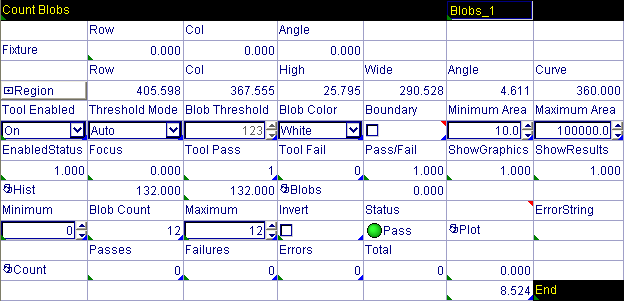
The EasyBuilder Snippets also maintain absolute cell references between both individual cells within a snippet, and the cells of other EasyBuilder Snippets. This spatial relationship between the cells acts as a mechanism to both relate cell execution order, while also providing the display order of text labels and exposed parameters in the EasyBuilder environment. The EasyBuilder Snippets are scanned from the left-to-right, row-by-row, and the individual execution of cells is based upon their placement in the snippet. For more information, see Cell References - Relative/Absolute.
For example, the EasyBuilder snippet file BlobCount.cxd relies on the spatial relationship between the text labels in the row above the Graphics Controls functions in the row below to create the parameter names and controls exposed in the EasyBuilder environment.