Use the Spreadsheet Navigator Pane
The spreadsheet navigator pane is displayed on the right side of the In-Sight Explorer user interface by default. You can drag or right-click the title bar of the spreadsheet navigator pane to customize your In-Sight Explorer user interface. For more information, see Customizing Window Panes.
-
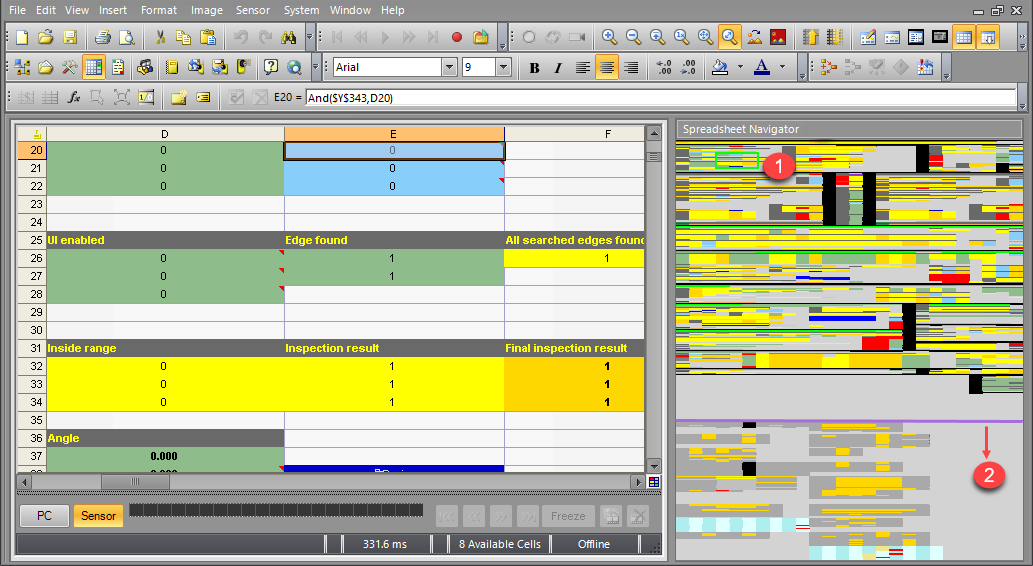
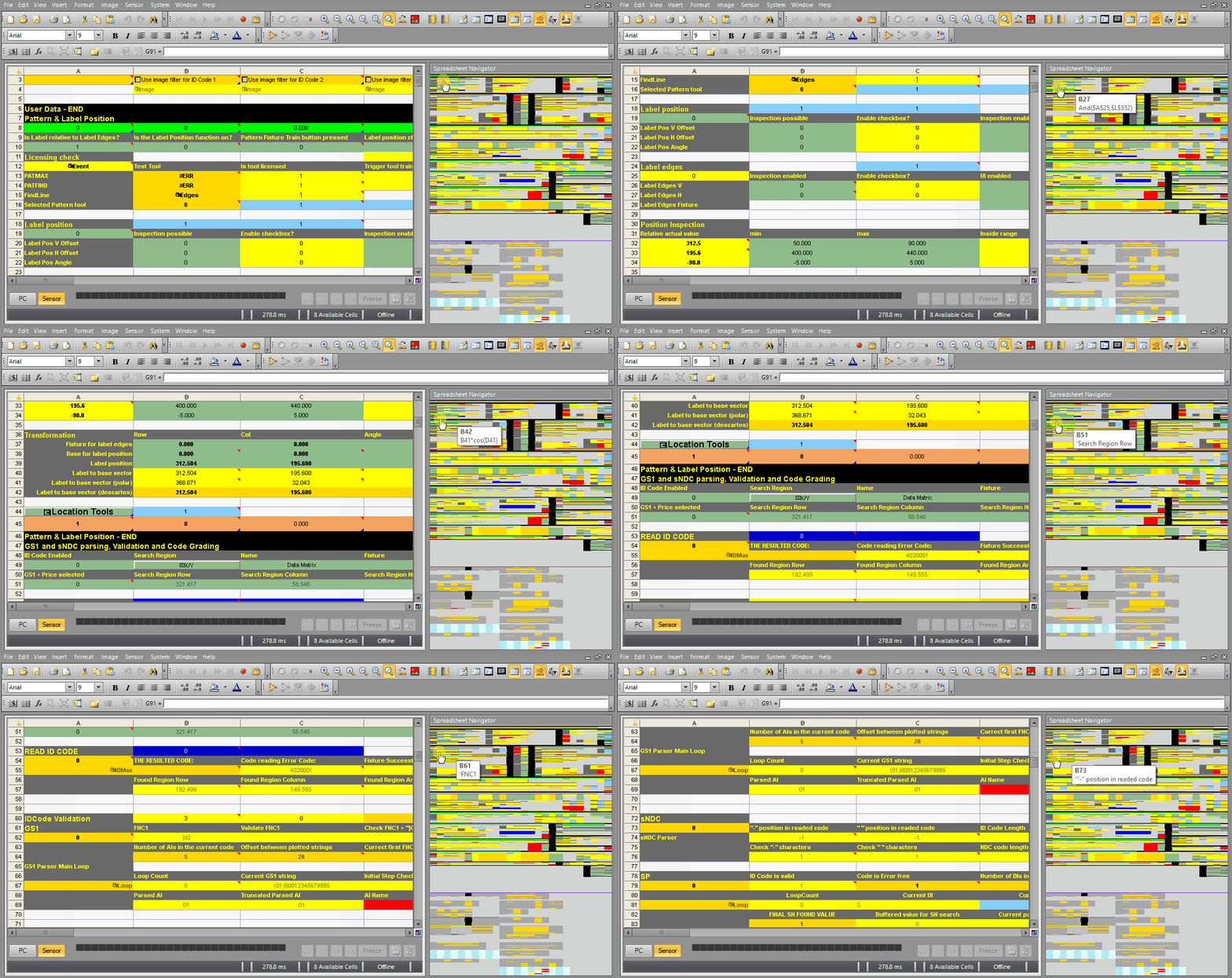
Viewer Box: The green viewer box Indicates the area of the spreadsheet that is currently visible in the spreadsheet display. You can move the viewer box around to change the visible spreadsheet area in the display.
-
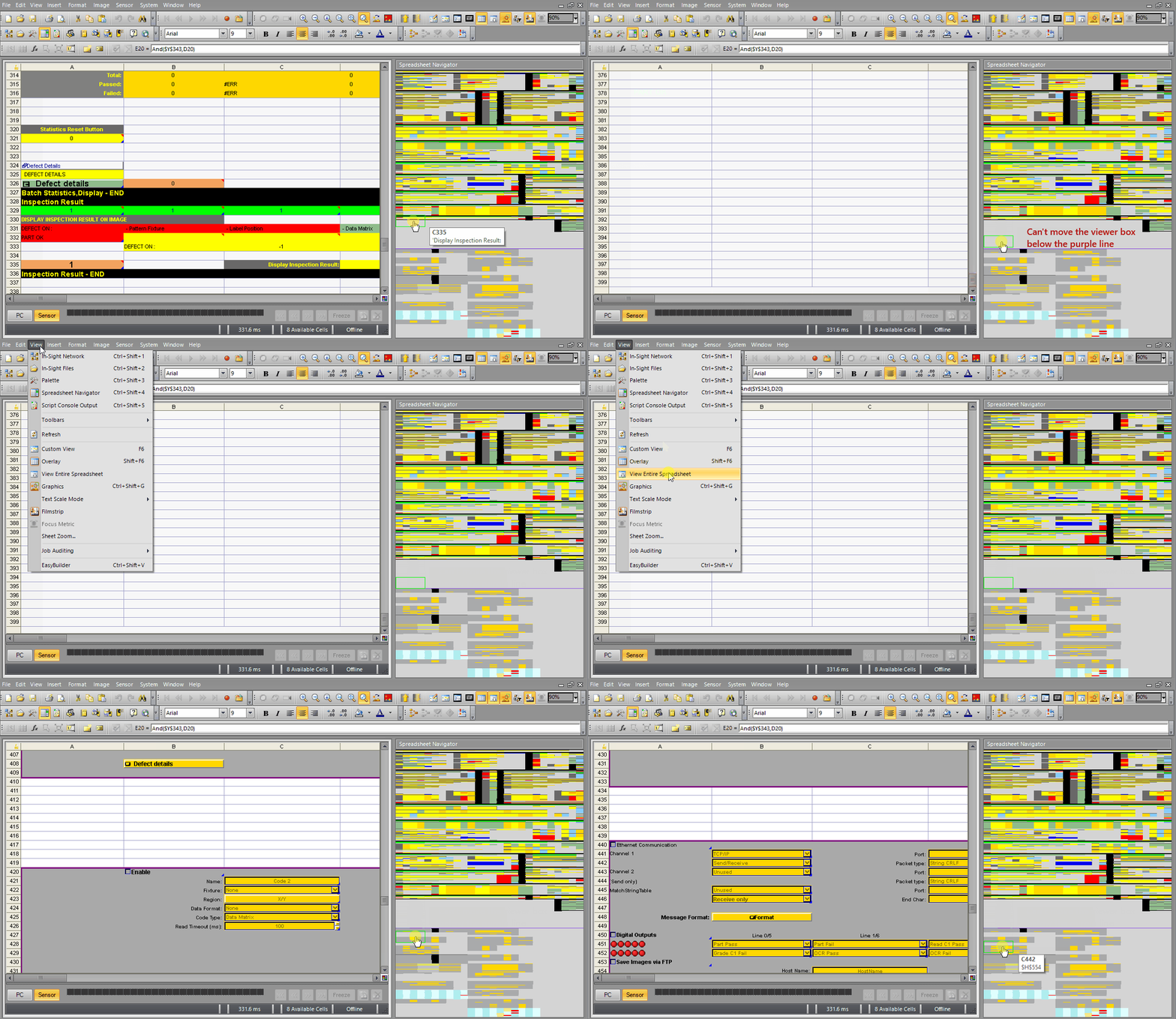
Dialog Cells: The dialog cells are displayed below the purple line. To navigate the dialog cells in the spreadsheet navigator pane, you need to enable the View Entire Spreadsheet option (View > View Entire Spreadsheet) first. If you do not enable the View Entire Spreadsheet option, the dialog cells will be hidden in the spreadsheet. You can view the dialog cells in the Spreadsheet Navigator pane, but cannot move the viewer box below the purple line.