Configure In-Sight Explorer with an External FTP Server
In-Sight Explorer uses an internal FTP server to transfer file information from In-Sight vision systems to the In-Sight Explorer application. However, there is an option to use an external 3rd-party FTP server, instead. This is configured by disabling In-Sight Explorer’s default internal FTP server, and setting up an external FTP server to run on your network.
Disable the Internal In-Sight Explorer FTP Server
-
In the System menu, select Options to launch the Options dialog.
-
Select Emulation, and uncheck the Use Emulator check box, and click OK.
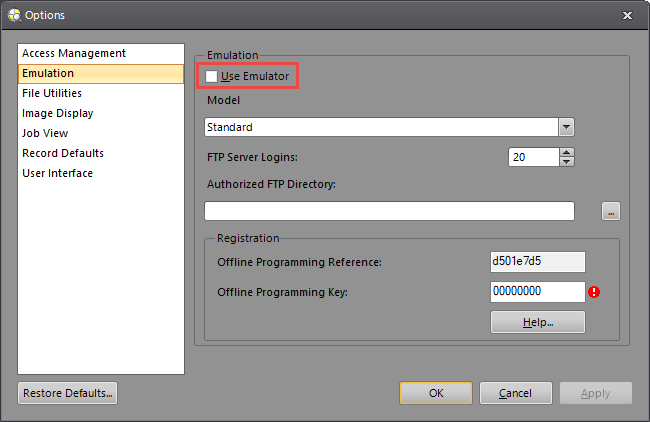
-
Click Yes on the user prompt to disable the FTP server.
Note:- To transfer files from In-Sight Explorer to In-Sight vision systems, an external FTP server must be configured with a Host Name, Username and Password (if one is set up in the external server). The server settings must also be set to read and write.
- Disable the internal In-Sight Explorer FTP server before launching an external FTP server.
Configure the External FTP Server Information in EasyBuilder
- From the Communications group box, select FTP.
- By default, the Images tab will be automatically selected and displayed in the settings pane.
-
Press the Add button to add an entry and configure the image export parameters in the Images and Settings tabs.
Note: More than one image export operation can be added to a job. - In the Settings tab, input the external FTP server host information.
- Enter a Host Name, User Name, Password, and Connection Type.
- After configuring the parameters, click OK.
-
Place the In-Sight vision system Online. The vision system must be Online to execute; otherwise, no images will be exported.
-
Trigger the vision system to acquire images. For each acquired image, an image file (BMP or JPG, depending on the File Format parameter) is exported and stored on the host specified in the Host Name parameter.
Configure an External FTP Server From the Spreadsheet
- Select a cell in the spreadsheet.
- Navigate to the Functions tab, and insert a function (i.e., WriteFTP, WriteImageFTP, etc.) to open its property sheet.
- Configure the following parameters in the property sheet.
- Enter a Host Name, User Name, Password (if one was set up) and File Name.
- After configuring the parameters, click OK.
- Place the vision system Online to execute file transfers via the external FTP server.
-
Trigger the vision system. Each acquired file is stored on the specified host.
Note:- The vision system must be Online for the external FTP server to transfer files.
- The external FTP server must be running to facilitate file transfer between In-Sight Explorer and the vision system selected.