Access Management Panel
-
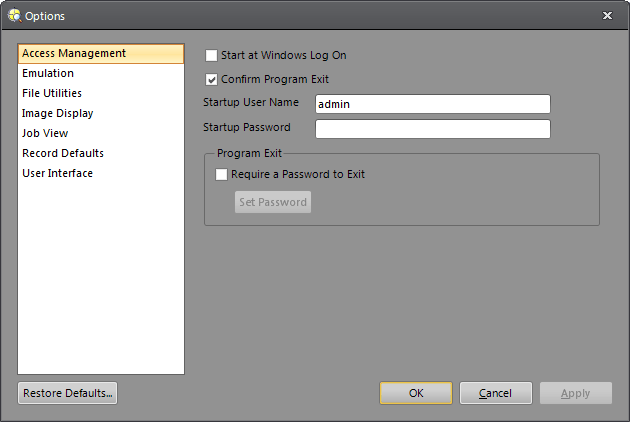
Start at Windows Log On: Select this checkbox to automatically launch In-Sight Explorer when you log on to a PC running Microsoft Windows.
Note: When attempting to change the Start at Windows Log On option, the Run As dialog will be displayed if you are logged into Windows as a Standard User and the User Account Control (UAC) is disabled. Provide the Administrator credentials to continue the operation. For more information, see Run As Dialog. -
Confirm Program Exit: When this checkbox is selected, you will be prompted with a confirmation dialog each time In-Sight Explorer is exited. This confirmation is primarily a reminder that any unsaved changes to the active job on the local emulator will be lost upon exit. When this checkbox is cleared, no confirmation will be required to exit the application.
Note: Jobs on In-Sight vision systems will not be lost when In-Sight Explorer exits; however, if jobs are not saved before the vision system is power cycled, then unsaved job data will be lost. - Startup User Name: Specifies the User Name that will be automatically logged on to In-Sight Explorer when the application is launched; by default admin is selected.
-
Startup Password: Specifies the Password for the Startup User Name; by default this field is blank.
Note:- The User Name and the Password in the Options dialog must match those defined in the User Access Settings dialog. Otherwise, the Log On/Off dialog appears and you are prompted to enter the User Access Settings' User Name and Password when the application is launched. For more information, see User Access Settings Dialog.
- The User Name and Password lengths cannot exceed 15 characters, and both are case-sensitive.
-
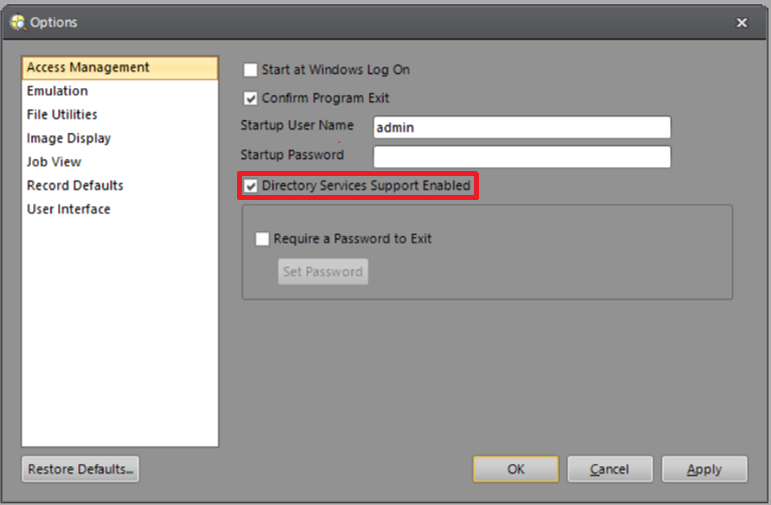
Discovery Services Support Enabled: Select this checkbox to enable discovery services support. This checkbox is hidden by default. To make it visible, press Ctrl + C, D, and S in sequence, click OK, and wait for In-Sight Explorer to restart.
-
Require Password To Exit: Select this checkbox to prompt a password whenever In-Sight Explorer is closed.
Note: When attempting to uncheck the checkbox, you may be prompted to enter the password (the default password is blank). - Set Password:Opens the Change Password dialog to configure the password to exit In-Sight Explorer.