Use the MatchColor Tool
In this example, the MatchColor tool will be used to determine if colors are present in the image.
Open the MatchColor Training Dialog
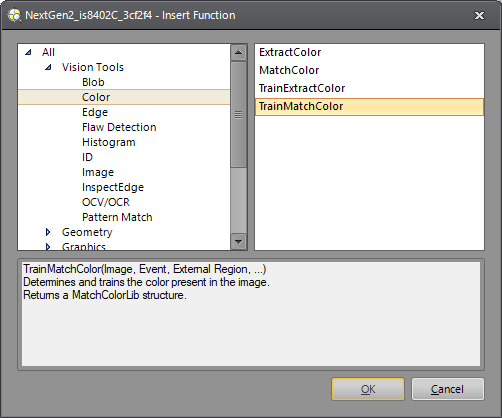
- Right-click an empty cell in the spreadsheet and select Insert Function to open the Insert Function dialog.
- In the left side of the Insert Function dialog, expand the Vision Tools list of tool categories.
- Select the Color tool category.
-
Select the TrainMatchColor function from the Function List and press the OK button or double-click on the function.
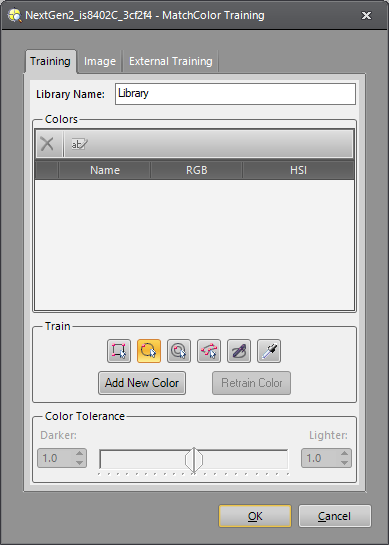
The MatchColor Training dialog appears.
Add Colors
-
In the Train section of the dialog, select the shape of the Region of Interest (ROI) that you will use to define the Color: Region, Circle, Annulus, Polygon, or Freehand. For this example, a Circle ROI will be used.
-
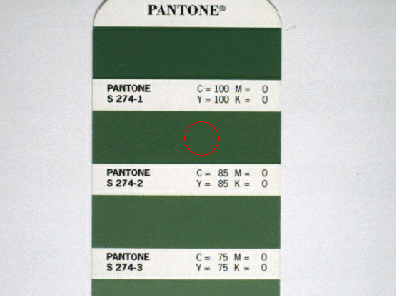
Press the Add New Color button to enter interactive graphics mode and position the Circle ROI within the image so that it includes the colors that you want to add.
-
Press the OK button in the Job Edit toolbar once you have configured the ROI. The Color added to the Library contains the average of all the colors within the ROI you defined. For this example, the tolerance settings, the darker and lighter limits are set to 1.0 and 1.0, respectively, because the green and the blue that we'll set next are similar.
-
Repeat the process for any other red and blue colors. The lighter and darker tolerances for blue and red are set to 1.0 and 1.0.
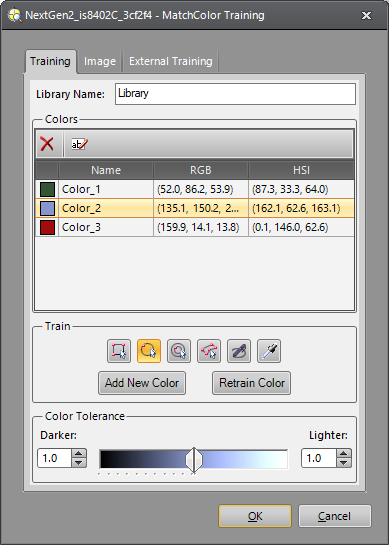
- Once the Colors have been finalized, click the OK button in the TrainMatchColor dialog to close it.
Add the MatchColor Function
-
Right-click an empty cell in the spreadsheet and select Insert Function to open the Insert Function dialog.
-
In the left side of the Insert Function dialog, expand the Vision Tools list of tool categories.
-
Select the Color tool category.
-
Select the MatchColor function from the Function List and press the OK button or double-click on the function.
-
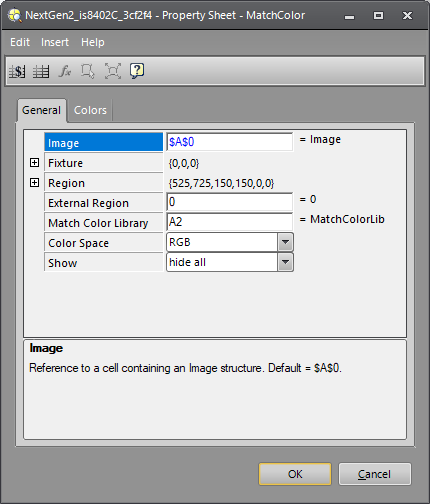
The MatchColor property sheet appears.
-
In the Match Color Library parameter, insert a cell reference to the MatchColorLib structure returned by the TrainMatchColor function. This cell contains the Color Library that will be used by the MatchColor function.
-
Once the parameters are configured, press the OK button to close the property sheet.
-
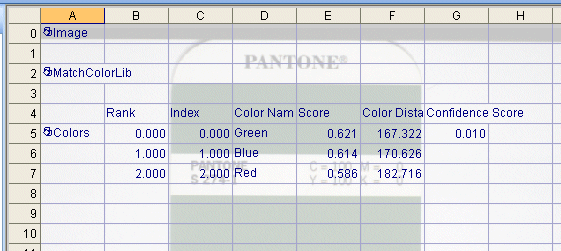
The results for the green image are shown below.
-
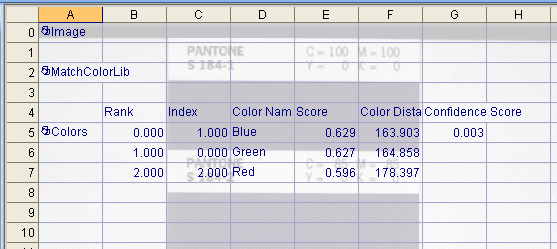
The results for the blue image are shown below.
-
The results for the red image are shown below.
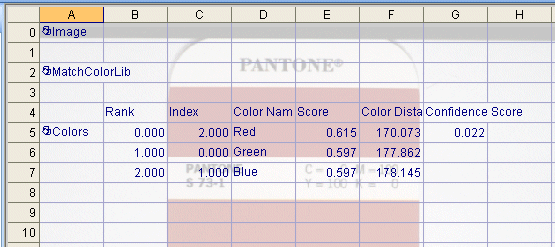
In this example, the inspection determines the color (green, blue, or red) based on the color distance score.