Use the Caliper Tool
Using the Caliper tool requires the following steps:
- Opening the Caliper dialog
- Setting the Caliper Tool Inputs
- Setting the Image Region
- Setting the Contrast Scoring Method
- Setting the Size Scoring Method
- Set the Straddle Scoring Method
- Set the Position Scoring Method
In this example, the caliper tool will be used to find an edge pair that is high contrast, near the center of the image region, straddles the center of the image region, and has an edge distance close to the expected distance.
-
Opening the Caliper Dialog
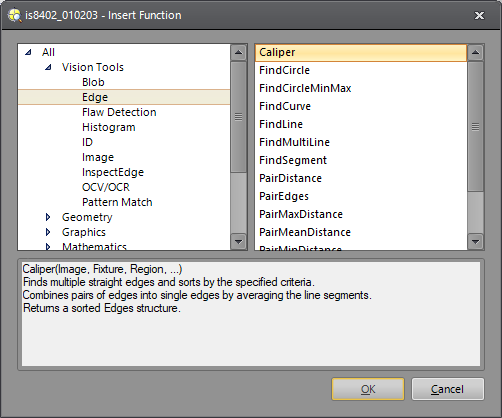
- Right-click an empty cell in the spreadsheet and select Insert Function to open the Insert Function dialog.
- In the left side of the Insert Function dialog, expand the Vision Tools list of tool categories.
- Select the Edge tool category.
-
Select the Caliper function from the Function List and press the OK button or double-click on the function.
-
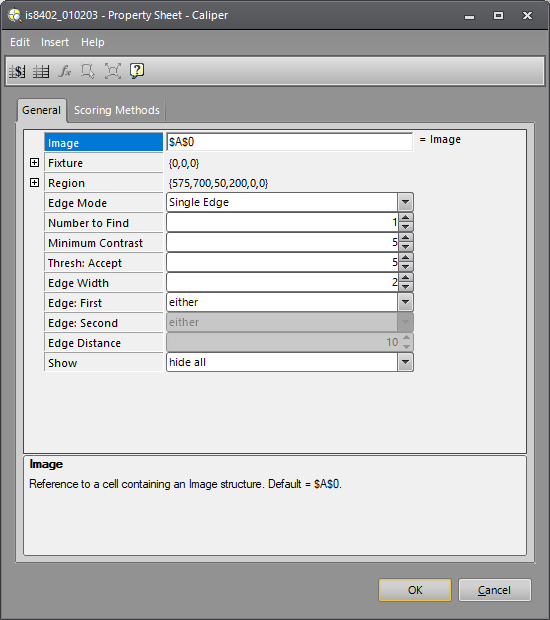
The Caliper dialog will appear.
-
Setting the Caliper Tool Inputs
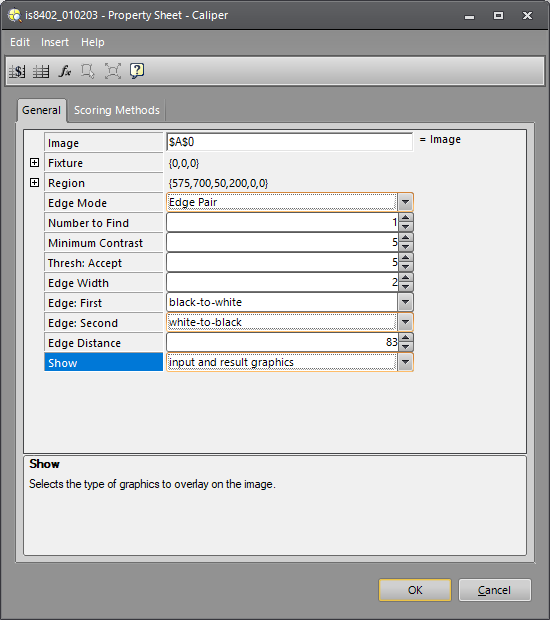
- Set the Edge Mode to Edge Pair.
- For this example, we set Edge: First polarity to black-to-white.
- Set Edge: Second polarity to white-to-black.
- Set the Edge Distance to the expected distance between the edges in the edge pair.
- Change Show to input and result graphics.
- Click the OK button.
-
Setting the Image Region
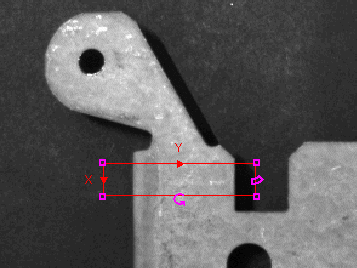
- Right-click on the Caliper Edges structure that you previously inserted into the spreadsheet.
- Select Cell Graphic.
- Adjust the region until it includes the edge pair that you want to examine.
-
Double-click in the region to return to the spreadsheet.
-
Setting the Contrast Scoring Method
- Double-click on the Caliper Edges structure in the spreadsheet.
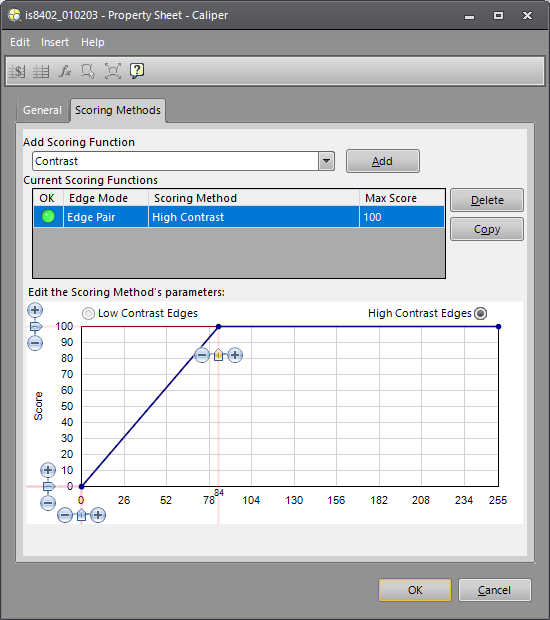
- Click on the Scoring Methods tab, which shows the default Contrast scoring method editor.
- Set the top slider to below the expected edge contrast, which is the average of the edge pair as shown in the following figure. You can adjust the other sliders to create a scoring calculation the fits your needs. The setting shown here gives a 100 score for any edge pair with an average contrast greater than 84 and a score that drops as the contrast approaches zero.
- Click OK.
-
Notice the score for the edge pair. The score is dependent only on the contrast scoring method.
-
Setting the Size Scoring Method
- Double-click on the Caliper Edges structure in the spreadsheet.
- Click on the Scoring Methods tab.
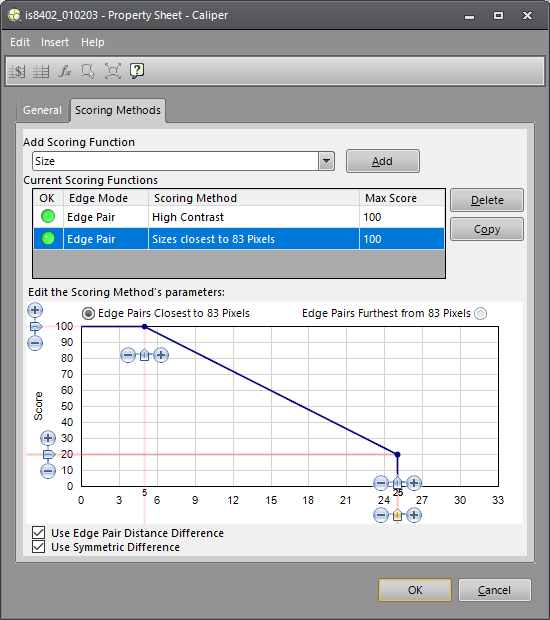
- Select Size in the Add Scoring Function drop-down list and click the Add button, which displays the Size scoring method editor.
- In this case, we only want to focus on the difference between the expected edge size and not whether the size is larger or smaller than the Edge Distance setting. Click the Use Symmetric Distance check-box.
- Adjust the slider so that edge pairs with a difference of 5 pixels get a score of 100 and the score diminishes as the difference increases up to 25 pixels, at which point, the score is zero.
- Click the OK button.
-
Notice the score for the edge pair. The score is now dependent on the geometric mean of contrast and size scoring methods.
-
Setting the Straddle Scoring Method
- Double-click on the Caliper Edges structure in the spreadsheet.
- Click on the Scoring Methods tab.
- Select Straddle in the Add Scoring Function drop-down list and click the Add button, which displays a note that there are no editable parameters.
- Leave the Caliper dialog open.
The straddle scoring method scores 100 if the edge pair straddle the center of the image region and 0 if they do not.
The score is now dependent on the geometric mean of the contrast, straddle and size scoring methods.
-
Setting the Position Scoring Method
- Select Position in the Add Scoring Function drop-down list and click the Add button, which displays the Position scoring method editor.
- In this case, we only want to focus on the position of the center of the edge pair in the image region. We don't expect a need to deal with scaling. Make certain that Centered Edges and Region Centered are selected.
- Adjust the slider so that edge pairs within 5 pixels of the center receive a high score and the score diminishes as the edge pairs move away from the center up to 20 pixels, at which point the score is zero.
- Click the OK button.
-
Notice the score for the edge pair. The score is now dependent on the geometric mean of contrast and size scoring methods.
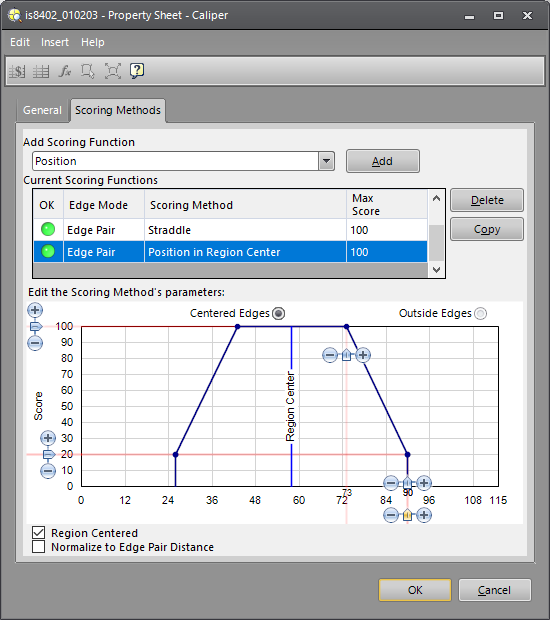
The score for this example is the geometric mean of the contrast, size, position, and straddle scores (4th root of contrast score X size score X position score X straddle score).