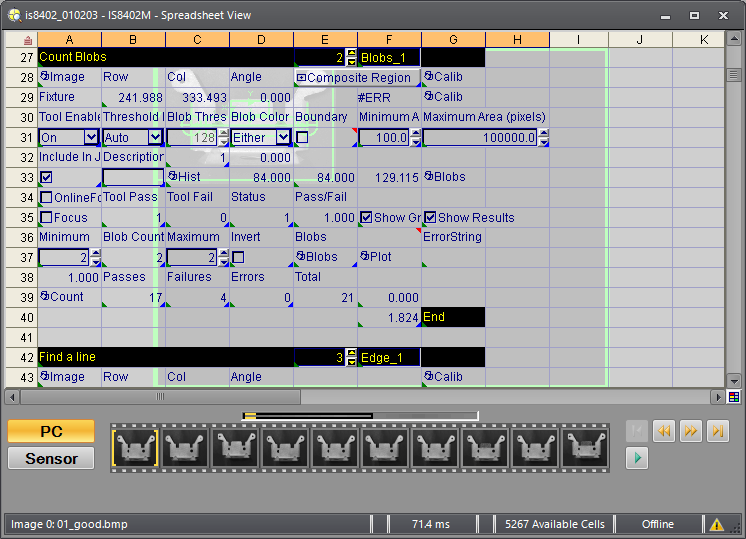
PC Filmstrip: Spreadsheet View
The filmstrip can be used to play back images recorded to the PC or review images and results stored to the vision system.
Display the Filmstrip
On the View
menu, click Filmstrip
(alternately, click the Filmstrip
button  on the Job
Display toolbar).
on the Job
Display toolbar).

PC Filmstrip
Once the Record/Playback Options dialog settings have been configured, when the Record button is pressed and images are acquired, the pass and fail images are recorded and saved to the PC. You can save the images from an Online or Offline vision system to any folder you have "write" privileges to on the PC. The PC playback mode can be used to play back the recorded images; the image is sent to the vision system and the job runs against the image being played back. Up to 10,000 images can be saved to the PC.
- Images can be recorded when the vision system is Online or Offline.
- To allow the playback of images when a vision system is Online, the Trigger parameter of the AcquireImage function must be set to External, Manual or Network. For more information, see AcquireImage.
- Filmstrip does not support the SD Card installed to the vision system. For more information, see In-Sight Files.
PC Filmstrip Controls



Using the PC Filmstrip
For the purpose of these instructions, we will record pass and fail images to create a set of known good and bad images. We can then specify the Playback Folder location to play back these images in the PC filmstrip and re-run the job against the images.
Configure Record/Playback Settings
The Record/Playback Options dialog allows you to adjust record and playback settings for individual vision systems and emulators. For more information, see Record/Playback Options Dialog: Spreadsheet View.
- Open the Record/Playback Options dialog.
- Click the Record tab and configure the Record settings.
- To automatically sort pass and fail images, select Sort on Value (Record to Good/Bad Folders) in the Watch Cell Sort options. When pass and fail images are recorded, a "Good" and "Bad" Folder are automatically created, within the specified Record Folder location.
- Click the Playback tab and configure the Playback settings.
- To play back only pass images, in the Playback Folder field, specify the Good Folder that was automatically created. Or, to play back only fail images, in the Playback Folder field, specify the Bad Folder that was automatically created.
- Once all other Record and Playback settings have been specified, click OK to close the Record/Playback Options dialog.
Record Images
- In the filmstrip, click the PC button.
-
From the Record/Playback toolbar, click the Record button.
Note: Images can be recorded when the vision system is Online or Offline. - Trigger image acquisition on the vision system. As images are acquired, the pass and fail images are automatically sorted and stored to the Good or Bad Folder, respectively.
- Click the Record button again to stop recording.
- From the PC, manually navigate to the Record Folder. Verify that images are being stored in the Good and/or Bad Folder.
Play Back Images
- In the filmstrip, click the PC button.
- If the Trigger parameter (in the AcquireImage function) is set to Camera or Continuous, place the vision system Offline to play back images. If the Trigger parameter is set to External, Manual or Network, the vision system can remain Online to play back images.
-
In the filmstrip, click the Play button to play back the images, or click the navigational buttons to manually cycle through the images.