Optimize TrainPatMaxPattern
It is assumed you are already familiar with configuring spreadsheet functions, so the first four parameters are not discussed here. Beginning with the Pattern Origin parameter, the default Offset Row and Offset Column (0,0) places the pattern origin at the geometric center of the Pattern Region. Any Offset row or column entered moves the origin away from the center by the specified amount.
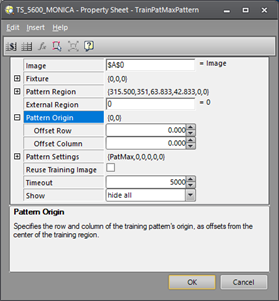
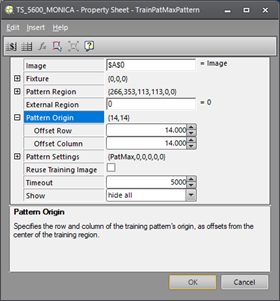
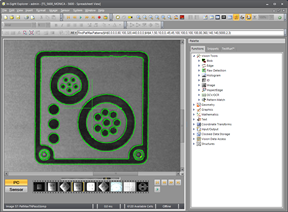
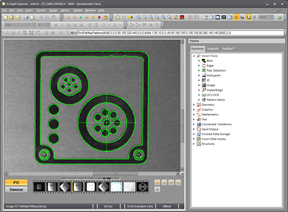
Consider the following square pattern. In the first image the default Offset Row and Offset Column (0,0) is used, but in the second image the Offset Row and Offset Column is set to (14,14), to place the origin at the center of the larger connector. In either case, the FindPatMaxPattern function then reports the location of the origin crosshairs as the location of the found pattern.
The next group of parameters are the Pattern Settings.
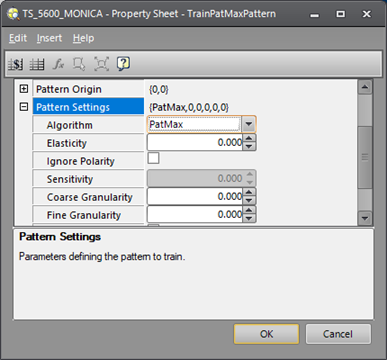
The Algorithm parameter options are PatMax and PatQuick. PatQuick uses the coarse search to find pattern matches very quickly, but then skips the fine scoring step, so it is not as accurate as PatMax.
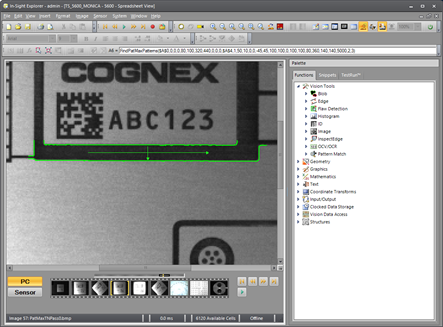
The Elasticity parameter is measured in pixel units from 0 to 10. It allows a small amount of flexibility in the found pattern. For example, if Elasticity is set to 3, then any feature within 3 pixels of its trained position is considered an equivalent match. Consider the following example in which the model is trained on a perfect part:
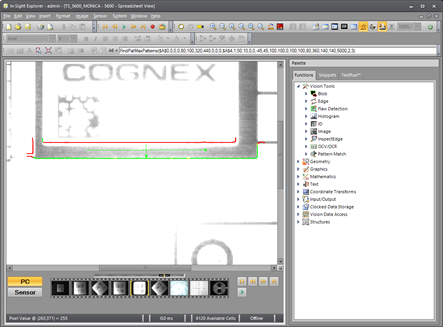
Next, consider this grossly overexposed image in which the same feature is partially washed out. The red lines indicate pattern model features that were not matched when the Elasticity was set to 0. Note that about 50% of the pattern is not found.
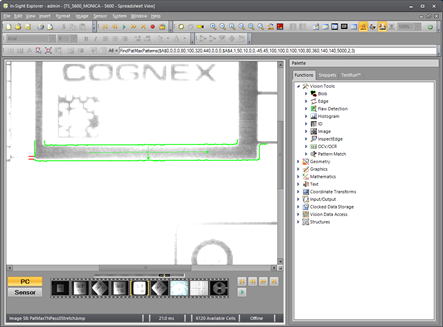
Now set the Elasticity to 3 when training the model on the perfect part. The following image shows that almost all features are found within 3 pixels of their trained positions, so this is considered a near-perfect match:
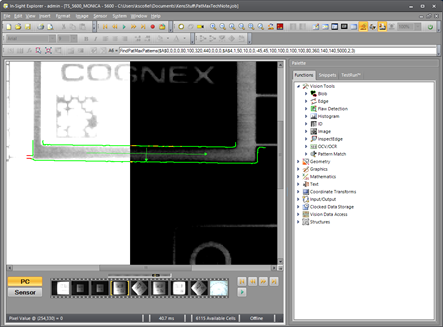
The next parameter is the Ignore Polarity checkbox. When enabled, the pattern can be matched even if the polarity is reversed. In the following image, half the image has been inverted to illustrate this point. The entire pattern is found even though the original image was grossly washed out and then half of it inverted:
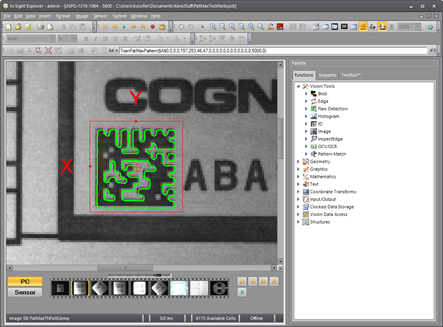
Coarse Granularity and Fine Granularity are extremely important parameters which are almost always overlooked or ignored, yet they provide one of the best optimizations available. The default values of (0,0) allow the tool to automatically attempt to determine the best granularity settings. The problem with this approach is that the tool has no knowledge of which features are desired and which ones the user sees as clutter, so it attempts to model every feature. This very often produces an extremely poor model which then causes the FindPatMaxPattern function to mis-identify correct matches. Consider this model created with the default Coarse Granularity and Fine Granularity of (0,0):
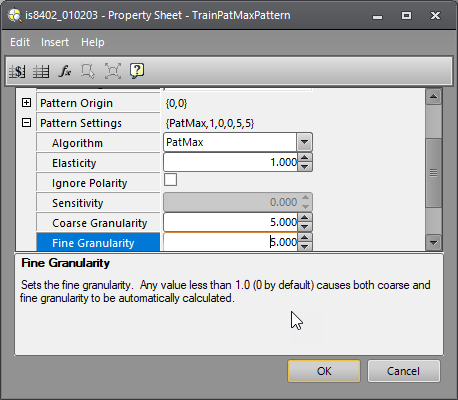
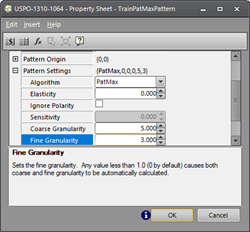
Now assume that the goal is to simply locate the position of this Data Matrix code, but not to find an exact match because it will be different on every part. To accomplish this, we need fewer Fine Granularity details. To determine the optimal settings, we start with both Coarse Granularity and Fine Granularity set to 10, then alternate between decrementing both settings until a crude outline is recognizable, as shown below. In this case, a Coarse Granularity of 5 and a Fine Granularity of 5 is used. The pattern is crude, but contains enough information to recognize a roughly square shape.
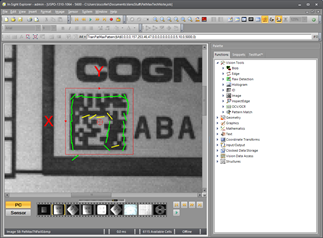
Now set the Fine Granularity to 3 to improve the model slightly, but not too much. The idea is to get as much detail as possible around the perimeter of the square without adding too much detail in the interior. Here is the result:
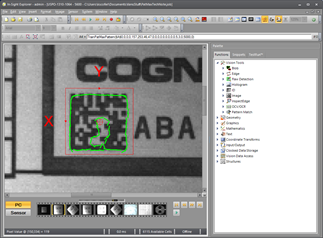
The end result is a pattern model that is very robust. Note that even if none of the interior details are matched in any future image, the majority of the pattern is the perimeter outline which, in this example, is all we care about.
The purpose of this example is to illustrate that the Coarse Granularity and Fine Granularity can be used to restrict the model elements primarily to those features that matter most, but in some cases it may be impossible to restrict all of the unwanted features. Even so, excellent results can be obtained.
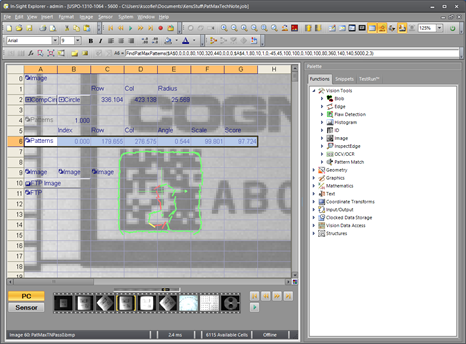
The following image contains a different Data Matrix code, yet achieved a score above 97 with the above model. The reason for this is that 100% of the perimeter details were matched, and by sheer luck a number of the "unwanted" interior features also matched, as seen in the FindPatMaxPattern images below.
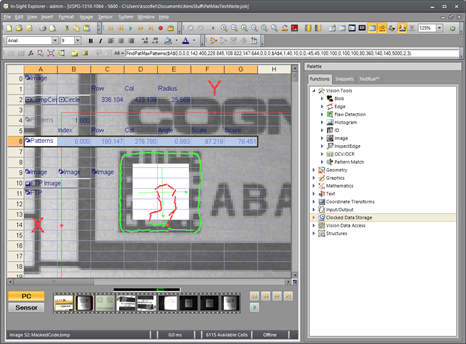
Even if almost none of the interior matched, the score would be above 77 as shown in this modified image. In other words, with an appropriate Accept parameter value, this model could produce virtually a 100% success rate on any similar Data Matrix code.
One additional benefit of manually optimizing the Coarse Granularity and Fine Granularity parameters is that it allows the function to run faster. The lower the Coarse Granularity and Fine Granularity values are, the longer it takes to process the image. So when speed is important, set the Coarse Granularity and Fine Granularity as high as possible, but low enough to ensure an accurate match.
The final parameter to be discussed here is the Reuse Training Image checkbox. When enabled, it saves the training image. This allows all the parameters discussed above to be modified later without reloading the training image. However, if the Fixture or Pattern Region are modified in any way, a new training image is saved, so be sure to reload the original training image in this case.
Summary of TrainPatMaxPattern Optimizations
- Pattern Origin: Modify the Offset Row and Offset Column so the function returns location information relative to a feature of interest.
- Algorithm: Use PatQuick for speed or PatMax for accuracy.
- Elasticity: Define the number of pixels (from 0-10) any model feature can be allowed to drift and still be considered a good match.
- Ignore Polarity: Use this when light and shadow or other image artifacts may cause any pattern feature to appear as either white/black or black/white.
- Coarse Granularity and Fine Granularity: Use these parameters to reduce unwanted features or clutter in the model and to speed up processing time, larger numbers are faster and will reduce processing time.
- Reuse Training Image: Enable this while experimenting with different iterations of the above parameters to avoid the need to reload the training image each time.