Enable the OPC UA Server
If using OPC UA, you must first enable the In-Sight OPC UA Server on the vision system/sensor and then connect to it from the OPC UA client.
Tip: If you need to configure time synchronization for OPC UA tag timestamps, use the SetSystemConfig OPCUA.TimeSync Extended Native Mode command prior to enabling the OPC UA Server. For more information, see SetSystemConfig: OPC UA Time Sync.
- Log on to the vision system or vision sensor.
- From the Sensor menu, click Network Settings.
-
In the Network Settings dialog, check the Enable OPC UA Server checkbox.
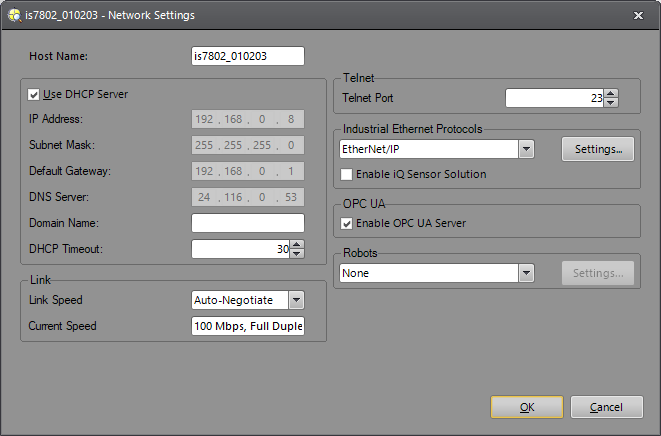
- Click OK.
- When prompted, click Yes to reboot the vision system/sensor. Once rebooted, the OPC UA server is initialized and running, and the discovery endpoint is listening for OPC UA client requests.
- Launch the OPC UA client.
-
From the OPC UA client, you must enter the endpoint URL to connect to the OPC UA server. The endpoint URL must be in the following format, where <IP Address> is the IP address of the vision system/sensor:
opc.tcp://<IP Address>:4840
For example: opc.tcp://192.168.0.8:4840