Configure the PC's Network Settings (Non-DHCP)
This section provides information on how to configure Microsoft® Windows® network settings to connect to an In-Sight vision system running In-Sight software on a non-DHCP network. The steps and example dialogs listed below are specific to Windows 7/Windows 10, with Category view enabled.
- Click Start, then click the Control Panel shortcut to open the Control Panel icon group.
- Click the Network and Sharing Center icon to open the Network and Sharing Center window. In the left pane, click Change adapter settings to open the Network Connections window.
-
Right-click the Local Area Connections icon and click Properties to open the Local Area Connection Properties dialog. (If you are prompted for an administrator password or confirmation, type the password or provide confirmation.)
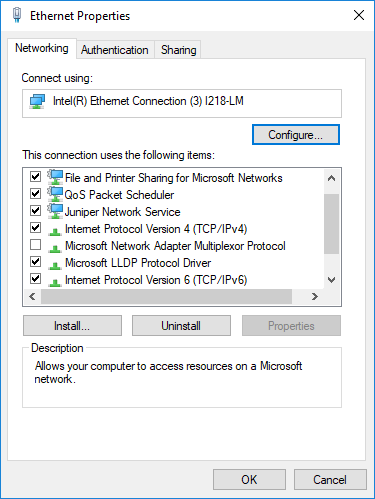
- Select the Networking tab.
- In the This connection uses the following items portion of the dialog, enable either the Internet Protocol Version 4 (TCP/IPv4) checkbox or the Internet Protocol Version 6 (TCP/IPv6) checkbox.
- Highlight either Internet Protocol Version 4 (TCP/IPv4) or Internet Protocol Version 6 (TCP/IPv6), and then click Properties to open the Internet Protocol (TCP/IP) Properties dialog.
- Depending on which Internet Protocol (TCP/IP) Properties dialog is open:
- Internet Protocol Version 4 (TCP/IPv4) Properties: Click the Use the following IP address radio button. The IP address, Subnet mask and Default gateway fields, which are greyed-out, become active.
-
Internet Protocol Version 6 (TCP/IPv6) Properties: Click the Use the following IPv6 address radio button. The IPv6 address, Subnet prefix length and Default gateway fields, which are greyed-out, become active.
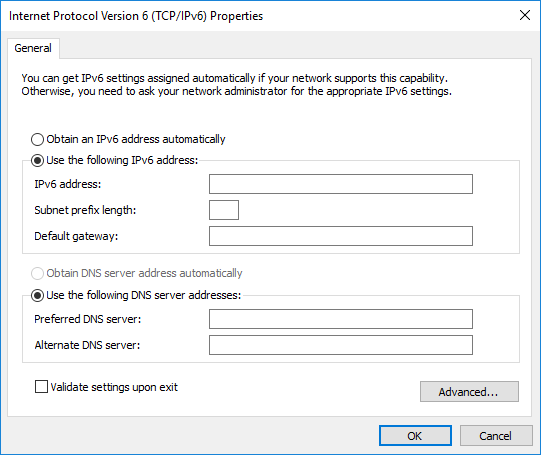
- Enter an appropriate IP address.
- Enter an appropriate subnet mask or subnet prefix length.
- Internet Protocol Version 4 (TCP/IPv4) Properties: The subnet mask defines which part of the system's IP address refers to the network and which part refers to the host. The network part of the IP address is the same for all hosts on the same subnet, and the remainder is unique to each host.
Internet Protocol Version 6 (TCP/IPv6) Properties: The subnet prefix length is a way to define the subnet mask in terms of the number of shared initial bits (which represents the network part of the IP address), counting from the left side of the address. For example, a subnet mask of 255.0.0.0 contains eight shared initial bits (255, in binary form, is 11111111) and can be expressed as a subnet prefix length of /8.
Note: Consult your network administrator to determine your preferred DNS server and alternate DNS server.
- Click OK to close the Internet Protocol (TCP/IP) Properties dialog.
- Click Close to close the Local Area Connection Properties dialog.