EditFocusPosition
The EditFocusPosition function is used to control the focus position of the lens on supported In-Sight 7000 series vision systems, by either automatically focusing the lens or moving the lens to a specific focus position.
- For the In-Sight 70xx - 74xx series vision systems, the EditFocusPosition function is only available for vision systems with an M12 lens configuration.
- For In-Sight 7000 Gen2 series vision systems, the EditFocusPosition function is only available for vision systems with the autofocus accessory installed.
- For the In-Sight 7905, the vision system image circle is larger than the S-Mount/M12 lenses used in the autofocus module (ISAF-7000-8mm) and the S-Mount/M12 adapter kit (ISLN‑7000‑SMNT), resulting in vignetting in the image when using any S-Mount/M12 lens. Therefore, S-Mount/M12 lenses are not recommended.
- The EditFocusPosition function only works when the vision system is Offline.
- Autofocus and Save Focus buttons can be accessed from Live Video mode in both Spreadsheet View and EasyBuilder View.
EditFocusPosition Inputs
Syntax: EditFocusPosition(Minimum Focus Position,Maximum Focus Position,Image,Autofocus Region.X,Autofocus Region.Y,Autofocus Region.Height,Autofocus Region.Width,AutofocusRegion.Angle,Autofocus Region.Curve,Autofocus Event,Autofocus Offset,Set Focus Position Value,Set Focus Position Event,Save Focus Position with Job,Run Autofocus on Job Load)
| Parameter | Description | ||||||||||||
|---|---|---|---|---|---|---|---|---|---|---|---|---|---|
| Minimum Focus Position |
Specifies the minimum focus position value (0 to 100; default = 0). Note: This parameter is not supported for the In-Sight 7000 Gen2 series vision system.
|
||||||||||||
| Maximum Focus Position |
Specifies the maximum focus position value (0 to 100; default = 100). Note: This parameter is not supported for the In-Sight 7000 Gen2 series vision system.
|
||||||||||||
| Image |
Specifies a reference to the A0 cell, which contains the Image data structure returned by AcquireImage. For more information, see AcquireImage. Note: This parameter can reference other Image data structures, however, the function is only designed to use the AcquireImage Image data structure.
|
||||||||||||
| Autofocus Region |
Specifies the size and position of the region used to calculate the lens focus.
|
||||||||||||
| Autofocus Event |
Specifies the spreadsheet event that triggers autofocus. This parameter must be a reference to one of the following: |
||||||||||||
| Autofocus Offset |
Specifies an offset (0 -100 to 100; default = 0) to be applied to the position of the lens after autofocus is completed. Note: This parameter is not supported for the In-Sight 7000 Gen2 series vision system.
|
||||||||||||
|
Specifies a value or cell reference to use as the focus position.
|
|||||||||||||
|
Specifies the spreadsheet event that moves the lens to the specified focus position value. This parameter must be a reference to one of the following: |
|||||||||||||
| Save Focus Position with Job |
Specifies whether or not the focus position data is saved with the job and applied to the lens when the job is reloaded. When the check box is selected, the lens will move to the last saved focus position. Note: Note: The Save Focus Position with Job checkbox and the Run Autofocus on Job Load checkbox are mutually exclusive, therefore both checkboxes cannot be checked at the same time.
|
||||||||||||
| Run Autofocus on Job Load |
Specifies whether or not to automatically focus the lens when the job is loaded. Note: The Save Focus Position with Job checkbox and the Run Autofocus on Job Load checkbox are mutually exclusive, therefore both checkboxes cannot be checked at the same time.
|
EditFocusPosition Outputs
| Returns | The value of the current Set Focus Position Value, or #ERR if any of the input parameters are invalid. |
| Results | Acquires a new image and updates the displayed image with the newly acquired image. |
Autofocus the Lens
- Insert the EditFocusPosition function into a Spreadsheet cell.
-
In the EditFocusPosition property sheet, click OK. Two cells are automatically inserted in the spreadsheet: an EditInt function for adjusting the focus position value and a Button function for triggering autofocus.
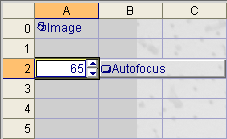
- Click the Autofocus button.
- Wait for the image to update. The focus position value is displayed in the cell to the left of the Autofocus button.
Adjust the Autofocus Position (In-Sight 70xx - 74xx Series Only)
- After autofocus has been completed, open the EditFocusPosition property sheet.
- Adjust the Autofocus Offset parameter value and click OK.
- Determine if the image is in focus (i.e., features are optimized while shadows are minimized). If not in focus, readjust the value until the optimal position is reached.
Set the Lens to a Specific Position
- Insert the EditFocusPosition function into the Spreadsheet.
- In the Set Focus Position Event parameter, specify a cell reference that contains either an Event function or a Button function.
- In the Set Focus Position Value parameter, specify a value or cell reference to use as the focus position and click OK.
- When the event occurs, the lens is moved to the specified position and the focus position value is displayed in the cell adjacent to the Autofocus button.
Autofocus the Lens in Live Video
- Place the vision system Offline.
-
Click the Live Video
 button on the Job Display toolbar to enter Live Video mode.Tip: If connected to an In-Sight 7000 Gen2 series vision system while in Live Video mode, you can also launch the Light Settings dialog to make adjustments to the illumination settings.
 -
Press the Autofocus button or manually adjust the Focus Position slider until the details of the features to be inspected are clear and highly contrasted, and the Focus Metric score is acceptable. After pressing the Autofocus button, the Focus Position slider, the Save Focus button and Reset Focus button are disabled until Autofocus is complete. Once complete, the focus position value is updated and a new image displayed.

- Optionally, click the Save button to save the current focus position as the default focus position and automatically move the lens to this position the next time the vision system is power cycled and a new job loaded.
- Optionally, click the Reset button to reset the default focus position.
- Click the Live Video button again to exit Live Video mode.