EasyBuilder Graphical User Interface
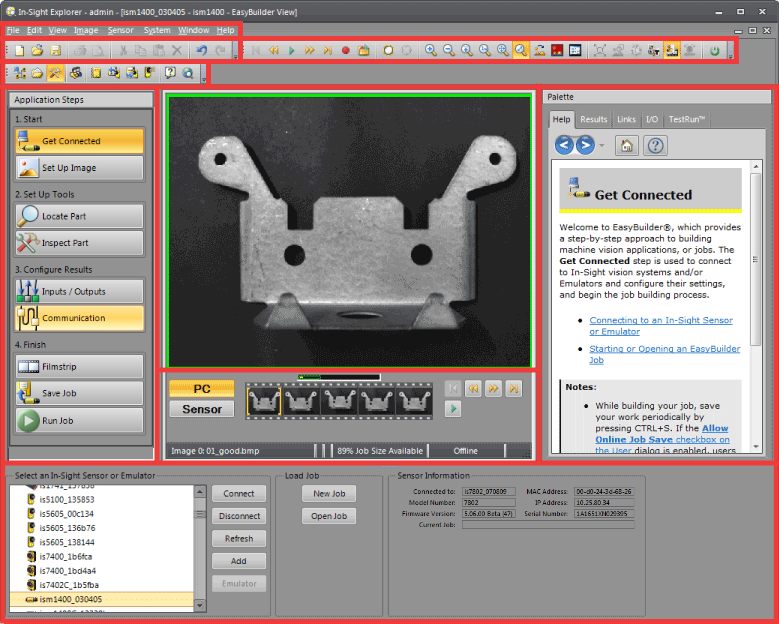
The EasyBuilder graphical user interface (GUI) is centered around the image. The panes and controls surrounding the image are designed to guide you through the process of building a machine vision application (called a job).
The EasyBuilder GUI consists of six components: the menu bar, toolbars, the Application Steps, the EasyBuilder View, the Palette and the settings pane.
Click on one of the red-bounded regions for details:
Customize Window Panes
The Application Steps (EasyBuilder view only), In-Sight Network, In-Sight File List and Palette panes are dockable window panes, and can be customized by dragging or by right-clicking the title bar of the pane. For more information, see Application Steps, In-Sight Network, In-Sight Files, or Palette: EasyBuilder View.
Drag Window Panes
Click the title of the window pane and drag to the desired location.
Dock Window Panes
To attach a window pane to a particular part of the user interface, drag the window pane to the edge where you want to dock it, and drop it onto one of the small squares that appear in the user interface. When hovering over the small square, the preview of the docked location will be displayed in blue.

|
Dock on left side of the user interface. |

|
Dock on right side of the user interface. |

|
Dock on top side of the user interface. |

|
Dock on bottom side of the user interface. |

|
Tab dock the window pane. |
Right-Click Menus
The following menus are displayed when right-clicking the title of the window pane:
- Dockable (default): Attaches the window pane to the user interface.
- Auto Hide: "Pins" the window pane to the side of the user interface. To show the window pane, hover over the thin bar on the side of the user interface. This menu is disabled when Floating is selected.
- Hide: Close the window pane. To unhide, select the window pane from the View menu. This menu is not available for the EasyBuilder Application Steps window pane. For more information, see View Menu: EasyBuilder View.