3D-L4000 Series Image Viewer – Raw Mode
When set to Raw mode with the Raw button, the image viewer of the 3D-L4000 Series Acquisition Wizard shows the raw 2D gray-scale image of the acquisition, with the overlay of the detected laser on top. Raw images of the acquisition are used to fine-tune the acquisition settings.
- You can pan the loaded image by holding the left mouse button and moving the mouse on them.
- You can also zoom in or out of the image/pattern with the mouse wheel.
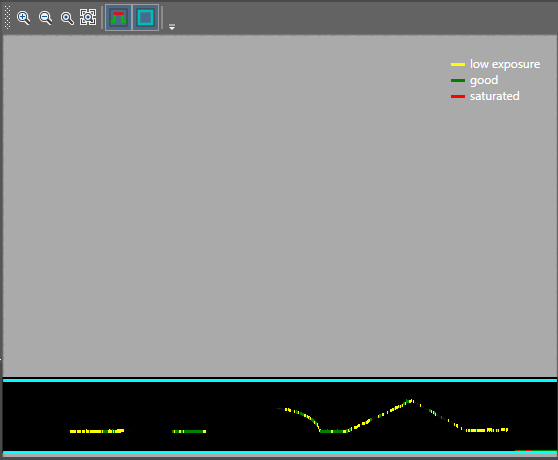
In this view, the following controls are available at the top of the viewer:
| Icon | Description |

|
Zoom in: Increases the level of magnification in the raw image. Tip: You can also use the mouse scroll for zooming in or out, while the mouse cursor is over the image.
|

|
Zoom out: Decreases the level of magnification in the raw image. Tip: You can also use the mouse scroll for zooming in or out, while the mouse cursor is over the image.
|

|
1:1 Ratio: The raw image will represent a 1:1 pixel mapping between the image and your display resolution. No automatic scaling is performed. |

|
Fit: Fits the image to the display. The image will automatically scale to be maximally displayed in the viewer, with the entire image visible. The original aspect ratio of the raw image is also maintained, therefore some empty (gray) space may exist around the image/pattern (as shown above). |

|
Peak Saturation: Shows or hides the profile peak saturation. Enable this setting if you want to check whether the currently configured exposure values are correct, or cause under/oversaturation. |

|
Shows or hides the device's working space. Enable this setting if you want to position the object to ensure that it is completely located within the device's working space. Tip: You can also modify the detection zone when this setting is enabled. Simply click and hold either the top or bottom Z-plane of the detection zone (shown in blue) to drag it to the desired position. Areas outside of the modified detection zone will be grey (as shown in the above screenshot).
Note: The final Region of Interest of the raw image may be slightly larger than the region limited by the two ROI lines. The reason of this is that the ROI lines indicate the targeted ROI only: the actual ROI size must always be a multiple of 8. Therefore, in general, the indicated ROI lines are not fully aligned with the actual ROI.
|