Establish the Connection Using the EDS Generated Profile
The InSight_3D_CopyRung.L5X file contained in this folder can be used to streamline use of an In-Sight 3D vision system platform in RSLogix 5000. Before using this file, you have to import the EDS files included with the release into RSLinx.
Perform the following steps to establish a network connection with your In-Sight vision system.
-
Open the RSLogix 5000 and load the PLC's project.
Note: The PLC must be Offline. -
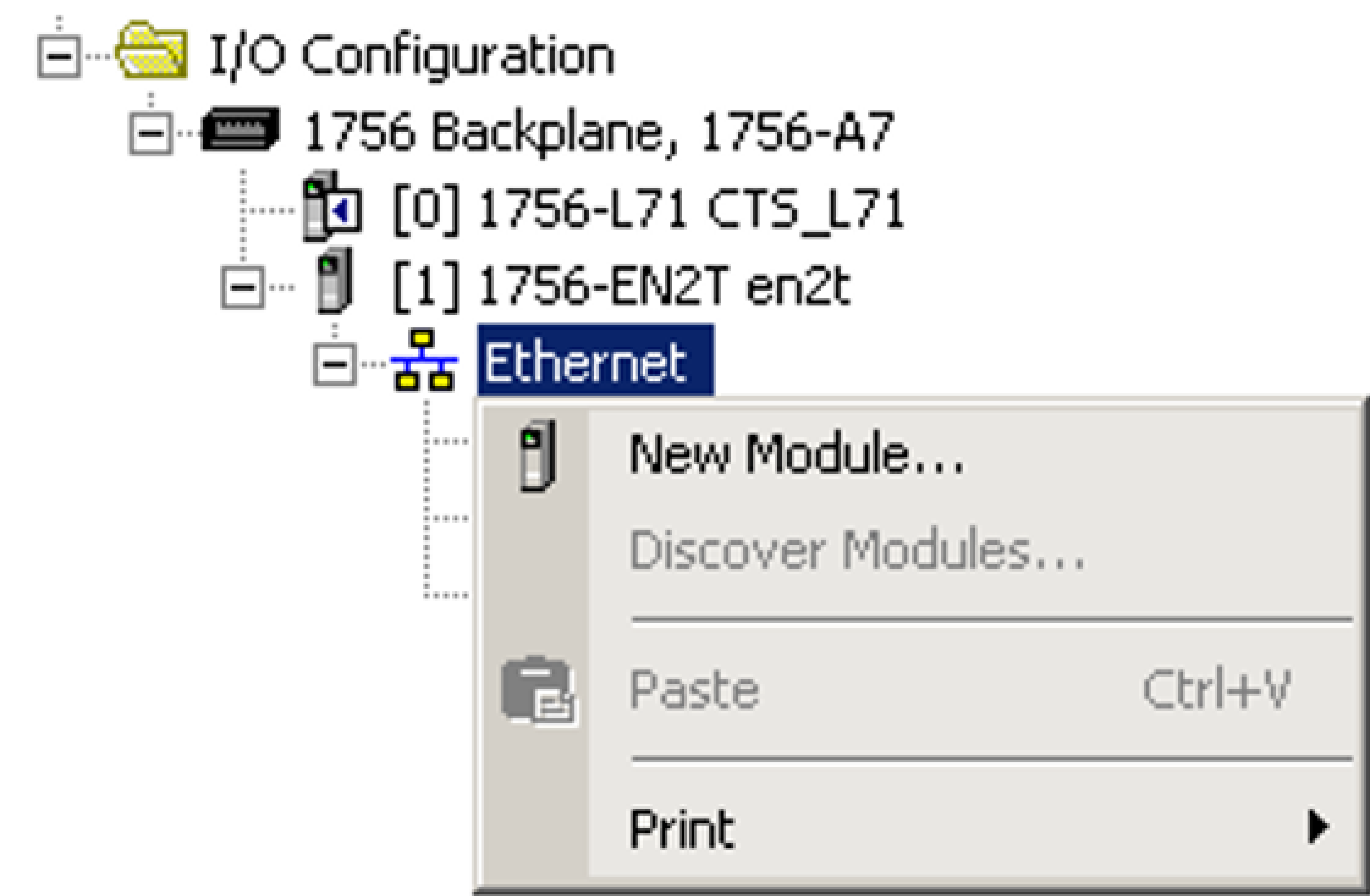
Add a connection to your Ethernet Communications Card. Under the I/O Configuration node, select the Ethernet Node under the Ethernet Module, right-click on the icon and select New Module from the menu.
-
In the Select Module Type dialog, select the type of In-Sight vision system that you connect to the PLC and click Create.
Note: After loading the new EDS files, new module types show up and you must select the appropriate module.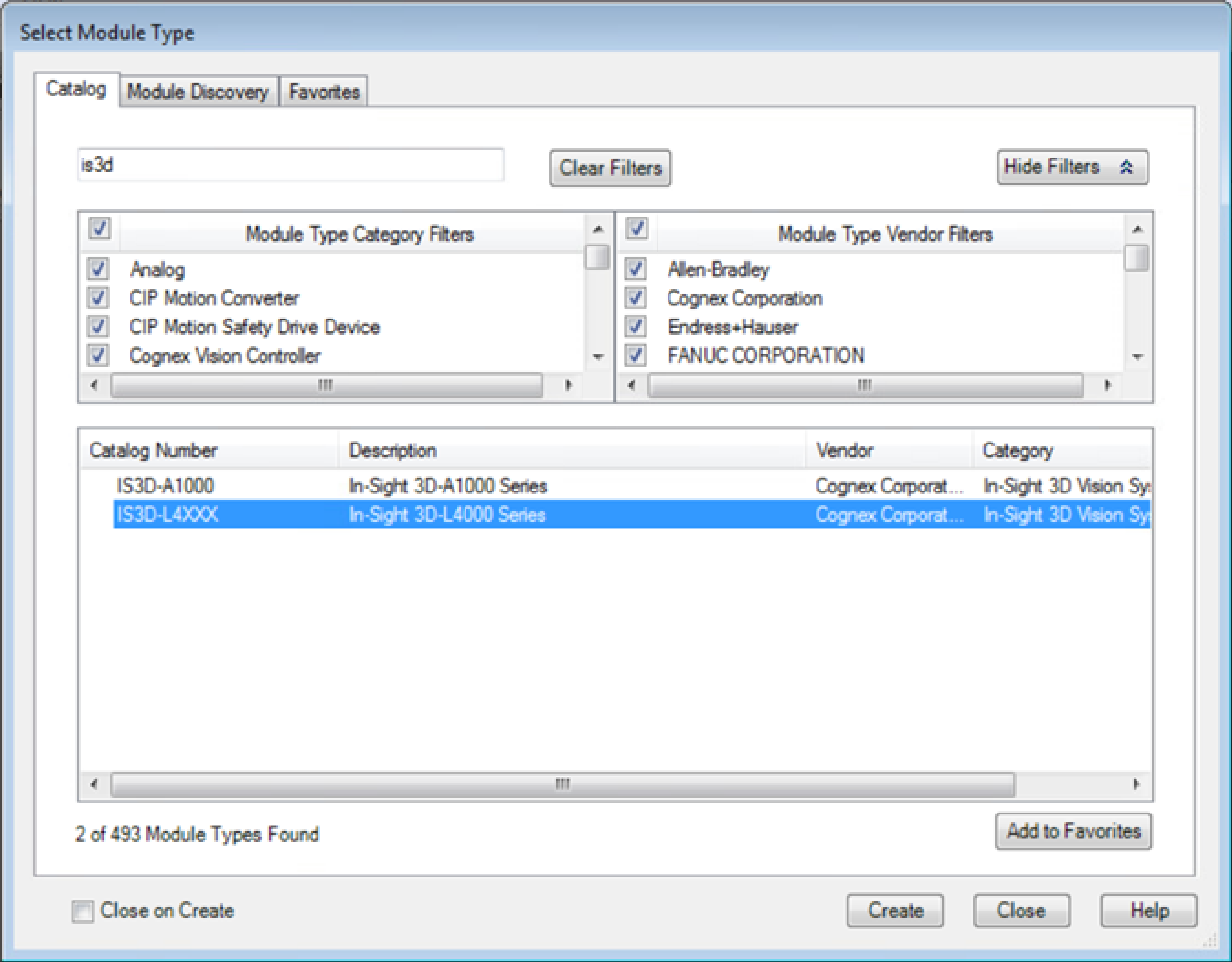
-
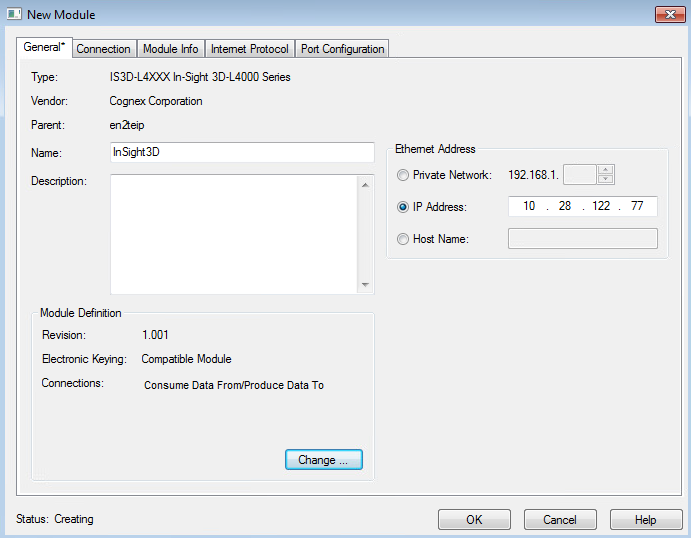
In the New Module dialog, enter the name and IP address of the In-Sight vision system.
-
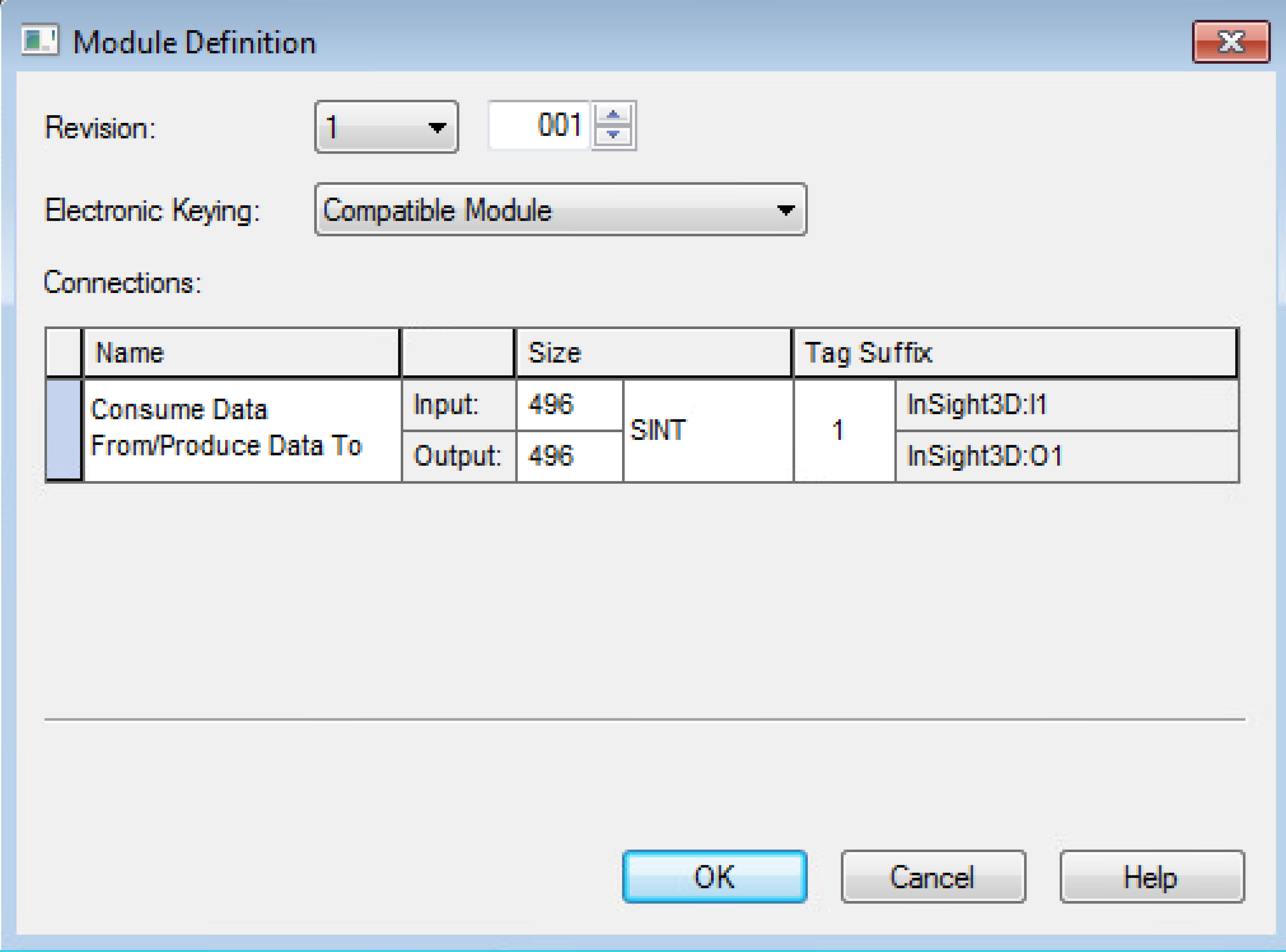
Click the Change... button to open the Module Definition dialog and configure electronic keying and the size of the connection.
-
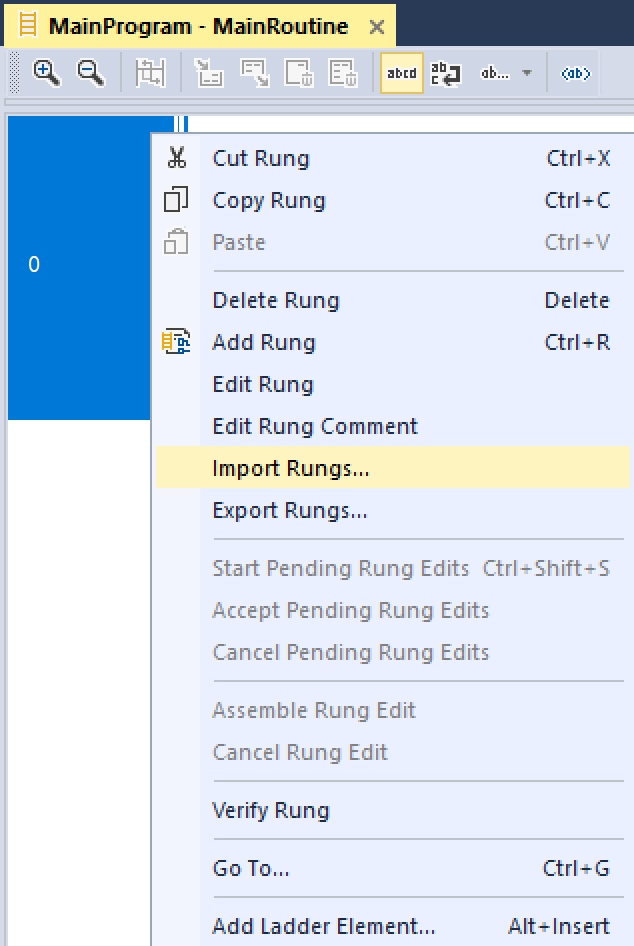
After adding the vision system to the RSLogix project, you can use the L5X rung import file to create structured data for the connection. Within the MainProgram, right-click on an empty rung and select the Import Rungs... option. Navigate to the InSight_3D_CopyRung.L5X file, and click the Import... button.
The file is located here:
C:\Program Files\Cognex\In-Sight\In-Sight Vision Suite Adapters\In-Sight 3D1.3.2\FFP\RSLogix
-
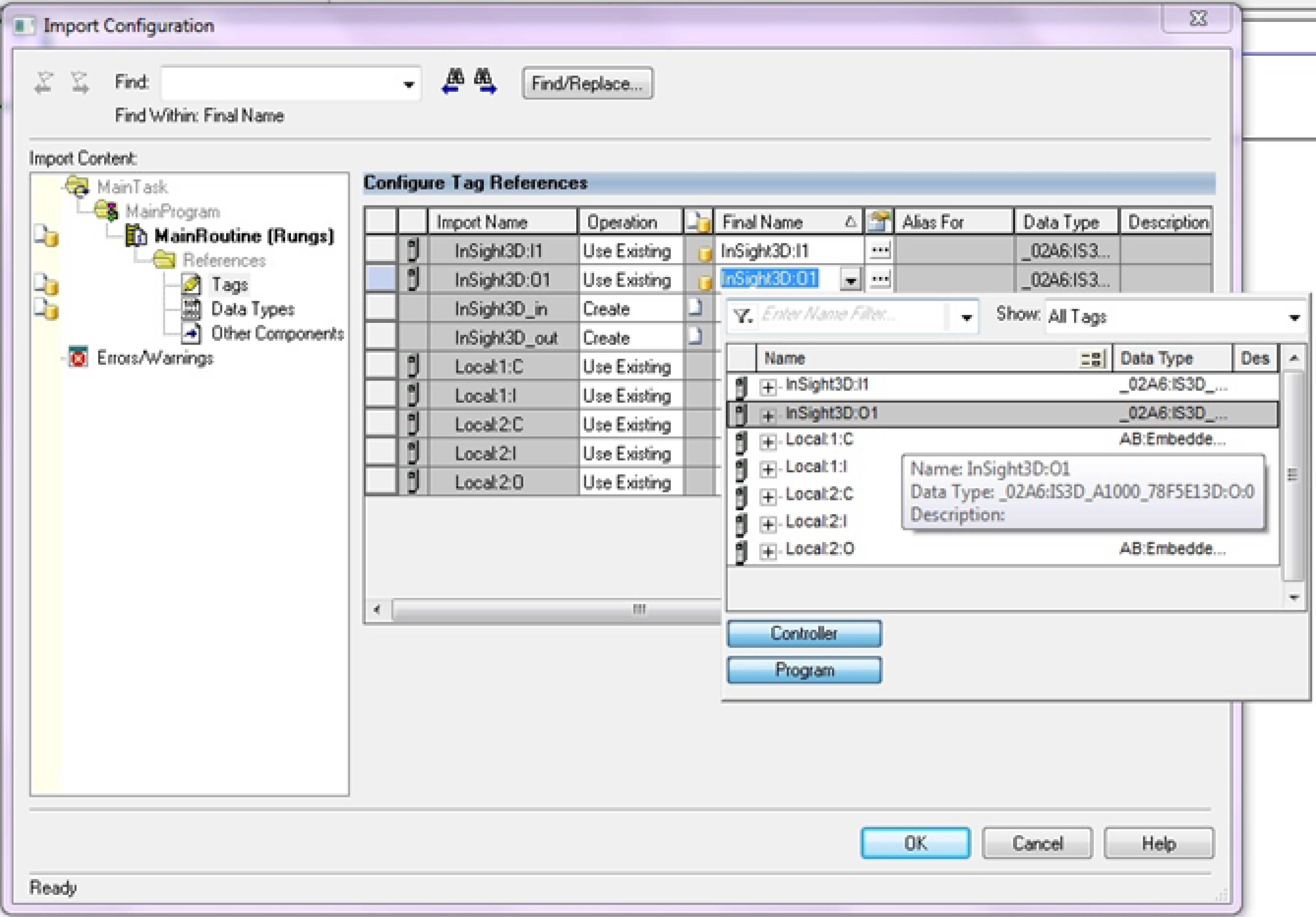
In the Import Configuration dialog, select Tags and change the names of the created tags to match the configuration.
Make sure to set the names of both InSight3D:I1 and InSight3D:O1 tags to the connection controller tags in your project that match the name given to the In-Sight connection created above.
-
Click the OK button to close the Import Configuration dialog.
A rung is added to the project, which includes the copy instructions for copying the data between the generic connection data and the structured data types included in the imported rung file.

When writing your ladder program, reference the elements in the structured data variables; the copy rung above automatically moves the data to and from the structured data instances to the EtherNet/IP connection. Download and run to get the tags to copy data initially, otherwise you can only see an array of SINTS.