Script Editor
The Script Editor is used to construct and edit JavaScript code. Refer to the following topics for more information:
- See the WebPages HMI Scripting topics for more information on these scripts, which are used to program the script points for handling WebPage Element events, such as the On Clicked event of a Button. These scripts are executed in the Web browser running the HMI, and are written in JavaScript.
- See the JavaScript Overview topic for more information on using the JavaScript language for scripting vision applications.
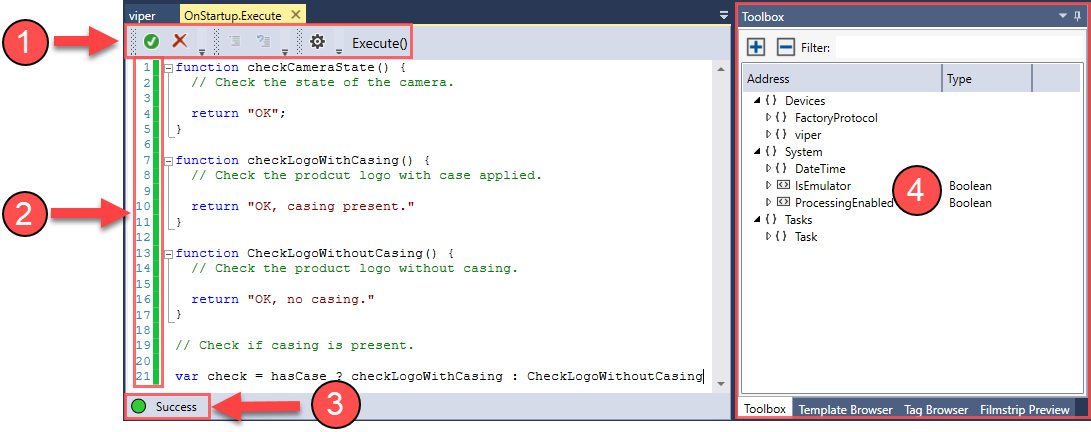
The main parts of the Script Editor GUI are listed below.
|
|
|
|---|---|
| Number | Description |
| 1 |
The Script Editor controls, containing the following buttons:
|
| 2 |
The Status bar, showing the line numbers and the script validation status for each line with the following colors:
|
| 3 |
The results of the script validation that was performed with the script validation button (1).
|
| 4 |
The Toolbox, listing the available |
 : Validates the current script. If no syntax errors are detected, the status bar (2) and the validation indicator (3) turns green. In case of errors, they turn red. Hotkey: F6.
 : Deletes the entire script after confirmation.
 : Comments out the active line (that is, where the prompt is located), or the selected line(s). Clicking the button multiple times when the same line(s) are selected adds multiple comment tags to the selected line(s).
 : Uncomments the selected comment line(s). If commented and non-commented lines are selected simultaneously, it only changes the commented line(s) to uncommented. Clicking the button has no effect on uncommented lines.