Find Pattern
The Find Pattern tool allows you to locate objects within an image based on a trained pattern. The Find Pattern tool also creates a fixture that other tools can use as a reference.
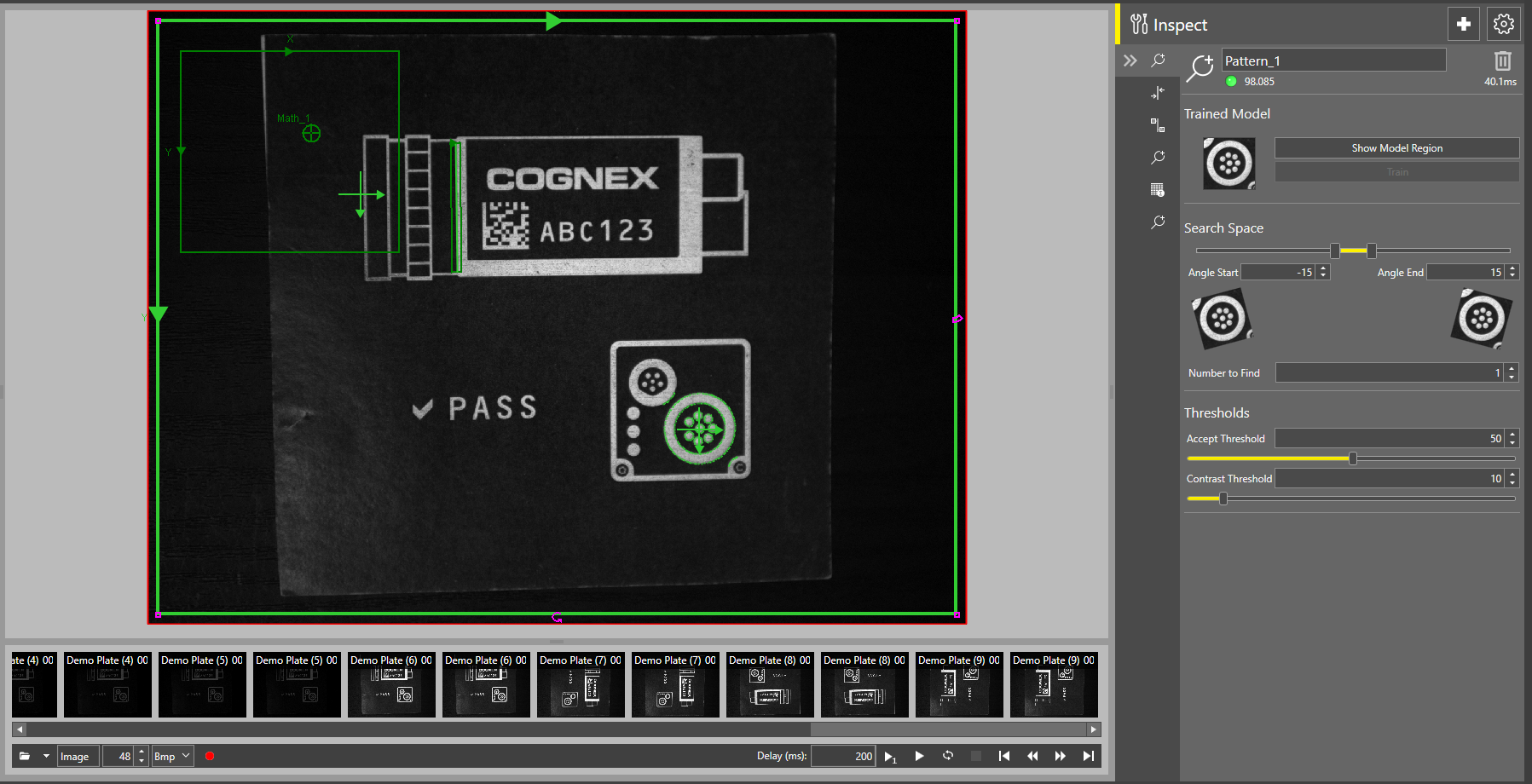
 To add the Find Pattern tool to your job:
-
Open the Inspect tool palette, expand the Locate tool group, and select the Find Pattern tool.
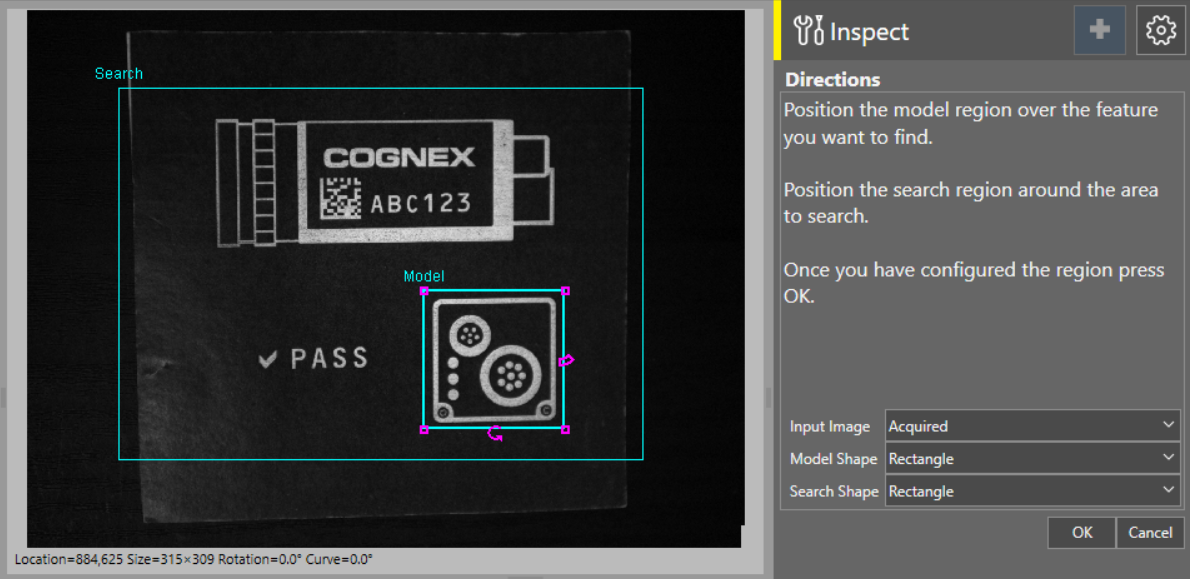
-
In the dialog, define the search region by resizing and repositioning the Search box on the acquisition display screen. You can change the shape of the box using the Search Shape dropdown on the right. The available shapes are Rectangle, Circle, Annulus, and Polygon.
You can reduce the search region size to improve processing time, but make sure that the search region is large enough to contain the target pattern on all acquisitions.
-
Define the model region by resizing and repositioning the Model box inside the search region. You can change the shape of the box using the Model Shape dropdown on the right. The available shapes are Rectangle, Circle, Annulus, and Polygon.
For best results, make sure that the model region fits the target pattern you want to train as closely as possible. The training happens when you confirm your settings and click OK.
-
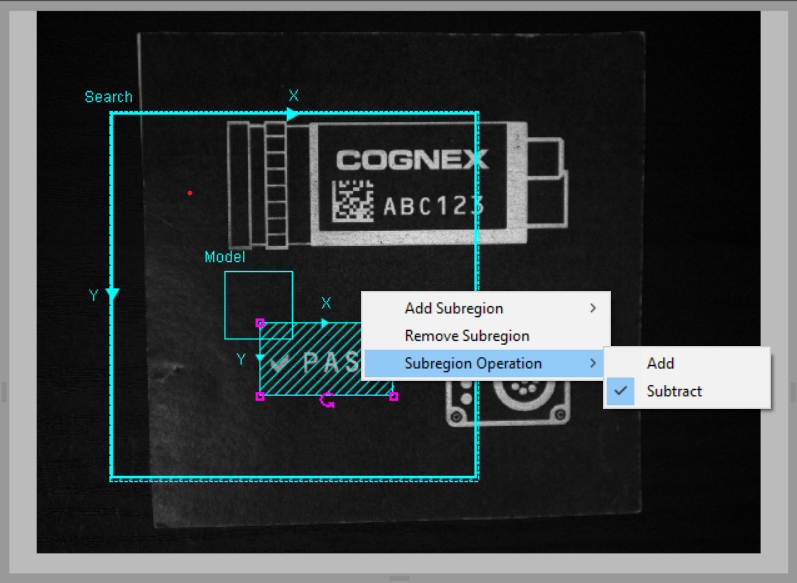
You can also add a subregion to your model region to mask out irrelevant or confusing features by right clicking on the acquisition display screen, and selecting Add Subregion > Shape in the dropdown menu that appears. By default, the subregion is added to the model region, but you can change it to subtract by right clicking on the acquisition screen, and selecting Subregion Operation > Subtract in the dropdown menu.
- Click OK.
To adjust search space settings:
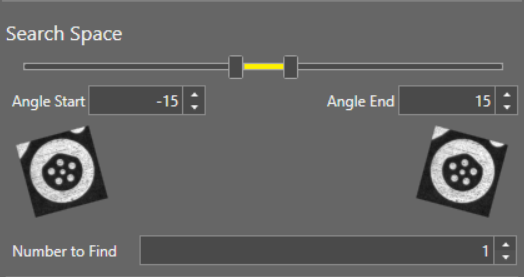
Move the start and end sliders or adjust the Angle Start and Angle End parameters to account for possible rotation in the acquired images. The Find Pattern tool only recognizes the trained pattern within the defined angles of rotation.
If you want the Find Pattern tool to search for multiple instances of the trained pattern, adjust the Number to Find parameter accordingly.
To change the trained pattern:
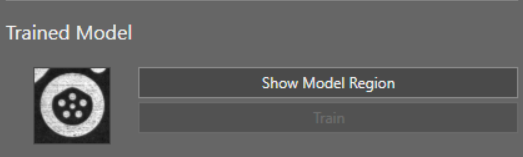
If you want to change the trained pattern, you can do so using the Trained Model settings. Click on Show Model Region to show the model region on the acquisition display screen.
When the Show Model Region setting is enabled, you can reposition or resize the model region as before, but you cannot change the region shape in this view. You can also add a subregion as before by right clicking on the acquisition display screen.
Once you have changed the model region according to your needs, click Train to change the trained pattern to your new selection.
To adjust the tool thresholds:
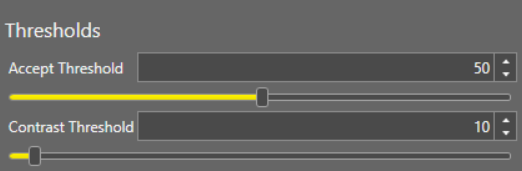
If the Find Pattern tool is not adequately identifying your trained model in your images, you can adjust the thresholds to broaden or narrow down the pattern matches.
The Accept Threshold setting defines the pattern match threshold for accepting potential matches. Lower the Accept Threshold for more matches with less accordance to the trained model, or raise the Accept Threshold for less matches with more accordance.
The Contrast Threshold setting defines the amount of difference in contrast that the Find Pattern tool accepts. Lower the Contrast Threshold for a narrower contrast range, or raise the Contrast Threshold for a broader contrast range.
You can also enable advanced tool settings if your job requires more complex configuration. For more information on the advanced tool settings that are available, see Advanced Tool Settings.