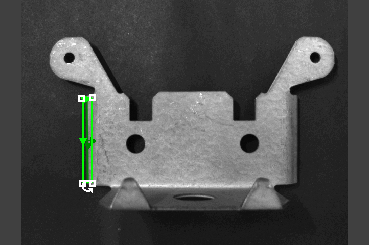
Set Region
Sets an edit region control contained in a cell; the edit region control is always an EditRegion function.
Set Region Inputs
Syntax: SR<TagName|Cell> <X> <Y> <Width> <Height> <Angle> <Curve>
| Parameter | Description |
|---|---|
| TagName | The published name of the cell. |
| Space |
A blank space to separate the value from the next value. |
| Row | The x-offset of the origin, in image coordinates. |
| Space |
A blank space to separate the value from the next value. |
| Col | The y-offset of the origin, in image coordinates. |
| Space |
A blank space to separate the value from the next value. |
| High |
The dimension along the x-axis of the region. |
| Space |
A blank space to separate the value from the next value. |
| Wide |
The dimension along the y-axis of the region. |
| Space |
A blank space to separate the value from the next value. |
| Angle |
The orientation in image coordinates. |
| Space |
A blank space to separate the value from the next value. |
|
Curve |
The curvature of the region |
Set Region Outputs
Returns a status code. The status codes are:
| Status Codes | Description |
|---|---|
| 1 |
The command was executed successfully. |
| 0 |
Unrecognized command. |
| -1 |
The ID is invalid. |
| -2 |
The command could not be executed because the specified cell does not contain an edit region control, or the edit region control was not created by the EditRegion function. |
| -4 |
Wrong argument type. |
| -6 |
User does not have Full Access to execute the command. |
Set Region Example
You can set the Region of an EasyBuilder Location or Inspection Tool by sending a Set Region command containing the position, dimensions, orientation, and shape of the new region.
-
Assume that your job contains an Edge Location Tool, and the region of the tool is currently in another position, with different dimensions, orientation, and shape.
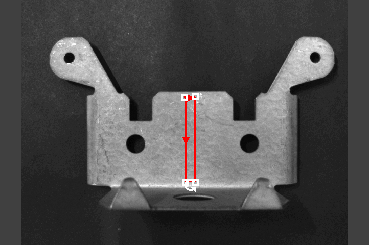
-
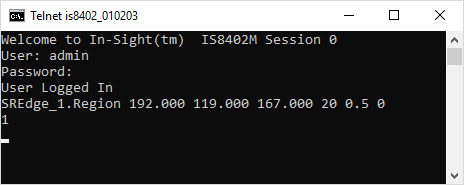
You would like to move and re-orient the region settings of the tool via the Set Region Native Mode command. Issue the command SREdge_1.Region 192.000 119.000 167.000 20 0.5 0:
-
The In-Sight vision system responds with 1,indicating that the command executed successfully .