Set Event
Triggers a specified event in the
-
If you configure the In-Sight vision system to accept an acquisition trigger from a PLC/Motion Controller through a Native Mode command, utilize the SetEvent and Wait function, with the Event code set to 8 (SW8). This ensures that the vision system waits for both the acquisition and inspection to complete before sending a "complete" response back to the PLC/Motion Controller, and that previous inspection results are not being sent to the PLC/Motion Controller. You can also use the "complete" response from the vision system to create conditional PLC logic that sends a read request for the inspection results. For more information, see Set Event and Wait.
-
If a PLC/Motion Controller uses the SetEvent function to trigger an acquisition, then only way is to use it in circumstances where the inspection results are not also being read. Otherwise, the acquisition and inspection are not in sync, with the vision system returning a response as soon as the image is acquired and before the inspection completes.
Set Event Inputs
Syntax: SE<Int>
|
Parameter |
Description |
|---|---|
|
Int |
The Event code to set.
|
Set Event Outputs
| Status Codes | Description |
|---|---|
| 1 | The command execution is successful. |
| 0 | Unrecognized command. |
| -1 | The number is either out of range (0 to 8) or not an integer. |
| -2 | The command execution is unsuccessful. |
| -6 | User does not have Full Access to execute the command. |
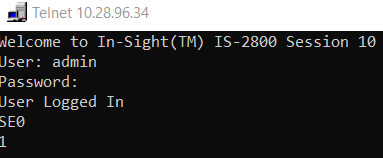
Set Event Example
You can use the SetEvent function to trigger events in the
The command to trigger External Event 0 is: SE0