Downloading the Configuration into the PLC
Once the vision system has been added to the hardware configuration, download it to the PLC:
-
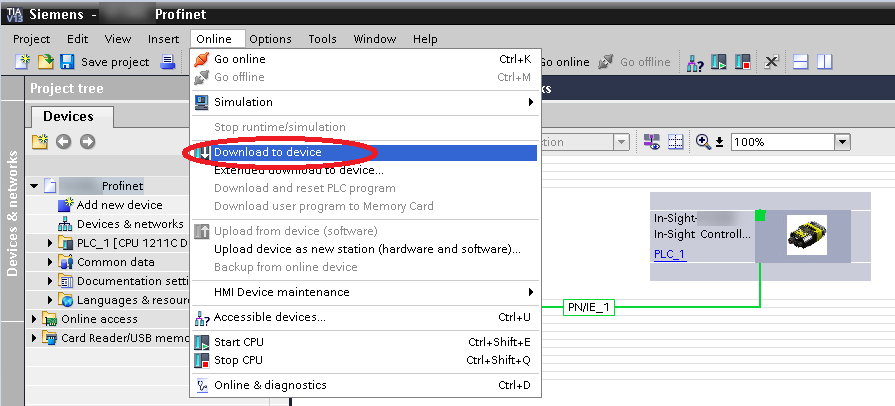
Save the project, click on the PLC CPU symbol, and then on the Online. Select Download to device to start the download procedure.
-
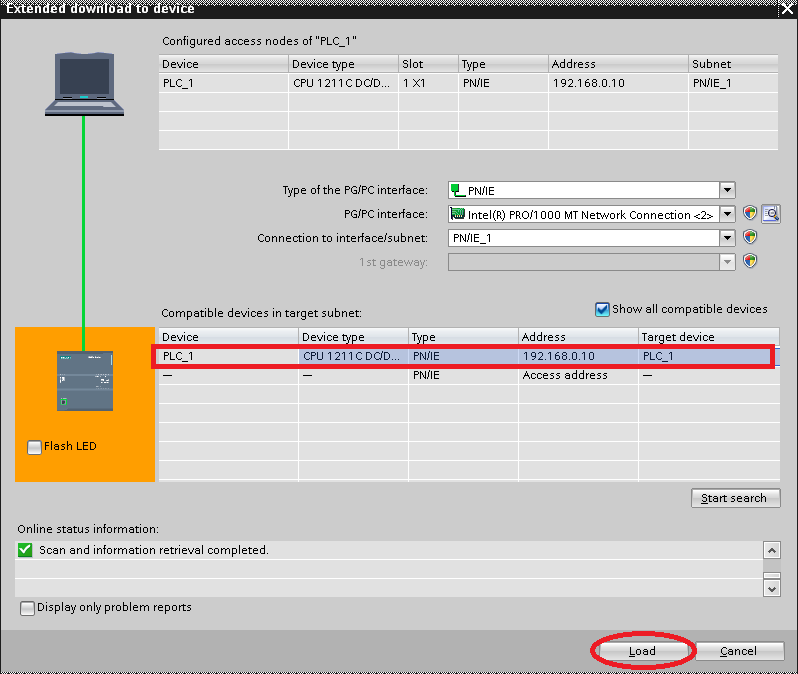
If you perform the download for the first time, then the Extended download to device window comes up. Select the PG/PC interface there. After that, click on the Start search button to show the available devices. Select the PLC from the list and click on the Load button.
-
The program compiles the configuration. Once it is done, click on Load and then on the Finish button on the pop-up windows.
-
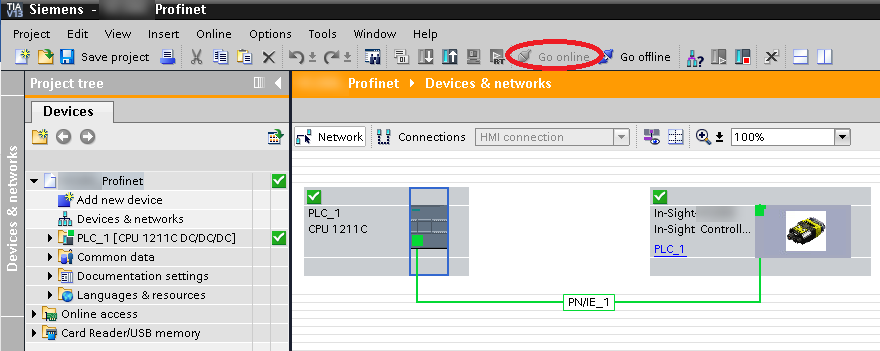
After finishing the download, click on the Go online icon on the top of the window. If the PROFINET connection is working correctly between the PLC and the vision system, then a green signal is visible in the left top corner of the vision systems.
-
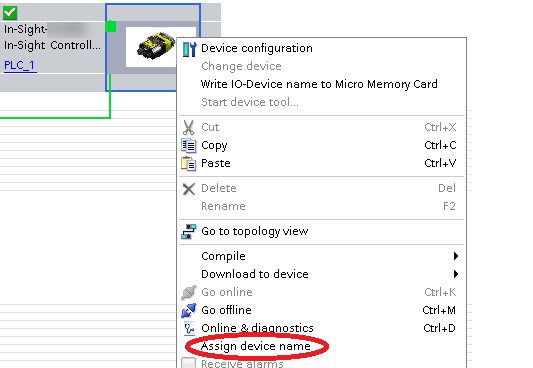
If the connection is not established properly, then right-click the vision system symbol and select Assign device name from the context menu.
-
Select the vision system from the list and click the Assign name button.
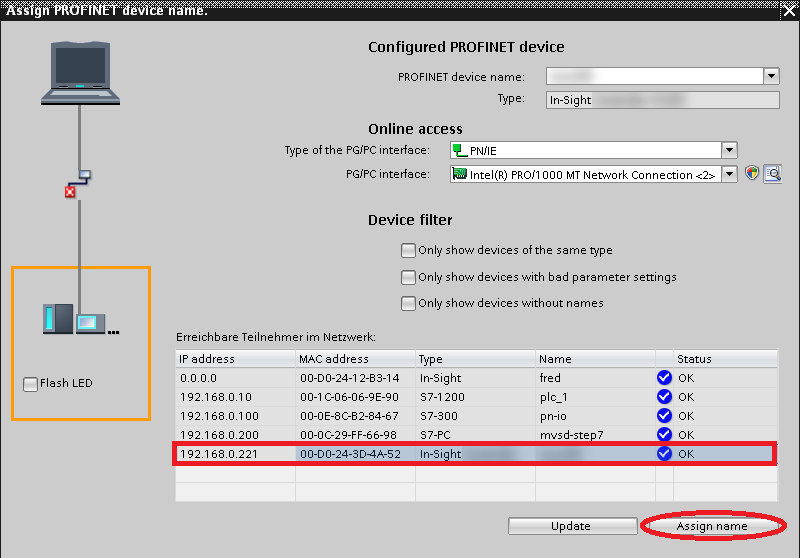
Once this step is done, the PROFINET connection is established properly.