Set Float
Sets an edit box control contained in a cell to a specified floating-point value. The edit box control needs to be of the EditFloat type.
Set Float Inputs
Syntax: SF[TagName][Value]
Set Float Outputs
| Status Codes | Description |
|---|---|
| 1 |
The command was executed successfully. |
| 0 |
Unrecognized command. |
| -1 |
Invalid tag name. |
| -2 |
The command could not be executed. For example, the specified cell may not contain an edit box control, or the edit box control was not created by the EditFloat function. |
| -3 | Unable to set a read only Tag. |
| -4 |
Wrong argument type. |
| -6 |
User does not have Full Access to execute the command. |
Set Float Example
-
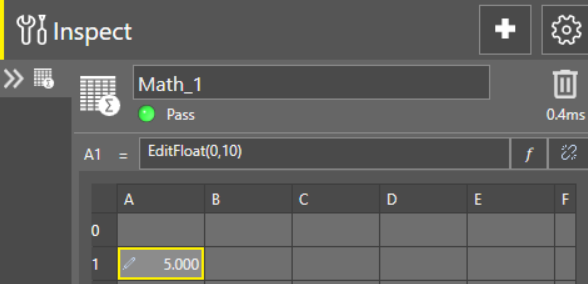
Assume cell A
A
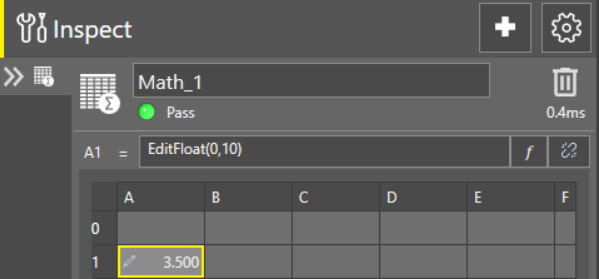
The cell A1 is named Math_1.A1.
A
The Easy Builder looks like this:
-
To change the value to 5, issue the SFMath_1.A1 5 command, as shown in the following telnet client window:
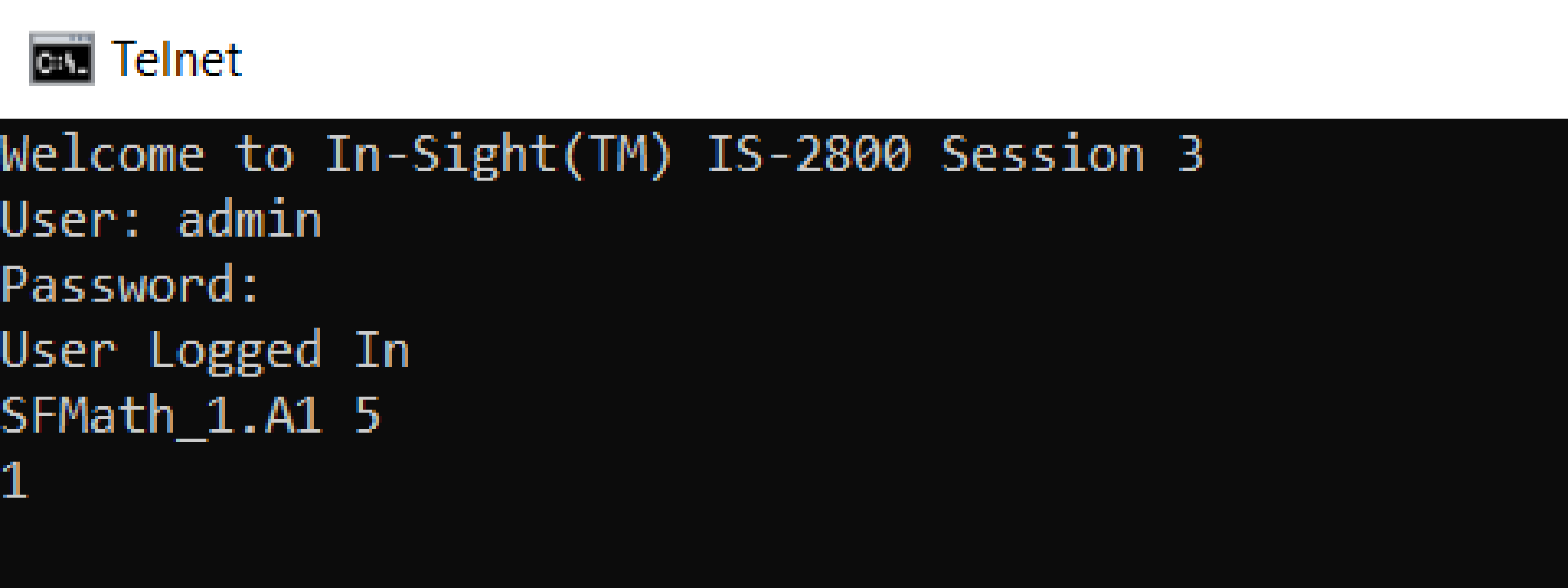
The In-Sight sensor responds with 1, indicating that the command was successfully executed. The EditFloat control has been successfully changed from 3.5 to 5: