Measure Angle
The Measure Angle tool allows you to measure the angle between two edges.
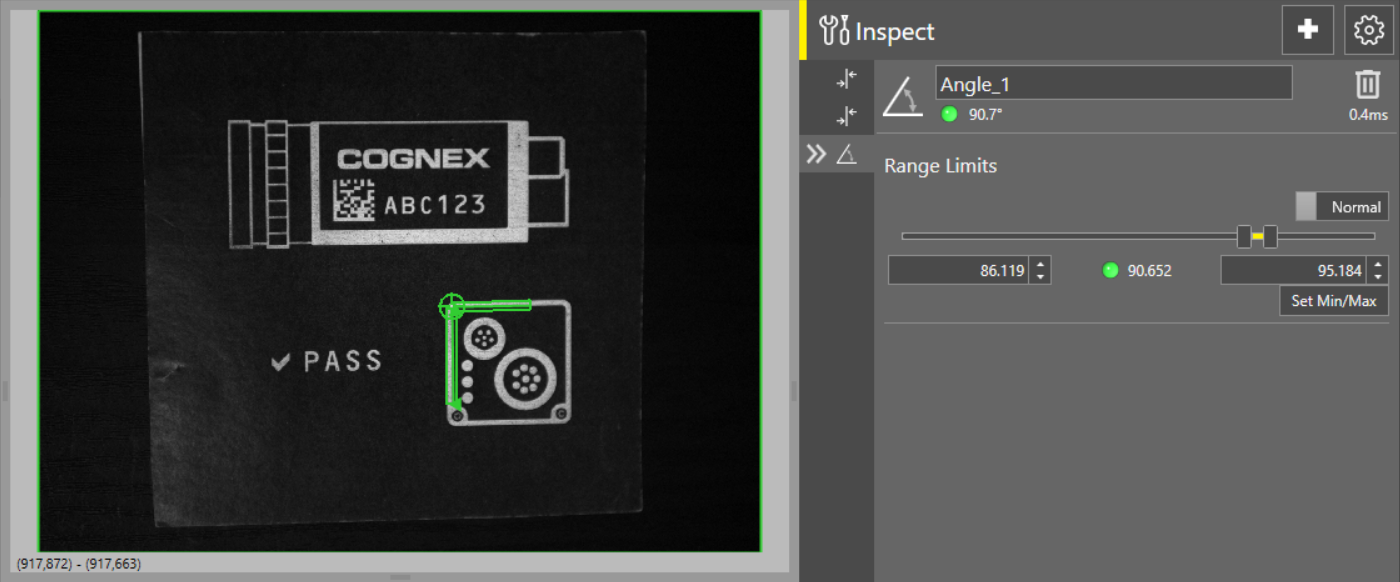
 To add the Measure Angle tool to your job:
-
Open the Inspect tool palette, expand the Measurement tool group, and select the Measure Angle tool.
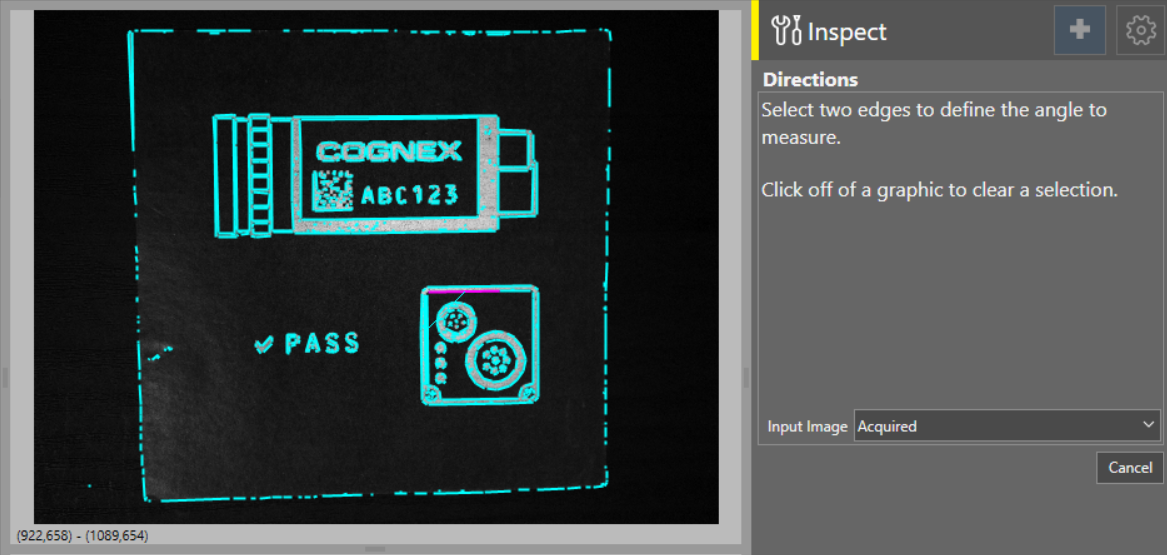
-
In the dialog, select the two input edges between which you want to measure the angle. The tool automatically finds possible measurement targets based on your image and already added tools, and highlights them in light blue on the acquisition display screen. Click on a highlight to select it as an input feature.
Once you have selected both edges, the tool automatically adds Find Edge tools for each edge, and then creates the Measure Angle tool based off the found edges.
To adjust range limits:
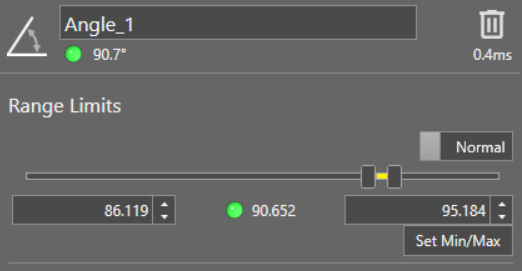
Toggle the Normal/Inverted toggle to change the way the tool result is generated. If set to Normal, the tool produces a passing result if the angle value falls between the defined minimum and maximum values. If set to Inverted, the tool produces a passing result if the angle value falls outside the defined minimum and maximum values.
Adjust the valid range by changing the Minimum and Maximum angle values using the sliders or by providing the numerical values in the boxes below the slider.
Click Set Min/Max to use automatically calculated minimum and maximum angle values. The automatically calculated minimum and maximum values are 5% below and above the current angle value when you add the tool or click the Set Min/Max button.
You can also enable advanced tool settings if your job requires more complex configuration. For more information on the advanced tool settings that are available, see Advanced Tool Settings.