Image Filter Tool
The Image Filter tool allows you to apply a broad selection of filters to a defined region of your image.
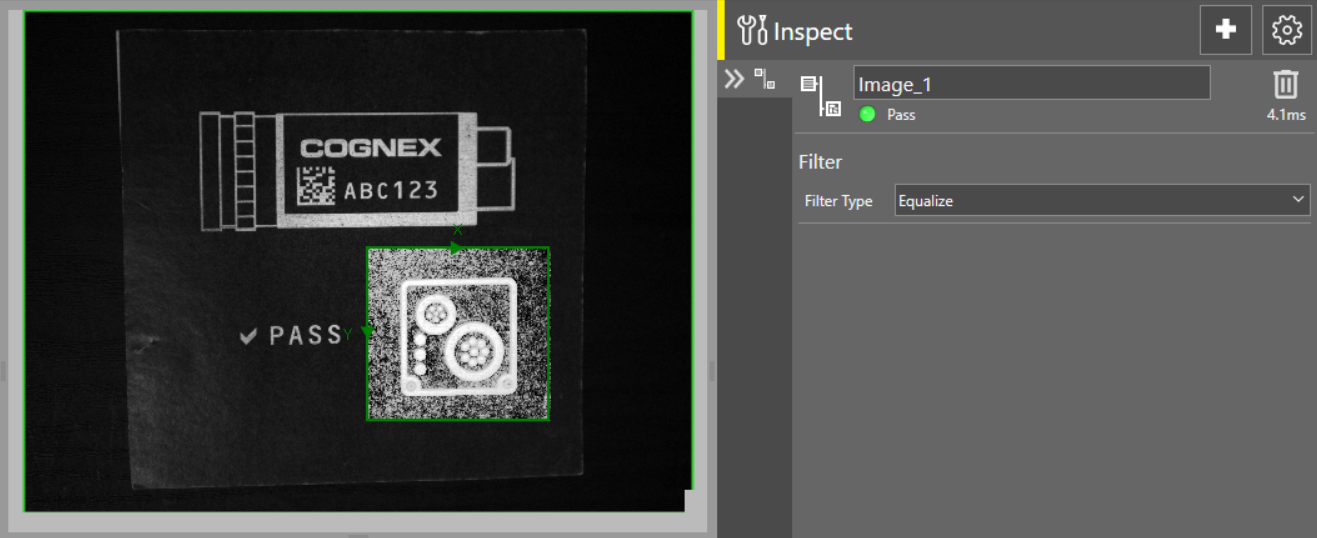
 To add the Image Filter tool to your job:
-
Open the Inspect tool palette, expand the Image Filter tool group, and select the Image Filter tool, then select the filter type from the Filter Type dropdown on the right.
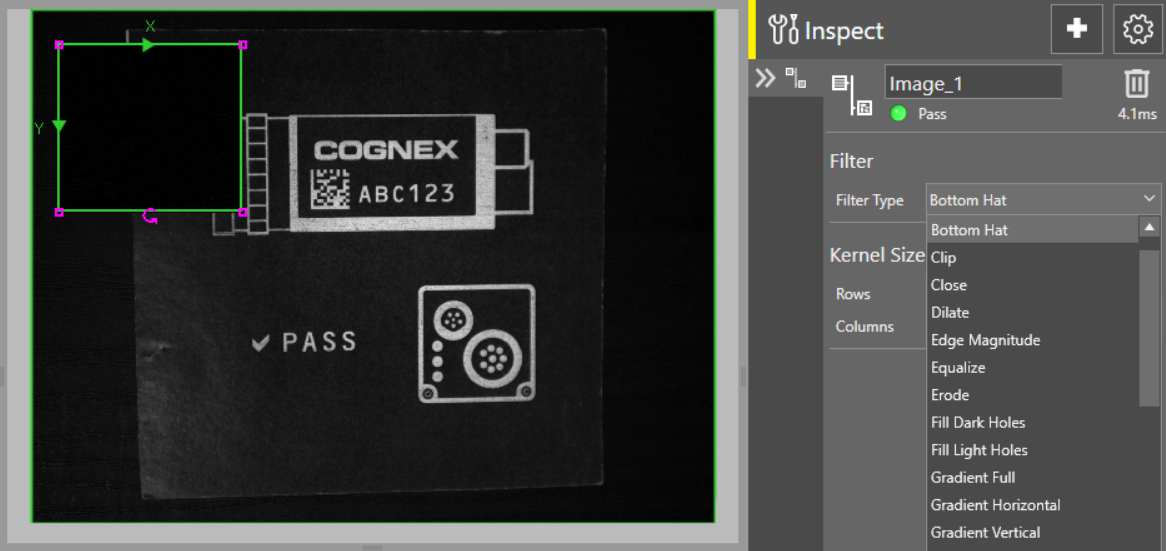
- Define the filtered region by resizing and repositioning the green box that appears on the acquisition display screen.
- Adjust the applicable filter settings as necessary. For more information regarding the filter settings for each filter type, see the Table of Available Filter Types
Table of Available Filter Types
| Filter Type | Settings | Description |
|---|---|---|
| Binarize |
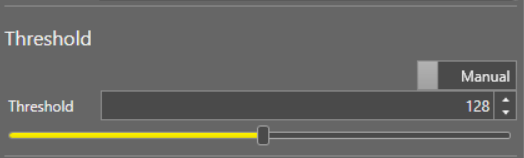
To change the threshold settings:
To enable automatic threshold configuration, toggle the Manual/Auto toggle. If Auto is enabled, all other settings in the Threshold section are disabled. Change the threshold value using the slider or by providing the numerical value in the Threshold box. |
Specifies a black-and-white binary threshold operation that compares each input pixel to the threshold level to determine whether the output pixel is white or black. Input pixel values equal to or above the Threshold parameter value are white, and values below the threshold are black. Note: When a color input image is used, the output image is a greyscale image.
|
| Bottom Hat |
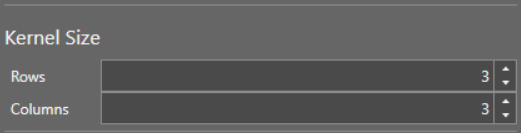
To change the kernel size:
A kernel is a rectangular array of numbers that defines the processing neighborhood for operations performed on each pixel location in an image. Adjust the Rows and Columns parameters to change the width and height of the kernel, respectively. Note: The kernel has to be constructed from odd integer values. the default kernel size is 3x3.
|
Specifies a bottom hat filtering operation that filters out everything except dark features that are smaller than the size of the kernel neighborhood. The result is an output image that displays the dark features as bright pixels on an otherwise dark background. |
| Clip |
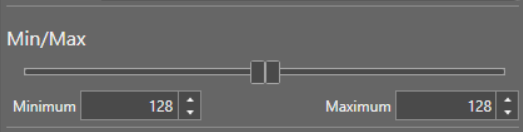
To change the Min/Max values:
Change the minimum and maximum values using the sliders or by providing the numerical values in the Minimum and Maximum boxes. |
Specifies a clipping operation that eliminates the extreme ends of the greyscale spectrum so that the features in the output image are more uniform. The Clip filter compares the greyscale value of each input pixel to the Min and Max parameter values:
|
| Close |
To change the kernel size:
A kernel is a rectangular array of numbers that defines the processing neighborhood for operations performed on each pixel location in an image. Adjust the Rows and Columns parameters to change the width and height of the kernel, respectively. Note: The kernel has to be constructed from odd integer values. the default kernel size is 3x3.
|
Specifies a closing operation that performs a dilation followed by an erosion to filter out dark features that are smaller than the size of the kernel neighborhood. Closing an image reduces or completely removes dark areas of the image. |
| Dilate |
To change the kernel size:
A kernel is a rectangular array of numbers that defines the processing neighborhood for operations performed on each pixel location in an image. Adjust the Rows and Columns parameters to change the width and height of the kernel, respectively. Note: The kernel has to be constructed from odd integer values. the default kernel size is 3x3.
|
Specifies a dilation operation that enhances the bright features of the image while suppressing the darker features. The result is an output image with larger areas of bright pixels. The Dilate filter is useful for removing dark specks. |
| Edge Magnitude |
To change the kernel size:
A kernel is a rectangular array of numbers that defines the processing neighborhood for operations performed on each pixel location in an image. Adjust the Rows and Columns parameters to change the width and height of the kernel, respectively. Note: The kernel has to be constructed from odd integer values. the default kernel size is 3x3.
|
Specifies an operation that displays the difference between a dilation and an erosion of the input image. The result is an output image where edges are represented by bright pixels. Though similar to Gradient Full, the Edge Magnitude operation is more complex and slower, allowing diagonally oriented edges to be represented. |
| Equalize | N/A |
Specifies a histogram equalization operation that extracts the histogram of the input image and spreads out the most frequent greyscale values to create a more even distribution. The result is an output image with increased contrast. The Equalize filter is useful in environments where the lighting can vary slightly from one image to the next, or when some aspects of the object being inspected can slightly vary. |
| Erode |
To change the kernel size:
A kernel is a rectangular array of numbers that defines the processing neighborhood for operations performed on each pixel location in an image. Adjust the Rows and Columns parameters to change the width and height of the kernel, respectively. Note: The kernel has to be constructed from odd integer values. the default kernel size is 3x3.
|
Specifies an erosion operation that reduces the bright features of the image. The result is an output image with larger areas of dark pixels. The Erode filter is useful for removing light specks, noisy pixels, or small defects. |
| Fill Dark Holes | N/A | Specifies a pixel filling operation, where dark pixels surrounded by light pixels are converted to light pixels. The result is an output image where dark holes are filled. |
| Fill Light Holes | N/A | Specifies a pixel filling operation, where light pixels surrounded by dark pixels are converted to dark pixels. The result is an output image where light holes are filled. |
| Gradient Full | N/A |
Specifies a vertical and horizontal gradient operation that results in an output image where both vertically and horizontally oriented edges are represented by bright pixels. Though similar to Edge Magnitude, this operation is simpler and faster, and does not represent diagonally oriented edges. |
| Gradient Horizontal | N/A | Specifies a horizontal gradient operation that results in an output image where horizontally oriented edges are represented by bright pixels. |
| Gradient Vertical | N/A | Specifies a vertical gradient operation that results in an output image where vertically oriented edges are represented by bright pixels. |
| Greyscale Distance |
To change the threshold settings:
To enable automatic threshold configuration, toggle the Manual/Auto toggle. If Auto is enabled, all other settings in the Threshold section are disabled. Change the threshold value using the slider or by providing the numerical values in the Threshold box. |
Specifies the greyscale value of each output pixel as the difference between the greyscale value of each input pixel and the threshold level. For example, if the input pixel value is 100 and the threshold is 25, then the output pixel value is 75. |
| High Pass |
To change the kernel size:
A kernel is a rectangular array of numbers that defines the processing neighborhood for operations performed on each pixel location in an image. Adjust the Rows and Columns parameters to change the width and height of the kernel, respectively. Note: The kernel has to be constructed from odd integer values. the default kernel size is 3x3.
|
Specifies a high pass operation that results in an output image where edges are enhanced relative to areas with more consistent greyscale gradient. The High Pass filter is useful in accentuating fine features. |
| Invert | N/A |
Specifies an inversion of pixel values based on the 256-step greyscale that results in an output image that is a negative of the input image. For example, inverting an input pixel value of 10 results in an output pixel value of 245. |
| Local Median |
To change the kernel size:
A kernel is a rectangular array of numbers that defines the processing neighborhood for operations performed on each pixel location in an image. Adjust the Rows and Columns parameters to change the width and height of the kernel, respectively. Note: The kernel has to be constructed from odd integer values. the default kernel size is 3x3.
|
Specifies an operation that computes the median pixel value of the pixel values in the kernel neighborhood, then uses this result as the output image pixel value. |
| Local Median Normalization |
To change the kernel size:
A kernel is a rectangular array of numbers that defines the processing neighborhood for operations performed on each pixel location in an image. Adjust the Rows and Columns parameters to change the width and height of the kernel, respectively. Note: The kernel has to be constructed from odd integer values. the default kernel size is 3x3.
|
Specifies a means to subtract the background from an image. The Local Median Normalization filter subtracts the local median of the input image from the input image, shifts the result right by one, and then adds 128 to produce the output pixel value. |
| Low Pass |
To change the kernel size:
A kernel is a rectangular array of numbers that defines the processing neighborhood for operations performed on each pixel location in an image. Adjust the Rows and Columns parameters to change the width and height of the kernel, respectively. Note: The kernel has to be constructed from odd integer values. the default kernel size is 3x3.
|
Specifies a low-pass operation that results in an output image in which edges are smoothed or blurred. |
| Max (Top Hat/Bottom Hat) |
To change the kernel size:
A kernel is a rectangular array of numbers that defines the processing neighborhood for operations performed on each pixel location in an image. Adjust the Rows and Columns parameters to change the width and height of the kernel, respectively. Note: The kernel has to be constructed from odd integer values. the default kernel size is 3x3.
|
Specifies an operation that uses the maximum of Top Hat and Bottom Hat operations. |
| Open |
To change the kernel size:
A kernel is a rectangular array of numbers that defines the processing neighborhood for operations performed on each pixel location in an image. Adjust the Rows and Columns parameters to change the width and height of the kernel, respectively. Note: The kernel has to be constructed from odd integer values. the default kernel size is 3x3.
|
Specifies an opening operation that performs an erosion followed by a dilation to filter out bright features that are smaller than the size of the kernel neighborhood. The result is an output image with slightly decreased overall brightness, removing small amounts of bright pixels and enhancing the remaining bright features. |
| Optical Density | N/A |
Specifies an inversion of pixel values based on a logarithmic scale where the output pixel value is the result of the following equation: Output pixel value = 100 * log (255) - 100 * log (input pixel value) The result is an output image that reveals the density of objects and features in the input image by measuring the amount of light that passes through them. Denser objects and features are represented by lighter pixels in the output image. |
| Sharpen |
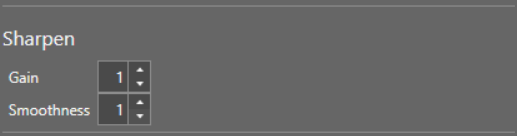
To change the sharpness settings:
Adjust the Gain parameter (0 - 10, default = 1) to change the strength of the sharpening. The Gain parameter defines the amount of difference between pixels that the Sharpen filter can ignore, ensuring that lightly textured areas are not over-sharpened. Adjust the Smoothness parameter (1 - 4, default = 1) to change the standard deviation of the Gaussian kernel that the Sharpen filter applies to the pixels as a weighted average. A higher smoothness value provides a wider aperture, helping sharpen features. |
Specifies a sharpness operation that you can use to enhance edges. The operation evaluates the contrast between adjacent pixels, and increases the contrast when the contrast is high. A large contrast difference between adjacent pixels usually represents an edge. The Sharpen filter is not meant to locate edges. The effects of the Sharpen filter are dependent upon the image content and the resolution. |
| Stretch |
To change the Min/Max values:
Change the minimum and maximum values using the sliders or by providing the numerical values in the Minimum and Maximum boxes. |
Specifies a greyscale stretching operation that linearly scales up or stretches the greyscale values in the input image to the full 256-step greyscale, resulting in an output image with increased contrast. If the input pixel value is equal to or exceeds the minimum or maximum threshold, the output pixel is assigned to 0 or 255, respectively. For input pixel values within the minimum and maximum, they will be linearly stretched to the 0 to 255 range. For example, if the Min is 50 and the Max is 180, the operation subtracts 50 from each pixel's intensity, making the range 0 to 130. Then each pixel intensity is multiplied by 255/130, creating the range of 0 to 255. |
| Threshold Range |
To change the threshold settings:
To enable automatic threshold configuration, toggle the Manual/Auto toggle. If Auto is enabled, all other settings in the Threshold section are disabled. Change the minimum and maximum threshold values using the sliders or by providing the numerical values in the boxes below.
To change the Min/Max values:
Change the minimum and maximum values using the sliders or by providing the numerical values in the Minimum and Maximum boxes. |
Specifies a black-and-white binary threshold operation that compares each input pixel with two threshold values (Min and Max) to determine whether the output pixel is background or foreground. If the input pixel value is within the minimum and maximum, the output pixel retains its value, otherwise, the output pixel is set to the Threshold level. If the minimum value is greater than the maximum value, the background is inverted. |
| Top Hat |
To change the kernel size:
A kernel is a rectangular array of numbers that defines the processing neighborhood for operations performed on each pixel location in an image. Adjust the Rows and Columns parameters to change the width and height of the kernel, respectively. Note: The kernel has to be constructed from odd integer values. the default kernel size is 3x3.
|
Specifies the top hat filtering operation, which filters out everything except bright features that are smaller than the size of the kernel neighborhood. The result is an output image that displays the bright features as bright pixels on an otherwise dark background. |
You can also enable advanced tool settings if your job requires more complex configuration. For more information on the advanced tool settings that are available, see Advanced Tool Settings.