Insert Function Dialog
All functions contained within an In-Sight job A job is a user-configured program in Spreadsheet consisting of functions and designed for specific applications. You can create and edit jobs using the Spreadsheet interface, and load them on a vision system for deployment in a live environment. can be placed into the spreadsheet through the Insert Function Functions are tools that are available in Spreadsheet for processing and analyzing acquisitions or other results. You can add functions to your Spreadsheet job to create tool chains and produce results for specific applications. dialog. The left side of the Insert Function dialog contains an expandable/ collapsible list of tool categories, subcategories and functions. When a tool category is selected on the left, a list of that category's functions will appear on the right side.
To select a function on the right side, highlight the chosen function and then press the Insert button or double-click the highlighted function. The Property Sheet for this function will open, if applicable; otherwise, the function will be placed into the current insertion point in the spreadsheet.
To Display the Insert Function Dialog
- Select a spreadsheet cell to receive the formula.
-
There are several ways to open the dialog:
- In the Insert Menu, click the Edit Function
- Click the Insert Function button (
 ) in the
 -
Use the keyboard shortcut Ctrl + Shift + F
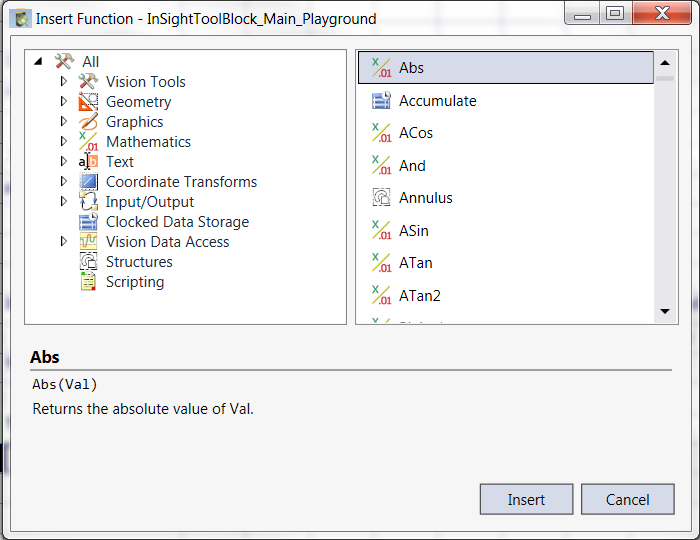
Insert Function Dialog Components
- The upper left pane shows a list of the function categories available.
- The upper right pane shows each individual function within the selected category.
-
The bottom of the Insert Function dialog shows concise context-sensitive help text for the highlighted function category or individual function.
Note: To view detailed context sensitive help about any function, select the function from the function list and press F1; the corresponding function reference topic will be displayed.