Cell Name
A Cell Name allows a specific cell to be given a unique name
Note:
This feature is important for running a Job Validation.
Cell Name Requirements
When naming a cell, the cell name:
- Cannot start with a number.
- Can only contain the following characters: A-Z, a-z, 0-9 and the underscore "_" character. You cannot use spaces or non-English language characters.
- Can contain a minimum of 1 character and a maximum of 127 characters.
- Cannot be cell locations or have the form of cell locations (such as B2 or B22222).
- Must be unique. There cannot be a duplicate Cell Name within
the same sheet, regardless of case.
For instance, you cannot have one Cell Name as "test" and the other as "Test". In this case, a suffix is added to the latter Cell Name, such as "Test_1".
Note: Two or more names cannot reference the same cell in a given sheet.
Creating a Cell Name
- Select a cell. The cell Column Letter and Row Number appear in the Active Cell box in the formula bar.

- Enter a unique cell name into the Active Cell box.
 Note: If you enter a Cell Name which does not meet the requirements above, the active cell box is outlined in red. Any changes are not saved and the Cell Name reverts to its previous state.
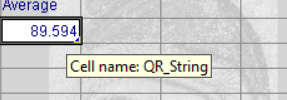
 - Once you give a cell a name, the cell name is automatically published. The spreadsheet cell has a blue triangle indicator in the lower-right corner. When
the mouse is placed over a cell with a cell name, the cell name appears.
Note:
To remove a Cell Name: delete the text in the active cell box in the formula bar, and then press Enter to commit the change.