SetEvent
Queues up an Event function Functions are tools that are available in Spreadsheet for processing and analyzing acquisitions or other results. You can add functions to your Spreadsheet job to create tool chains and produce results for specific applications. to execute after the current job A job is a user-configured program in Spreadsheet consisting of functions and designed for specific applications. You can create and edit jobs using the Spreadsheet interface, and load them on a vision system for deployment in a live environment. execution is complete. You can also use this function as a source of manual triggers for the AcquireImage function. For more information, see Event.
- The maximum number of queued events that an In-Sight vision system is able to store is 30.
- If creating a repeating iteration of cells using the Repeat or RepeatUntil functions, do not place the SetEvent function within the cells being iterated. Doing so can cause the SetEvent function to exceed the maximum number of queued events, resulting in missed event triggers.
-
In job deployment environments where In-Sight Explorer or the VisionView Web application are monitoring inspections, if the job depends on a Soft Event (for example, configured as a Timer function) to trigger a spreadsheet event, it can cause the inspection of an image to be delayed if it is triggered shortly before the acquisition Acquisition is the process or result of the vision system acquiring a new image. cycle completes. If the job file is large (for example, it contains many Vision Tools, such as Pattern Match, Flaw Detection or InspectEdge tools, in addition to other job logic), the update required by In-Sight Explorer or VisionView Web can prevent an image from being inspected until the display update is queued. For applications that require exact timing (for example, when measured in milliseconds), this update can delay the determination of pass/fail results and the transmission of results to the next station (for example, a PLC A Programmable Logic Controller is a ruggedized computer that you can use for automating processes or even an entire production line. or motion controller) in the inspection process. To avoid delayed inspections, do not use Soft Events in these application environments.
 Inputs
Syntax: SetEvent(Trigger)
| Parameter | Description | ||||||
|---|---|---|---|---|---|---|---|
|
Specifies a trigger signal for the event.
|
Outputs
|
Returns |
The trigger signal value, or #ERR if any of the input parameters are invalid. |
SetEventExample
You can use the SetEvent function to trigger an event in the spreadsheet, using conditionally enabled cell-state functionality. For more information, see Cell State Dialog.
The following example illustrates how to trigger the SetEvent function by conditionally enabling and disabling the SetEvent function through the state of another spreadsheet cell. In this example, a spreadsheet cell is monitored to determine if it has transitioned between 0 and 1, which is used to determine whether or not SetEvent is enabled or disabled.
- For the purposes of this example, a spreadsheet is configured as shown in the graphic below:
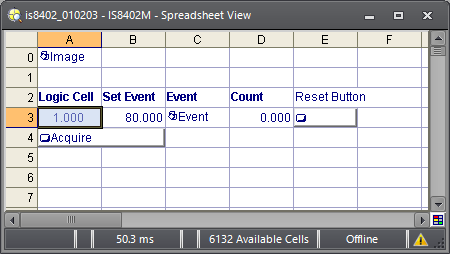
- The Logic Cell in A3 is monitored by the SetEvent function in B3. The Count in cell D3 monitors the number of transitions.
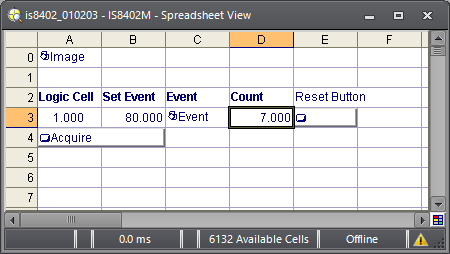
- When cell A3 transitions from 1 to 0 and back to 1, the SetEvent function in B3 issues a soft trigger event, and the Count in D3 increases incrementally.