Edit Script Dialog
Overview
The Edit Script dialog is displayed when the spreadsheet cell containing the Script function is entered, and is used to create, edit and test the JavaScript source code. By default, the first time that the Edit Script dialog is opened, a sample script and arguments are loaded. The sample script may be used as a template for creating custom scripts.
To display the Edit Script dialog
There are two methods to display the Edit Script dialog:
- Add a Script function to an empty cell.
- Double-click an existing Script function.
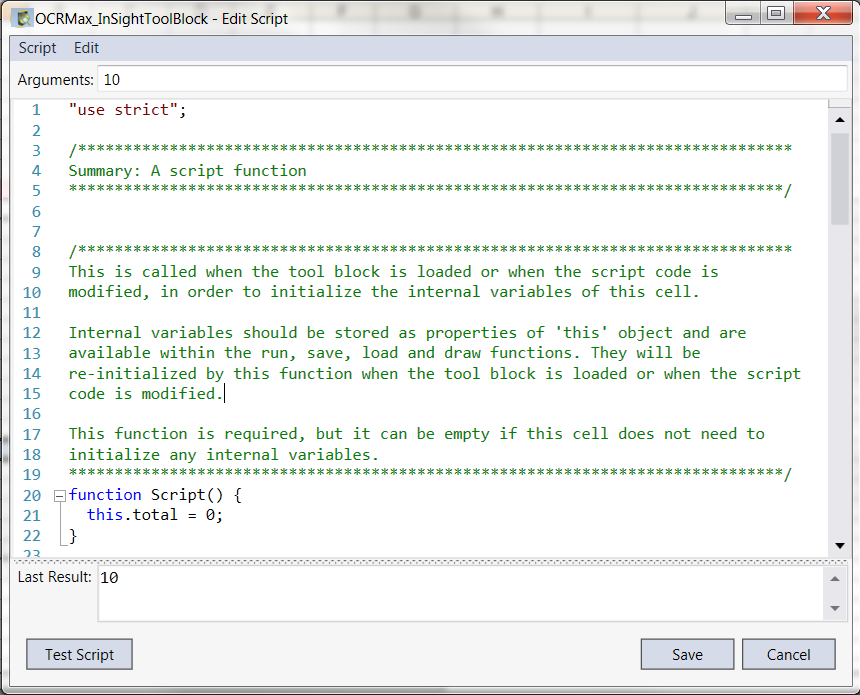
Edit Script dialog panes and controls
The Edit Script dialog is composed of three different panes: Arguments Textbox, Code Editor and Last Result.
In addition to the panes, the Edit Script dialog contains the following menu items and button controls:
-
Script: Allows access to various actions to modify the script:
- Test Script: Runs the script. Performs the same action as the Test Script button.
- Import Script: Launches an Import Script dialog, which displays any saved script files (denoted by a .js file extension). Importing a script replaces the current script in the Code Editor.
- Export Script: Launches a Export Script dialog, which allows a script file to be saved (with a .js file extension).
- Revert Changes: Restores the script to its state prior to the Edit Script dialog being opened.
- Close: Closes the Edit Script dialog and prompts to save changes before closing the dialog, if changes have been made.
-
Edit: Allows various actions to modify the source code in the Code Editor:
- Undo: Undoes the last change made to the script in the Code Editor.
- Redo: Redoes the last change that was undone to the script in the Code Editor.
- Copy: Copies the selected text in the Code Editor to the clipboard.
- Cut: Cuts the selected text in the Code Editor and copies it to the clipboard.
- Paste: Pastes the content in the clipboard to the Code Editor.
- Find: Launches the Find tab of the Find and Replace dialog, to locate text in the code.
- Replace: Launches the Replace tab of the Find and Replace dialog, to locate text in the code, and then replace them with other text.
- Go To: Launches the Go To Line dialog, which is used to jump to a specific line number in the code.
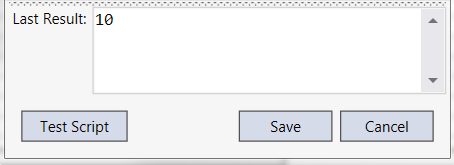
- Test Script: Applies the current JavaScript source code to the cell containing the function, and executes the cell and any of its dependencies.
- Save: Applies the current JavaScript source code to the cell containing the function, executes the cell and any of its dependencies, and closes the dialog.
- Cancel: Restores the cell to its state, prior to the Edit Script dialog being opened.
Arguments Textbox
The Arguments pane displays the Script input arguments to the Script function, which can be edited directly in the textbox. The script arguments are saved when the script is saved.

Code Editor
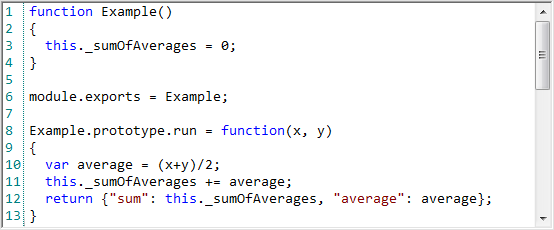
The Code Editor displays the JavaScript source code, and is used to create and edit scripts. Provided within the editor is syntax highlighting, line numbers and basic text editing functionality (undo/redo, copy/cut/paste, and so on).
- If no text is selected and the cut operation is invoked, the entire line where the cursor is located is cut.
- The JavaScript language supports and utilizes Unicode characters, and Unicode characters are supported in the Code Editor. Therefore, most international characters can be inserted into JavaScript code. Strings passed into Script functions as arguments and returned from Script functions and Get functions can also contain Unicode characters.
Shortcuts
While in the Code Editor, the following shortcuts are available:
- Ctrl + A: Selects all of the text in the code.
- Ctrl + C: Copies the selected text.
- Ctrl + F: Launches the Find tab of the Find and Replace dialog, to locate instances of values in the code.
- Ctrl + G: Launches the Go To Line dialog, which is used to jump to a specific line number in the code.
- Ctrl + H: Launches the Replace tab of the Find and Replace dialog, to locate instances of values in the code, and then replace them with a substitute value.
- Ctrl + L: Deletes the line where the cursor is located.
- Ctrl + V: Pastes the copied text.
- Ctrl + T: Swaps the character where the cursor is located with the character after it.
- Ctrl + W: Selects the word beside the cursor location.
- Ctrl + X: Cuts the selected text and copies it to the clipboard.
- Ctrl + Z: Undoes the last action performed.
Last Result
The Last Results pane displays the last value that was returned by the script's run() function. Pressing the Test Script button refreshes the displayed value.